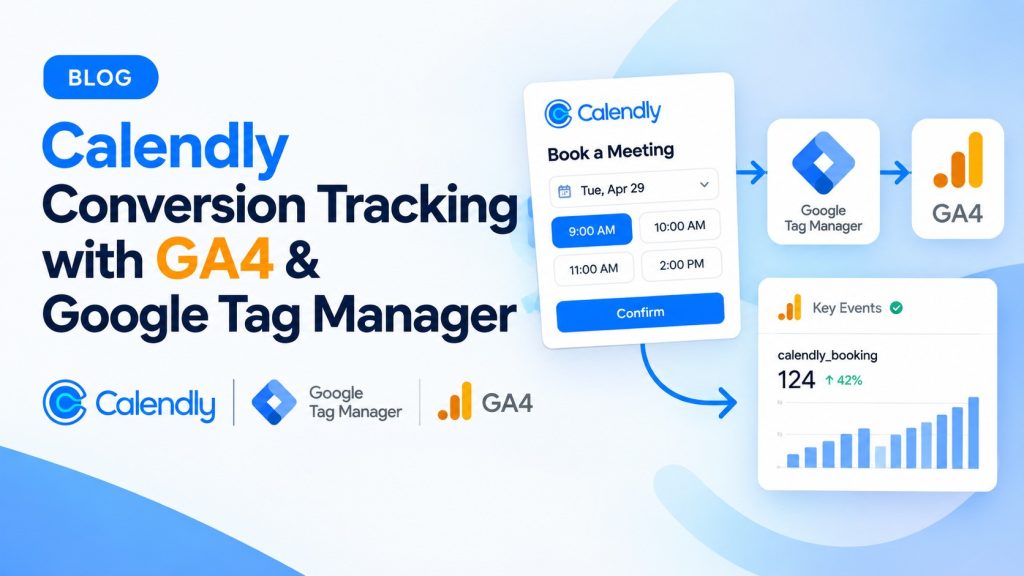
Calendly Conversion Tracking in GA4 and Google Tag Manager
If you use Calendly to generate sales calls, product demos, consultations, or qualified leads, simply knowing how many people visit your website isn’t enough.
You need to know what happens next.
Did the visitor open your Calendly booking page?
Did they select a date?
Did they select a time?
Most importantly: did they actually book a meeting?
This is where Calendly conversion tracking becomes essential.
In this guide, you’ll learn how to track Calendly bookings in Google Analytics 4 (GA4), understand the different tracking methods available, track embedded Calendly interactions with Google Tag Manager (GTM), preserve UTM parameters, and turn completed meetings into meaningful conversion data.
Quick Answer: What Is the Best Way to Track Calendly Conversions?
The best tracking method depends on how you use Calendly.
| Your Setup | Recommended Tracking Method |
|---|---|
| Calendly scheduling page | Native Calendly + GA4 integration |
| Calendly routing form | Native Calendly + GA4 integration |
| Calendly embedded on your website | GA4 integration or custom embed tracking |
| Need detailed website-level tracking | Google Tag Manager with Calendly embed events |
| Running paid campaigns | GA4 + UTMs + advertising platform conversion tracking |
| Need to track the complete marketing journey | GA4 + GTM + UTMs |
For most businesses, the most important conversion is:
A successfully scheduled Calendly meeting.
The goal is to capture that action and connect it with the marketing source that generated the booking.
Why Calendly Conversion Tracking Matters
Imagine you’re running campaigns on:
- Google Ads
- Meta Ads
- LinkedIn Ads
- Email marketing
- Organic search
- Social media
You spend thousands of dollars driving people to your website.
Some visitors click your Book a Demo button.
Some open your Calendly page.
But only a percentage actually schedule a meeting.
Without proper tracking, you may know:
“We received 10,000 website visitors.”
But you won’t know:
“Google Search generated 50 qualified meetings at $20 per booking.”
That difference is critical.
Calendly conversion tracking allows you to connect your marketing activity with real business outcomes.
What Can You Track in Calendly?
Depending on your implementation, you can track multiple steps in the booking journey.
A typical Calendly conversion funnel looks like this:
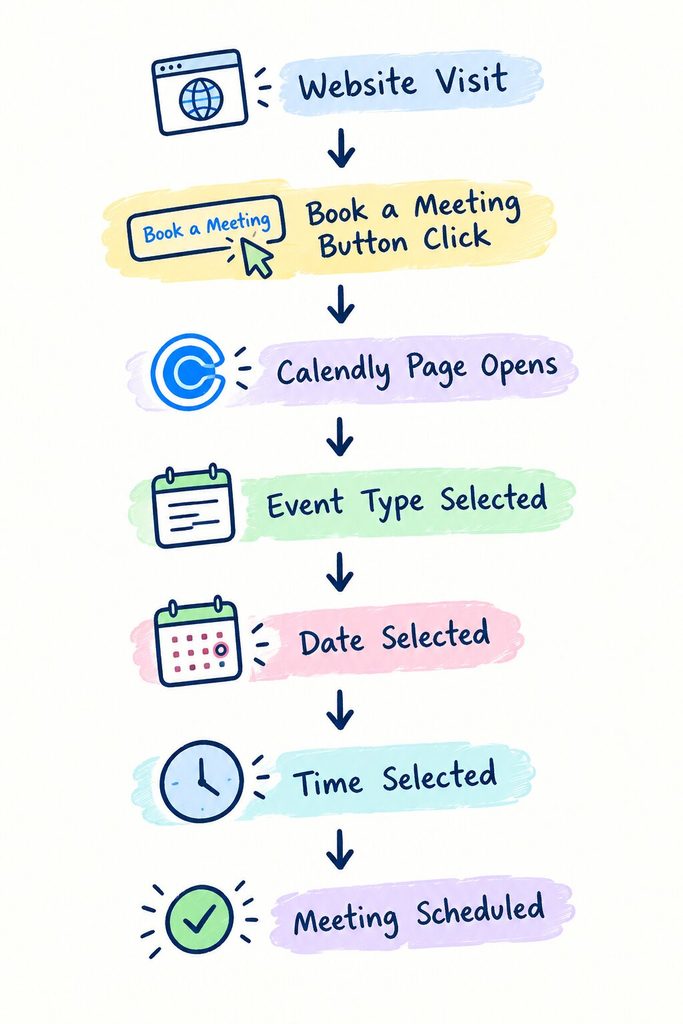
Tracking only the final booking is useful.
Tracking the entire funnel is significantly more valuable.
It allows you to answer questions such as:
- Are visitors clicking the booking button?
- Are they opening Calendly but leaving immediately?
- Are they selecting dates but not completing the booking?
- Which traffic sources generate the most meetings?
- Which campaigns generate high-quality leads?
Method 1: Track Calendly With the Native GA4 Integration
Calendly provides a native integration with Google Analytics 4.
This is generally the simplest solution if you use Calendly’s scheduling pages or routing forms.
According to Calendly’s current documentation, the integration supports GA4 and allows one GA4 Measurement ID per Calendly organization. You cannot assign separate tracking IDs to individual users or teams within the same organization.
Step 1: Find Your GA4 Measurement ID
Open your Google Analytics account and select the appropriate GA4 property.
Navigate to:
Admin → Data Streams
Select your website data stream.
Your Measurement ID should look like this:
G-XXXXXXXXXXCopy this ID.
Step 2: Connect Google Analytics to Calendly
Inside Calendly:
- Go to Automations
- Select Integrations & apps
- Find Google Analytics
- Select Edit
- Enter your GA4 Measurement ID
- Save the integration
Once the integration is active, Calendly can send supported visitor interactions to your GA4 property.
Calendly Events Available in Google Analytics 4
Calendly can send several important booking interactions to GA4.
| User Action | GA4 Event |
|---|---|
| Visits a routing form | invitee_visits_routing_form |
| Submits a routing form | invitee_submits_routing_form |
| Visits a Calendly landing page | invitee_scheduling_page |
| Views an event scheduling page | invitee_event_type_page |
| Selects a date | invitee_select_day |
| Selects a time | invitee_select_time |
| Successfully books a meeting | invitee_meeting_scheduled |
For most sales and marketing teams, the most important event is:
invitee_meeting_scheduledThis represents a completed booking.
How to Mark a Calendly Booking as a GA4 Key Event
A completed meeting usually represents a high-value business action.
You should therefore consider marking the booking event as a Key Event in GA4.
To do this:
- Open Google Analytics.
- Go to Admin.
- Select Events under Data Display.
- Find the relevant Calendly event.
- Enable Mark as key event.
Alternatively, you can create a new key event configuration if required.
For a standard Calendly booking setup, you would typically prioritize:
invitee_meeting_scheduled
GA4 can then use this event as an important business outcome in your reporting and connected advertising workflows.
Method 2: Track an Embedded Calendly Widget With Google Tag Manager
This is where Calendly tracking becomes more interesting.
Many businesses don’t send visitors directly to Calendly.
Instead, they embed Calendly inside their website.
For example:
<div class="calendly-inline-widget"
data-url="https://calendly.com/your-link"
style="min-width:320px;height:700px;">
</div>

<script src="https://assets.calendly.com/assets/external/widget.js"></script>
An embedded Calendly calendar can generate interaction events that can be detected by the parent website.
This creates opportunities for custom tracking through Google Tag Manager.
Calendly documents several embed interaction events, and its advanced embed functionality can be used to listen for visitor actions through browser messaging.
Why Use GTM for Embedded Calendly Tracking?
Google Tag Manager gives you more control over your tracking architecture.
For example, you can:
- Push Calendly interactions into the Data Layer
- Send custom events to GA4
- Trigger conversion tags
- Track individual booking stages
- Build custom marketing funnels
- Connect events with additional tracking tools
This approach is particularly useful when Calendly is an important part of your website conversion funnel.
Calendly Embed Events You Can Track
Calendly embeds can generate interaction events such as:
calendly.profile_page_viewedcalendly.event_type_viewedcalendly.date_and_time_selectedcalendly.event_scheduled
The exact implementation and event structure can vary depending on whether you’re using Calendly’s native GA integration or custom embed event tracking.
The most important event is usually:
calendly.event_scheduledThis indicates that the visitor has completed the booking process.
How to Send Calendly Events to the GTM Data Layer
One approach is to listen for Calendly messages and push them into Google Tag Manager’s Data Layer.
A typical implementation looks like this:
<script>
window.addEventListener("message", function(event) {

  if (
    event.data &&
    event.data.event &&
    event.data.event.indexOf("calendly.") === 0
  ) {

    window.dataLayer = window.dataLayer || [];

    window.dataLayer.push({
      event: event.data.event
    });

  }

});
</script>
This listener checks for Calendly interaction messages and pushes the event into the Data Layer.
For example:
calendly.event_scheduledcould become available inside Google Tag Manager as a custom event.
Calendly documents the use of browser message events for tracking actions within embedded widgets.
Important: Always test your implementation in GTM Preview mode before publishing. Embed events may not contain all of the metadata available through Calendly’s native GA4 integration.
Step 2: Create a Custom Event Trigger in Google Tag Manager
Once the event reaches the Data Layer, create a trigger in GTM.
Navigate to:
Triggers → New → Custom Event
For a completed meeting, use:
calendly.event_scheduledSave your trigger.
Now your Google Tag Manager container can detect when someone successfully schedules a Calendly meeting.
Step 3: Send the Calendly Booking Event to GA4
Create a Google Analytics event tag in GTM.
Use an event name such as:
calendly_meeting_scheduledAttach your custom Calendly trigger.
The tracking flow now becomes:
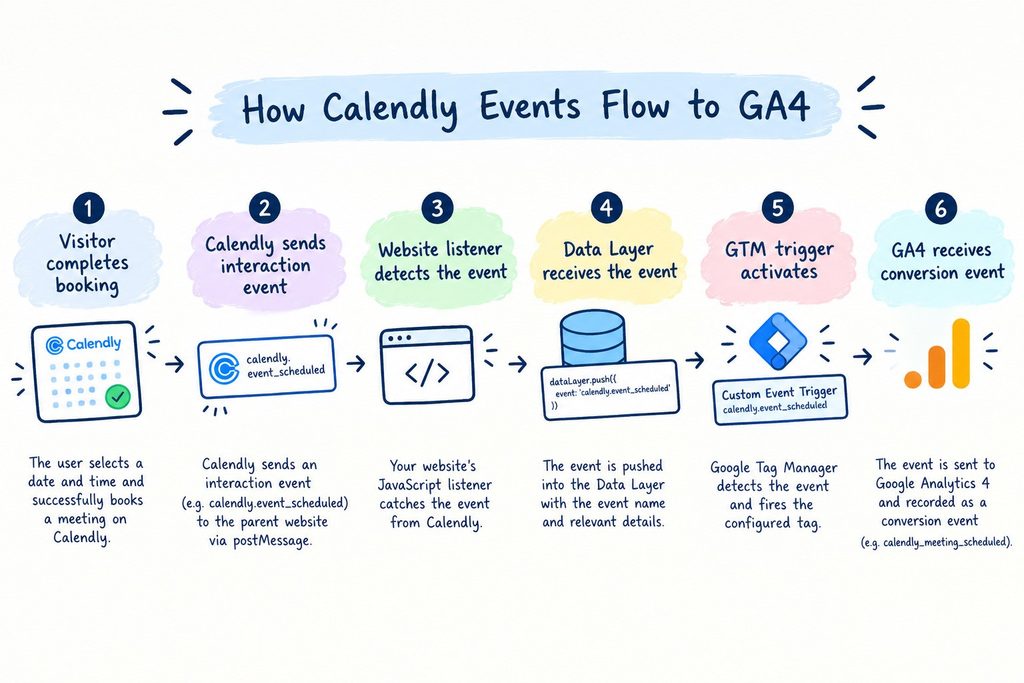
This gives you a much more flexible tracking system than relying exclusively on pageviews.
Native Calendly GA4 Tracking vs GTM Tracking
Which approach should you choose?
| Feature | Native GA4 | GTM Embed Tracking |
|---|---|---|
| Easy setup | Excellent | Moderate |
| Calendly scheduling pages | Yes | Limited |
| Embedded Calendly | Yes | Yes |
| Custom events | Limited | Excellent |
| Data Layer integration | No | Yes |
| Custom marketing tags | Limited | Excellent |
| Technical knowledge required | Low | Medium |
My Recommendation
Use the native Calendly GA4 integration when you want a simple implementation.
Use GTM tracking when Calendly is embedded on your website and you need more control over your conversion tracking.
In some cases, a combination of both may be appropriate—but avoid unintentionally duplicating the same conversion events in GA4.
How to Track Calendly Traffic Sources With UTM Parameters
Conversion tracking is only half the equation.
You also need to know where the conversion came from.
UTM parameters help solve this problem.
For example:
https://calendly.com/your-event
?utm_source=google
&utm_medium=cpc
&utm_campaign=product_demo
UTM parameters can identify:
- Traffic source
- Marketing medium
- Campaign
- Content variation
- Paid search terms
Calendly currently supports standard UTM values including utm_source, utm_medium, utm_campaign, utm_content, and utm_term.
Recommended UTM Structure for Calendly Campaigns
Google Ads
utm_source=google
utm_medium=cpc
utm_campaign=product_demo
Meta Ads
utm_source=facebook
utm_medium=paid_social
utm_campaign=demo_campaign
LinkedIn Ads
utm_source=linkedin
utm_medium=paid_social
utm_campaign=b2b_demo
Email Campaign
utm_source=newsletter
utm_medium=email
utm_campaign=september_offer
The key is consistency.
Avoid using multiple names for the same platform.
For example, don’t randomly switch between:
- FB
- fb_ads
A consistent UTM naming structure creates cleaner GA4 reports.
How to Preserve UTM Parameters in an Embedded Calendly Widget
This is a common tracking challenge.
A visitor may arrive on:
yourwebsite.com/demo?utm_source=google&utm_campaign=demoBut your Calendly embed might use a static URL.
If the campaign parameters aren’t passed into Calendly, you may lose valuable attribution information.
Calendly supports passing UTM values directly to an embedded widget, including through its advanced JavaScript embed options.
For example:
Calendly.initInlineWidget({
  url: 'https://calendly.com/YOUR_LINK',
  parentElement: document.getElementById('calendly-embed'),

  utm: {
    utmSource: 'google',
    utmMedium: 'cpc',
    utmCampaign: 'product_demo'
  }
});
A more advanced setup can dynamically read UTM parameters from the website URL and pass them into the Calendly widget.
This is especially useful when the same landing page receives traffic from multiple campaigns.
Track Calendly Conversions From Google Ads
A typical Google Ads conversion path looks like this:
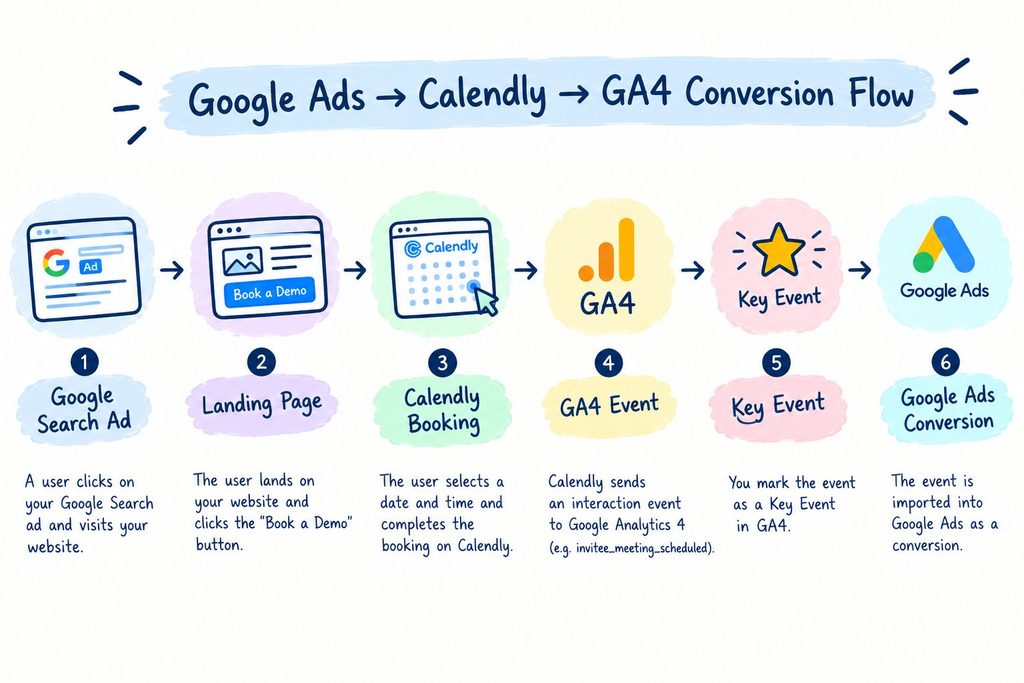
The goal is to optimize advertising based on actual business outcomes rather than simple clicks.
For example:
| Campaign | Spend | Clicks | Meetings |
|---|---|---|---|
| Campaign A | $1,000 | 1,000 | 10 |
| Campaign B | $1,000 | 500 | 30 |
Campaign A produces more clicks.
But Campaign B produces more meetings.
Without Calendly conversion tracking, you could make the wrong optimization decision.
Track Calendly Conversions From Meta Ads
The same principle applies to Meta advertising.
Instead of optimizing only for:
- Landing page views
- Button clicks
- Form interactions
You can work toward measuring completed meetings.
Your ideal conversion journey may look like:
Meta Ad
↓
Landing Page Visit
↓
Calendly Interaction
↓
Meeting Scheduled
The more accurately you connect these actions, the better you can understand which campaigns generate meaningful business results.
How to Build a Calendly Funnel in GA4
GA4 Funnel Exploration can help you identify where users abandon the booking process.
A basic funnel could include:
Step 1: Calendly Page Visit
invitee_scheduling_page
Step 2: Event Type Page
invitee_event_type_page
Step 3: Date Selection
invitee_select_day
Step 4: Time Selection
invitee_select_time
Step 5: Meeting Scheduled
invitee_meeting_scheduled
You can then analyze drop-offs between each stage.
For example:
| Funnel Stage | Users |
|---|---|
| Scheduling Page | 10,000 |
| Event Page | 7,500 |
| Date Selected | 4,200 |
| Time Selected | 2,800 |
| Meeting Scheduled | 1,200 |
This would suggest that the biggest drop-off occurs between the initial visit and date selection.
That could indicate problems such as:
- Unclear meeting descriptions
- Poor availability
- Mobile usability issues
- Unexpected booking requirements
- Long forms
How to Test Calendly Tracking
Never assume your tracking works.
Test the complete conversion journey.
Step 1: Open GTM Preview Mode
If you’re using Google Tag Manager, activate Preview Mode.
Visit the page containing your Calendly embed.
Step 2: Complete a Test Booking
Go through the entire process:
- Open Calendly
- Select an event
- Choose a date
- Choose a time
- Complete the booking
Step 3: Check the Data Layer
Confirm that the expected event appears.
For example:
calendly.event_scheduled
Step 4: Check GA4 Realtime Reporting
Open:
GA4 → Reports → Realtime
Look for your Calendly events.
Calendly recommends testing with a booking and checking incoming activity in Google Analytics; some standard reporting may take additional time to populate.
Calendly Events Not Showing in GA4? Troubleshooting Guide
If your events aren’t appearing, check the following.
Problem 1: Incorrect Measurement ID
Make sure you’re using the correct GA4 Measurement ID.
It should look like:
G-XXXXXXXXXXAlso verify that you’re sending data to the correct GA4 property.
Problem 2: You Haven’t Completed the Booking Journey
Some events only fire after a specific action.
Don’t test only by loading the page.
Complete the entire booking process.
Problem 3: GTM Listener Isn’t Working
If you’re using a custom implementation, check:
- Is the listener installed?
- Does the browser receive Calendly messages?
- Are events being pushed into the Data Layer?
- Does your GTM trigger match the exact event name?
Even a small spelling difference can prevent your tag from firing.
Problem 4: Your Events Are Duplicated
This is a surprisingly common issue.
You might have:
- Calendly native GA4 tracking
- A GTM-based GA4 event
- Another custom JavaScript implementation
All tracking the same booking.
This can artificially increase your conversion numbers.
Always test your GA4 event stream and ensure that one real booking does not create multiple conversion events.
Problem 5: Missing UTM Attribution
If bookings appear but marketing sources are unclear, review:
- Your campaign URLs
- UTM naming conventions
- Redirects
- Calendly embed configuration
Calendly supports passing UTM information into embedded scheduling experiences, making proper attribution possible when configured correctly.
Common Calendly Tracking Mistakes
Tracking Only the Booking Button
A button click is not a completed meeting.
Someone may click:
Book a Demo
and immediately leave.
Track the completed booking separately.
Tracking Pageviews as Conversions
A Calendly page view indicates interest.
It does not indicate success.
Prioritize actual scheduled meetings when measuring high-value conversions.
Ignoring Campaign Attribution
Without proper UTM tracking, you may struggle to understand where your meetings originated.
This can result in poor marketing decisions.
Not Testing After Implementation
Analytics implementations can break when:
- Websites are redesigned
- GTM containers are updated
- Calendly embeds are changed
- Consent systems are modified
Always test your conversion tracking after major website changes.
The Best Calendly Tracking Setup for Most Businesses
For most marketing teams, I recommend the following structure:
Layer 1: Website Analytics
Track:
- Traffic source
- Landing pages
- User behavior
- CTA clicks
Layer 2: Calendly Tracking
Track:
- Scheduling page visits
- Event views
- Date selections
- Time selections
- Completed meetings
Layer 3: Campaign Attribution
Use:
- UTM parameters
- Google Ads campaign data
- Meta campaign data
- Email campaign tracking
Layer 4: Conversion Reporting
Create reports showing:
- Meetings by channel
- Meetings by campaign
- Cost per booked meeting
- Booking conversion rate
- Landing page to meeting conversion rate
This provides a much more complete picture of your marketing performance.
Final Thoughts
Calendly should not be treated as a separate scheduling tool disconnected from your marketing data.
For many businesses, a Calendly booking represents one of the most important conversion actions in the entire customer journey.
The ideal tracking setup allows you to answer one simple question:
Which marketing activities are generating actual meetings?
For simple implementations, Calendly’s native GA4 integration can track important scheduling interactions.
For businesses using embedded Calendly widgets, Google Tag Manager can provide additional flexibility by capturing embed interaction events and connecting them with a broader analytics implementation. Calendly also supports UTM-based attribution for scheduling links and embeds.
When properly implemented, your conversion funnel can become:
Marketing Channel → Landing Page → Calendly → Meeting → Revenue
And that’s where your analytics becomes genuinely useful.
Frequently Asked Questions About Calendly Conversion Tracking
Can Calendly be tracked in Google Analytics 4?
Yes. Calendly provides a GA4 integration that can track visitor actions on scheduling pages and routing forms, including completed meeting bookings.
What is the Calendly booking event in GA4?
The primary event for a completed booking is:
invitee_meeting_scheduledThis can be marked as a Key Event in Google Analytics.
Can I track Calendly with Google Tag Manager?
Calendly does not provide a direct native GTM integration for its standalone scheduling pages. However, embedded Calendly widgets can expose interaction events that can be used in custom website and GTM tracking implementations.
Can I track a Calendly embed?
Yes. Calendly provides documentation for tracking activity inside embedded scheduling experiences and supports interaction tracking through its embed functionality.
How do I track where Calendly bookings come from?
Use UTM parameters such as:
utm_sourceutm_mediumutm_campaignCalendly can use these parameters to help identify the marketing source associated with scheduling activity.
What should I use as my primary Calendly conversion?
For most sales and lead-generation businesses, a completed meeting is the best primary conversion event.