Google Ads Conversion Tracking with GTM: The Professional Method
Running Google Ads without proper conversion tracking is basically running on guesswork. You might get clicks, traffic, and even enquiries, but without clear tracking, you do not know which campaigns are actually producing leads.
The professional way to handle this is to use Google Tag Manager to manage your Google Ads conversion tracking. It keeps your tracking organised, makes future changes easier, and gives you a much clearer picture of what is working.
This setup covers three important conversion types for a lead generation landing page:
- Lead form submissions
- Phone number clicks on the website
- Calls made directly from Google Ads call assets
What You’ll Learn
- Track form submissions, landing page call clicks, and calls made directly from Google Ads.
- Install Google Tag Manager using both head and body snippets on every relevant page.
- Use thank you page and tel: link triggers to fire Google Ads conversion tags.
- Test every conversion event in Tag Assistant before optimising campaigns around the data.
Table of Contents
- Why Use Google Tag Manager for Google Ads Conversion Tracking?
- The 3 Google Ads Conversions You Should Track
- Create and Install Your Google Tag Manager Container
- Create Your Conversion Actions in Google Ads
- Create the Google Ads Conversion Tag for Form Submissions
- Create a Thank You Page Trigger for Form Submissions
- Create the Phone Click Trigger
- Why Calls From Ads Do Not Need a GTM Tag
- Test Every Tag With Tag Assistant
- Select the Right Conversion Goals in Your Campaign
- Final Checks Before You Launch
Why Use Google Tag Manager for Google Ads Conversion Tracking?
Google Ads traffic usually lands on a dedicated landing page or a page on your website. The goal is to identify what happens after somebody clicks the ad.
You could place tracking code directly inside the landing page builder, but Google Tag Manager is the more professional method. It gives you one central place to manage tags, triggers, and future tracking changes without repeatedly editing your website.
This works whether you use GoHighLevel, WordPress, Wix, Lovable, or another website and funnel platform. The conversion logic is largely the same. What changes is simply where you place the Google Tag Manager installation code.
The 3 Google Ads Conversions You Should Track
1. Landing Page Form Submissions
The first conversion is a lead form submission. If someone clicks your Google ad, completes the form, and reaches a thank you page, that should count as a conversion.
This is normally the most important conversion for a lead generation campaign because it represents a clear enquiry.
2. Clicks on Phone Numbers or Call Buttons
The second conversion is a click on a phone number or call button on your landing page. This does not guarantee that a real conversation happened, but it does show that the person showed enough intent to click the call option.
You can choose not to track this if it does not fit your business model. Still, it is a useful signal to have, especially for local service businesses where calls are a major source of leads.
3. Calls From Google Ads Call Assets
The third conversion happens directly on the Google ad. If you have added a call asset to a Search campaign, people on mobile devices may see a phone number or call option within the ad itself.
Because this action occurs on Google before the person reaches your website, Google Ads can track it internally. You do not need a separate Google Tag Manager trigger for it.
Create and Install Your Google Tag Manager Container
Start by going to Google Tag Manager. If you do not already have an account, create one. Google Tag Manager is free.
Create a new account for the business, then create a web container. Use the website domain as the container name and select Web as the target platform.
Once the container is created, Google Tag Manager provides two pieces of code:
- The first code belongs in the head section of every page.
- The second code belongs immediately after the opening body tag.
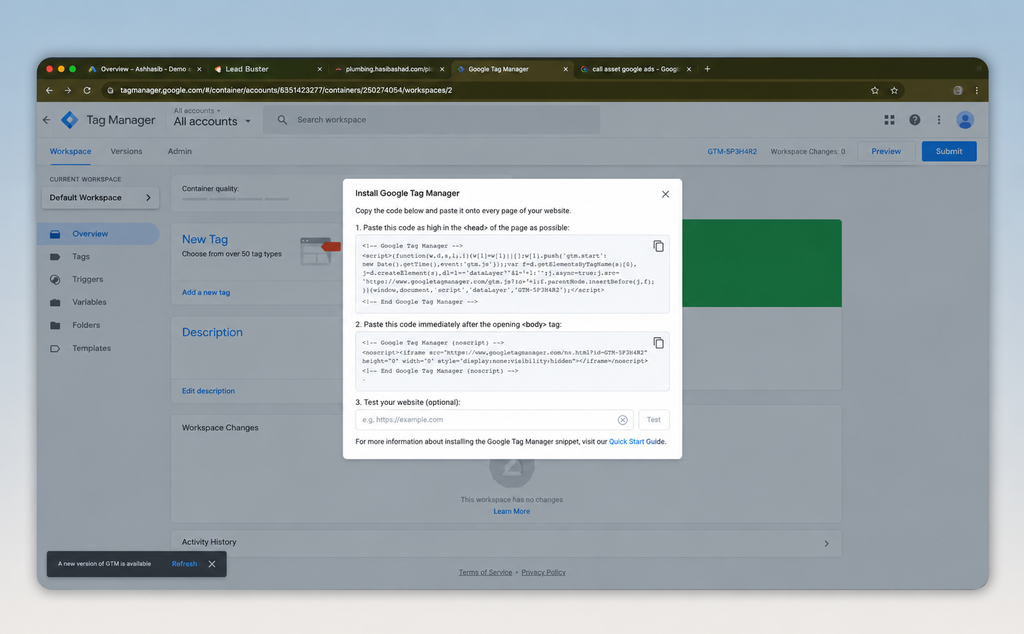
Installing GTM on GoHighLevel
In GoHighLevel, open the funnel settings and paste the first Google Tag Manager snippet into the Head Tracking Code field. Paste the second snippet into the Body Tracking Code field, then save the funnel.
That connects your funnel to Google Tag Manager.
Installing GTM on Other Website Platforms
The principle stays the same across platforms. You need a way to place the head and body snippets correctly.
- WordPress: A plugin such as WPCode can place the snippets without editing theme files directly.
- Wix: Follow the official Wix instructions for adding Google Tag Manager.
- Other builders: Search for the platform name plus “install Google Tag Manager” and follow its platform specific installation process.
After installation, use the Google Tag Manager testing option to enter your landing page URL. A successful check mark confirms that the container is loading properly.
Create Your Conversion Actions in Google Ads
Next, go to Google Ads, open Goals, then go to Conversions or Conversion actions.
If your interface looks limited, switch to advanced mode. New Google Ads accounts may open in a simpler view that hides some of the settings needed for proper conversion setup.
Set Up the Lead Form Submission Conversion
Create a new conversion action and choose Conversions on a website. Add your website URL if Google requests it.
For the conversion category, select Submit lead form. Choose the manual setup option so the conversion can be configured with Google Tag Manager.
Name the conversion something clear, such as Landing Page Form Submit.
For lead generation, the key settings are:
- Value: Use the estimated lifetime value of a lead if you know it. For example, if one lead is worth £1,000 over time, assign that value.
- Count: Choose One for lead generation, so repeat submissions from the same ad click do not inflate your data.
- Click-through conversion window: Keep the standard 90-day setting unless you have a reason to change it.
- Attribution: Use Data-driven, which is the recommended setting.
- Enhanced conversions: Make sure this is enabled for the conversion action.
Save and finish the setup. The conversion action now exists in Google Ads, but it still needs to be connected to Google Tag Manager.
Set Up the Website Phone Click Conversion
Create another website conversion action. This time, choose the category Contact, because this tracks a customer attempting to contact the business by phone, SMS, email, or chat.
Name it something simple, such as Phone Call Click. Use the same lead value if appropriate, and choose One as the count setting for a lead generation campaign.
This conversion tracks the click, not the completed phone call. Whether you include it depends on how you want to measure intent.
Set Up Calls From Google Ads Call Assets
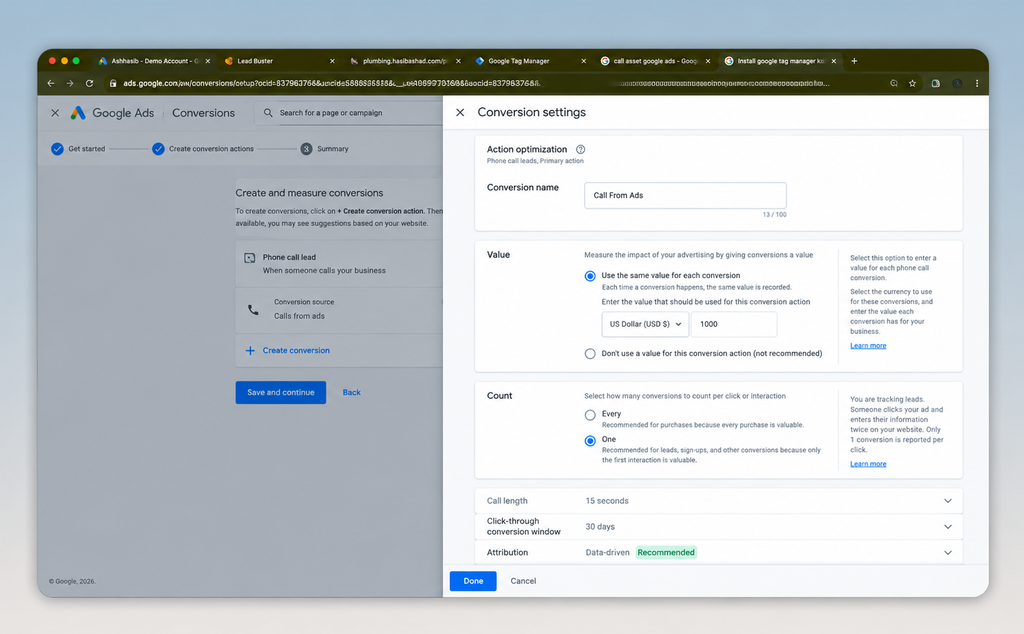
Create one more conversion action, but this time choose Conversions from phone calls instead of website conversions.
Select the Phone call lead category and choose Calls from ads.
The most important setting here is the minimum call length. This tells Google how long a call must last before it is counted as a conversion.
A 15-second threshold can work well as a starting point. You may prefer 30 or 60 seconds if your business receives short accidental calls or if a meaningful enquiry usually takes longer.
There is no universal right answer. Set the duration based on what qualifies as a real lead for your business.
Create the Google Ads Conversion Tag for Form Submissions
Go back to Google Tag Manager and create a new tag. Give it a descriptive name such as G Ads Form Submit.
For the tag configuration, choose Google Ads Conversion Tracking.
Then return to the lead form conversion action in Google Ads and choose the option to manage it using Google Tag Manager. Copy the following details:
- Conversion ID
- Conversion label
Paste these into the corresponding fields in the Google Ads conversion tag inside Google Tag Manager.
The first time you create a Google Ads conversion tag, Google Tag Manager may say that no Google tag is found in the container. Use the option to create the Google tag and save it. This creates the foundational Google tag needed for your conversion tracking.
You only need to create that base Google tag once. Every later Google Ads conversion tag can use the same installed tag.
Create a Thank You Page Trigger for Form Submissions
The tag needs a trigger. In other words, Google Tag Manager needs to know exactly when a lead form submission has happened.
The cleanest option is a thank you page. When the form is submitted successfully, redirect the person to a dedicated page with a URL containing something like thank-you.
Create a new trigger in Google Tag Manager with these settings:
- Trigger type: Page View
- Trigger fires on: Some Page Views
- Variable: Page URL
- Condition: Contains
- Value: thank-you, or the unique part of your thank you page URL
Name it something clear, such as Thank You Page Load, and attach it to the form submission conversion tag.
Now, whenever the thank you page loads, Google Tag Manager sends the lead conversion to Google Ads.
Create the Phone Click Trigger
Set up a second Google Ads conversion tracking tag for your phone number clicks. Use the Conversion ID and Conversion Label from the Phone Call Click conversion action you created in Google Ads.
For this to work, every phone call button on the landing page must be a real clickable telephone link. The link format should look like this:
tel:+441234567890
The actual number will be yours, of course. The important part is the tel: prefix. It tells browsers and mobile devices that the link should open a phone call action.
Create a new trigger in Google Tag Manager using these settings:
- Trigger type: Just Links
- Trigger fires on: Some Link Clicks
- Variable: Click URL
- Condition: Contains
- Value: tel:
Name the trigger something like Call Button Click and attach it to the phone click conversion tag.
With this rule in place, any click on a link containing tel: is recognised as a click on a call option and recorded as a conversion.
Why Calls From Ads Do Not Need a GTM Tag
Do not create a Google Tag Manager trigger for calls from Google Ads call assets.
Those calls happen directly from the ad, before the person reaches the landing page. Google Ads already has the data it needs to track that activity internally, including the call duration threshold you selected.
Google Tag Manager is only required for conversion actions that take place on your website or landing page.
Test Every Tag With Tag Assistant
Never assume your tracking works just because the tags have been created. Test it.
In Google Tag Manager, click Preview in the top right corner. This opens Tag Assistant. Enter your landing page URL and connect it to start a test session.
First, confirm that the base Google tag is firing on the landing page. Then test each conversion event:
- Click a phone number or call button on the page.
- Check Tag Assistant and confirm that the phone click conversion tag appears under Tags Fired.
- Submit the lead form.
- Confirm that the form redirects to the thank you page.
- Return to Tag Assistant and confirm that the form submission conversion tag appears under Tags Fired.
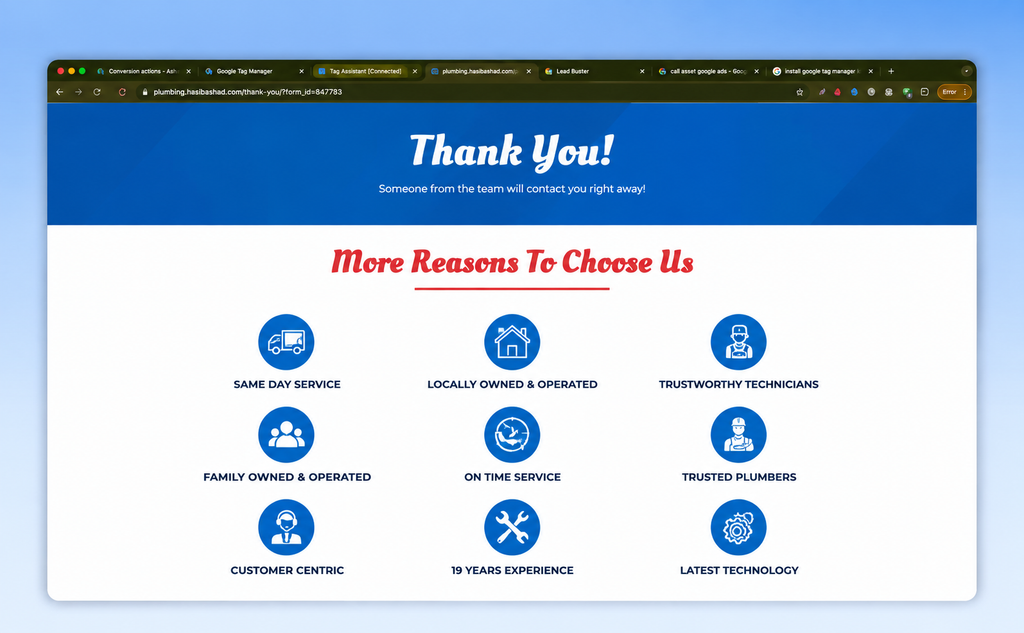
If the form submission tag does not fire, check that the form is actually redirecting to the correct thank you page. If the phone click tag does not fire, check that the phone number is a clickable tel: link.
Select the Right Conversion Goals in Your Campaign
Once the conversion actions are live and tested, make sure your campaigns are optimising for them.
When creating a new Google Ads lead campaign, select Leads as the campaign objective. Under conversion goals, include the conversion actions that matter to that campaign:
- Submit lead form: Tracks thank you page visits after successful form submissions.
- Phone call leads: Tracks calls from Google Ads call assets.
- Contacts: Tracks phone number clicks on the landing page.
Once these goals are selected, Google Ads can attribute those conversions back to the campaign and ads that generated them.
That is the whole point. You stop making decisions based only on clicks and start optimising based on real lead activity.
Final Checks Before You Launch
Before relying on your conversion data, make sure these basics are in place:
- Your Google Tag Manager container loads on every relevant page.
- Your lead form redirects successfully to a unique thank you page.
- Your thank you page trigger matches the real URL.
- Every visible phone number that should be tracked uses a clickable tel: link.
- Your form and call click tags both fire in Tag Assistant.
- Your Google Ads campaign includes the correct conversion goals.
Once all of that is done, your account is set up to measure the conversions that actually matter. That is how you get out of guesswork and make better Google Ads decisions with real data.
Frequently Asked Questions
Do I need Google Tag Manager to track Google Ads conversions?
You can install tracking directly on a website, but Google Tag Manager is the cleaner and more professional way to manage Google Ads conversion tags and triggers.
Why is a thank you page useful for form conversion tracking?
A unique thank you page provides a clear page load event after a successful form submission, making it an easy and reliable trigger for a conversion tag.
How do I track phone number clicks with Google Tag Manager?
Use a Just Links trigger that fires when the Click URL contains tel:. Your phone numbers must be configured as clickable telephone links.
Should phone number clicks count as conversions?
They can be useful intent signals, but they do not confirm a completed call. Track them if they help your business understand lead behaviour on the landing page.