WhatsApp Click Tracking for WordPress: Setup + Common Mistakes
Plenty of WordPress sites such as local service businesses, agencies, real estate, anything where the sales cycle starts with a conversation treat a WhatsApp button as their main call-to-action. And a surprising number of them have no real idea how many people actually click it.
That’s an easy gap to close, and one of the simpler events to get right in Google Tag Manager. Skip it, though, and “WhatsApp” traffic just vanishes into your analytics as a dead end someone clicked, and then, as far as your reporting is concerned, nothing happened. This guide covers what the event actually captures, how to build it in GTM for GA4, Google Ads, and Meta, and the handful of mistakes that quietly stop it from working. It also covers something most tutorials skip entirely: where this kind of tracking runs into a hard wall, and why that matters if you’re running Click-to-WhatsApp ads specifically.
What Is WhatsApp Click Tracking?
At its core, WhatsApp click tracking captures the moment someone clicks a link or button that opens a WhatsApp chat — a wa.me link, an api.whatsapp.com/send link, or a chat-widget button triggering one of those URLs behind the scenes. It’s a standard browser click event, no different in principle from tracking a phone number click or an outbound link.
Worth being precise here, because “WhatsApp tracking” gets used to mean two genuinely different things. What this guide covers is the click — a normal, fully trackable browser event happening on your own site. What it does not cover is the conversation that follows, or Click-to-WhatsApp ad conversions that skip your website entirely. That distinction matters enough to earn its own section further down, so hold that thought.
Why WordPress Sites Track WhatsApp Clicks
For a lot of WordPress-based businesses, WhatsApp isn’t a step toward the conversion — it is the conversion. Not a form fill, not an email, a chat. Miss that click and a meaningful chunk of traffic looks like it left the site and did nothing, when in reality it did exactly what you wanted it to do.
A few reasons this actually matters, beyond just “nice to have data”:
- Ad platforms need something to optimize toward. If Google Ads or Meta can’t see a WhatsApp click happening, they can’t push your campaigns toward the people likely to take that action.
- Landing page testing is flying blind without it. No way to tell which headline, offer, or layout drives WhatsApp conversations if the click itself was never measured.
- It breaks silently. A WhatsApp button can look perfectly functional — the chat still opens — while the tracking underneath is dead, and nothing on the front end tips you off.
How WhatsApp Click Tracking Actually Works
WhatsApp links follow a predictable pattern, which is exactly what makes this event easy to trigger on. Most buttons point to one of:
https://wa.me/<phone-number>https://api.whatsapp.com/send?phone=<phone-number>
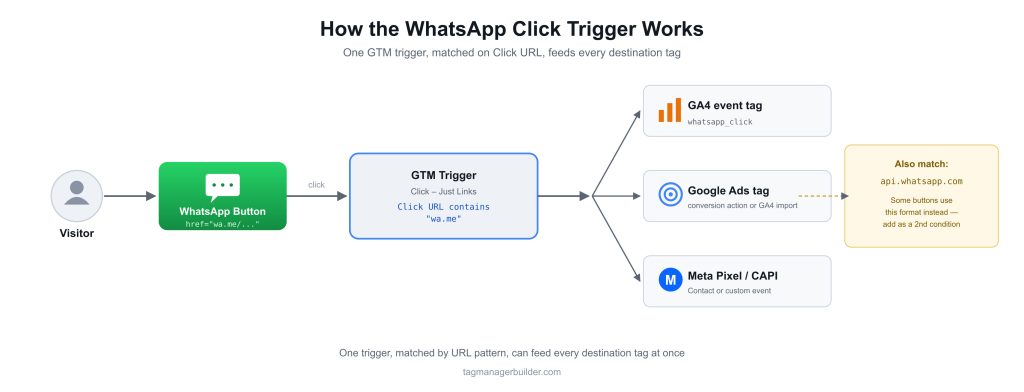
Both open a WhatsApp chat — either the app itself or WhatsApp Web, depending on the device. Because these are standard <a href> links, Google Tag Manager can pick up the click using its built-in Just Links trigger, matching on the Click URL variable, no custom code involved.
Google’s own documentation on the GTM click trigger goes deeper on the mechanics — specifically the difference between “Just Links” and “All Elements,” and when the “Wait for Tags” option is actually worth turning on.
Setting Up WhatsApp Click Tracking in Google Tag Manager
Step 1: Confirm how your WhatsApp button is built
Right-click the button on your live site and inspect the element. Confirm it’s a genuine <a href="wa.me/..."> or <a href="api.whatsapp.com/send..."> link, not a JavaScript-only button with no href — the trigger below only works if GTM can actually read a link.
Step 2: Enable a Click URL variable
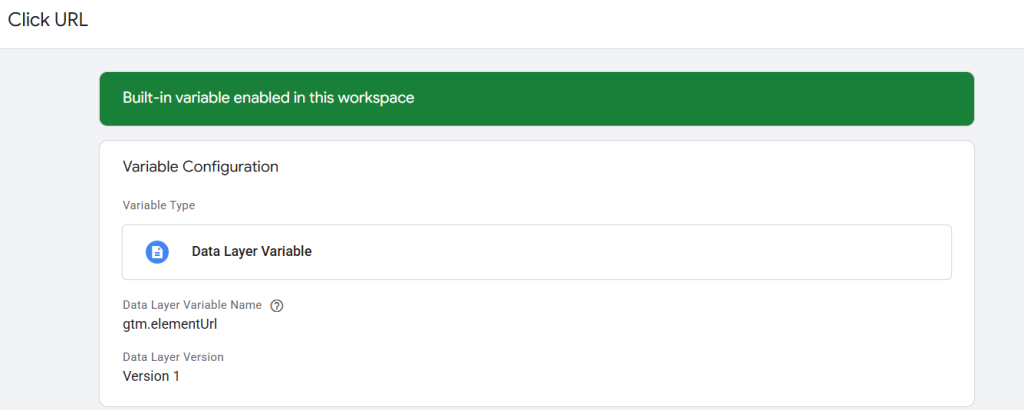
In GTM, go to Variables → Configure → turn on Click URL under the built-in Clicks variables. This is what the trigger pattern-matches against.
Step 3: Build the trigger
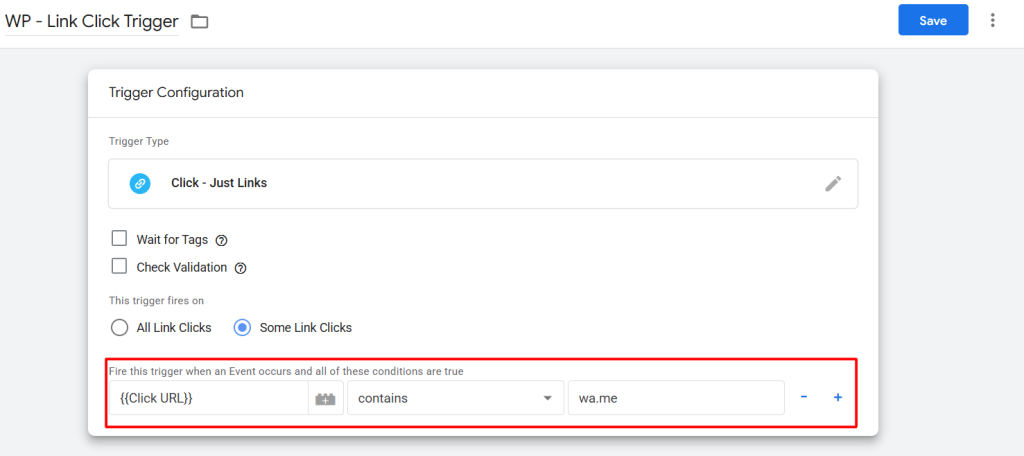
New trigger → type Click – Just Links → “This trigger fires on” → Some Link Clicks → condition: Click URL contains wa.me. If your buttons also use the api.whatsapp.com format, add a second condition for that too — either as an “or” group on the same trigger, or as a second trigger attached to the same tag.
Step 4: Skip “Wait for Tags” unless you have a good reason
WhatsApp links usually open in a new tab or the WhatsApp app itself, so there’s no page navigation to race against. Most setups don’t need “Wait for Tags” here — but if your button opens WhatsApp in the same tab, turning it on buys your tags a moment to fire before the browser redirects away.
Step 5: Attach the trigger to your tags
Hook this trigger up to a GA4 event tag, a Google Ads conversion tag, and/or a Meta tag — whichever platforms you’re actually advertising on. Each is covered individually below.
Step 6: Test before you publish
Click the WhatsApp button on a test page with GTM Preview mode running, and confirm both the trigger fires and the right tags execute.
If building this trigger from scratch isn’t how you want to spend your time, TagManagerBuilder’s WordPress WhatsApp Click event is already included in the free container builder — select it alongside whatever ad platforms you’re tracking, and it’s generated for you as part of the exportable container.
WhatsApp Click Tracking for GA4
For GA4, WhatsApp clicks typically go through as a custom event — whatsapp_click is the conventional name, matching how GTM’s WordPress platform templates label it. Set up a GA4 event tag with:
- Event name:
whatsapp_click - Event parameters (optional, but worth adding):
link_url(pulled from the Click URL variable) andpage_location, so you can see which page the click actually happened on
Once this is firing reliably, mark whatsapp_click as a key event (GA4’s current term for what used to be called a conversion) in GA4’s Admin settings — that makes it available for Google Ads conversion import if the two are linked.
WhatsApp Click Tracking for Google Ads
Two paths here, both common:
- Import it from GA4 — if
whatsapp_clickis already marked as a key event in GA4 and the property’s linked to Google Ads, it can be imported directly as a conversion action, no separate tag needed. - A dedicated Google Ads conversion tag in GTM — fired straight off the same WhatsApp click trigger, useful if you’re skipping GA4 or just want a Google Ads-specific label.
Either way, treat this as a micro-conversion, not a stand-in for a closed sale. A WhatsApp click means someone started a conversation — nothing more, nothing less. If you’re bidding on this conversion action, set its value or bid strategy accordingly instead of treating every click as equal to revenue.
WhatsApp Click Tracking for Meta Ads
For Meta, the same trigger can fire a Contact or a custom event through the Meta Pixel — and, for anyone also running Meta Conversions API, mirror it server-side. TagManagerBuilder’s Meta Conversions API guide covers the general CAPI pattern, which applies here the same way it does for any other event: a shared event_id between the Pixel and the server-side event, so Meta deduplicates instead of double-counting.
Worth flagging early: if you’re running Click-to-WhatsApp ads specifically — Meta’s ad format that sends someone straight into a WhatsApp conversation without touching your site at all — none of this Pixel/CAPI setup will see those clicks, because the person never lands on your site to begin with. That’s a genuinely different tracking problem, and it’s the whole subject of the next section.
Beyond the Click: Why GTM Can’t See What Happens Inside WhatsApp
This is the part most WhatsApp tracking guides quietly skip, and it’s the single biggest source of confusion on this whole topic.
Everything above — the click trigger, the GA4 event, the Google Ads and Meta tags — tracks the moment someone clicks a link on your website that opens WhatsApp. Ordinary browser event, handled the same way GTM handles any other click.
What none of it can do is see anything that happens after that click, inside the WhatsApp conversation itself. Whether a quote gets sent, whether it turns into a sale, whether the customer even replies — there’s no page, no dataLayer, nothing running in a browser for GTM to observe once someone’s inside the WhatsApp app. This isn’t a missing checkbox somewhere. It’s a hard boundary.
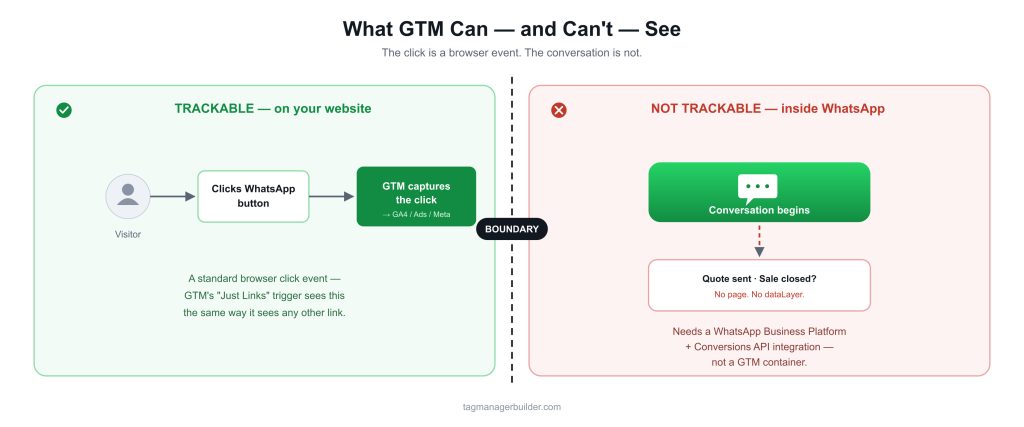
It gets sharper still with Meta’s Click-to-WhatsApp ad format, which sends people directly into a conversation — often without them ever landing on your website at all. In that scenario there’s no click on your site for GTM to trigger on in the first place; the whole setup described in this guide simply doesn’t apply.
Measuring that kind of conversion needs a completely different integration: the WhatsApp Business Platform, connected to Meta through the Conversions API, reporting conversation outcomes — a lead, a purchase — back to Meta directly, not through anything running in a browser. Meta’s own documentation on Click-to-WhatsApp ad creatives and its Conversions API for WhatsApp business messaging go into this in detail — it’s server-to-server, tied to your WhatsApp Business Account, and has nothing to do with a GTM configuration.
If this is actually what you’re trying to solve — measuring what happens after the conversation starts, not just the click that opens it — TagManagerBuilder’s Click-to-WhatsApp conversion tracking guide walks through exactly where that boundary sits and what actually closes it. And if a rough sense of click volume is genuinely enough for your purposes, the setup earlier in this guide plus Meta’s own ad-level click reporting may already cover it without a deeper integration.
Common Mistakes
Tracking the wrong URL pattern. Some buttons use wa.me, others use api.whatsapp.com/send, and plenty of sites run both depending on the page or plugin. A trigger that only matches one pattern misses clicks from the other, quietly, with no error to warn you.
Using a JavaScript-only button with no real href. Some chat-widget plugins render a button that opens WhatsApp purely through JavaScript, with no actual href set. The “Just Links” trigger won’t catch that — check whether you need an “All Elements” trigger with a CSS selector or Click Classes condition instead.
Treating the click as a conversion. A WhatsApp click means someone opened a chat window. It doesn’t mean they sent a message, and it definitely doesn’t mean they became a customer. Counting it as equivalent to a purchase in reporting or bid strategy overstates what actually happened.
Expecting this setup to catch Click-to-WhatsApp ad conversions. As covered above, that’s an entirely separate integration. If your Meta ads run the Click-to-WhatsApp format and your conversion numbers look thin, this event isn’t what’s missing.
No deduplication between Pixel and CAPI. Running both without a shared event_id means Meta may end up counting the same click twice.
Forgetting mobile and desktop behave differently. On mobile, wa.me links usually open the WhatsApp app directly; on desktop without the app installed, they route through WhatsApp Web instead. Test both — a trigger that works cleanly on one can occasionally behave differently on the other depending on how the redirect plays out.
How to Test Your WhatsApp Click Tracking
- GTM Preview mode — click the button on a test page and confirm the trigger fires with the right Click URL captured.
- GA4 DebugView — confirm the
whatsapp_clickevent lands with the parameters you expect. - Google Ads diagnostics — if you’re using a dedicated conversion tag, check the Conversions section for recent activity and tag health.
- Meta Events Manager Test Events tool — confirm the Pixel (and CAPI, if you’ve set it up) fires and matches correctly.
- Test on both mobile and desktop — given the behavior difference noted above, don’t assume a pass on desktop means a pass on mobile too.
For a broader testing checklist covering the rest of your GTM setup, TagManagerBuilder’s guide to debugging your container is worth a look next.
FAQ
1. What is WhatsApp click tracking?
It’s tracking the moment someone clicks a link or button on your website that opens a WhatsApp chat typically a wa.me or api.whatsapp.com link using Google Tag Manager’s click trigger.
2. Does WhatsApp click tracking work on WordPress without a plugin?
Yes. Since it’s just a standard link click, Google Tag Manager can track it directly with a click trigger no WordPress-specific plugin required, as long as GTM is already installed on the site.
3. Can I track WhatsApp clicks in GA4?
Yes. Set up a GA4 event tag (commonly named whatsapp_click) fired off a GTM click trigger that matches your WhatsApp link pattern.
4. Can I use WhatsApp clicks as a Google Ads conversion?
Yes — either by importing it as a key event from a linked GA4 property, or by firing a dedicated Google Ads conversion tag directly off the same trigger.
5. Does WhatsApp click tracking work with Meta ads?
It works for tracking clicks on your own website that open WhatsApp. It does not track Click-to-WhatsApp ad conversations, which bypass your site entirely and need a separate WhatsApp Business Platform integration.
6. Why isn’t my WhatsApp click trigger firing?
Usually a URL pattern mismatch the trigger only checks wa.me when the button uses api.whatsapp.com, or the reverse — or a button that opens WhatsApp through JavaScript rather than a real link, which “Just Links” won’t catch.
7. Is a WhatsApp click the same as a conversion?
Not really. It’s a signal someone started a conversation, not confirmation anything got sold. Treat it as a micro-conversion, not a final outcome.
8. Can GTM track what happens inside a WhatsApp conversation?
No. Once someone’s inside WhatsApp, there’s no page or dataLayer for a browser-based tool like GTM to observe. Tracking conversation outcomes needs a WhatsApp Business Platform integration reporting back through Meta’s Conversions API not a GTM container.
9. Do I need both a WhatsApp Pixel event and Conversions API?
If you’re running Meta ads and want more reliable delivery, yes the same Pixel-plus-CAPI pattern used for other events applies here too, with a shared event_id to avoid double-counting.
10. Is this the same as Click-to-WhatsApp ad tracking?
No. This guide covers tracking a WhatsApp link click on your own website. Click-to-WhatsApp is a Meta ad format that sends someone directly into a WhatsApp conversation without ever visiting your site, and measuring that needs a different, non-GTM integration entirely.