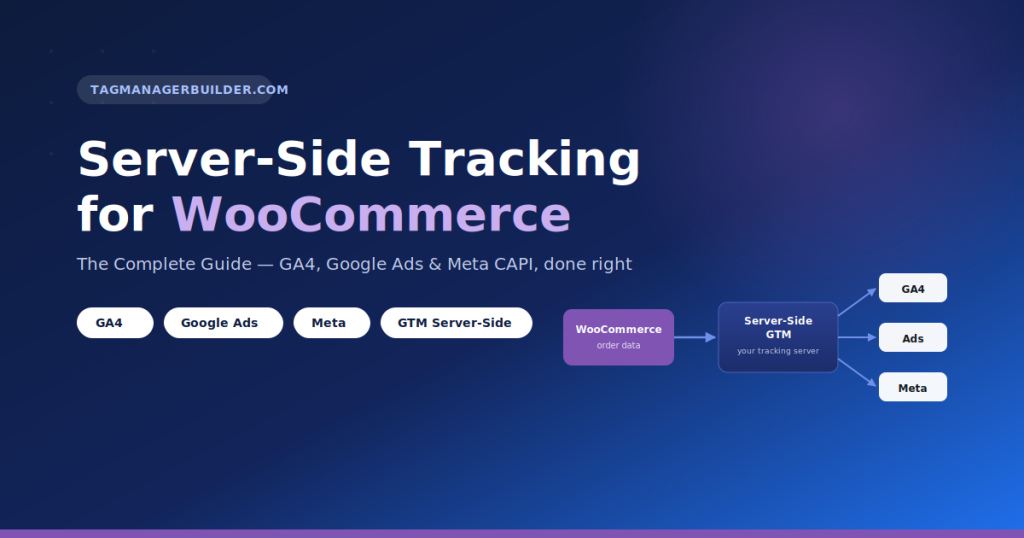
Server-Side Tracking for WooCommerce: The Complete Guide (2026)
Run ads for a WooCommerce store long enough and you’ll hit this moment: your ad platform’s conversion count doesn’t match your WooCommerce order count. Not by a little, either. That gap almost never comes from WooCommerce itself — it comes from tracking, which is exactly why “server-side tracking” keeps showing up in every ecommerce marketing conversation right now.
The short version: server-side tracking takes part of the tracking job away from the customer’s browser and hands it to a server you control. A pixel doesn’t fire straight from the browser to Meta or Google anymore — the event goes to your own server first, and your server forwards it on.
There’s a reason this has become a bigger deal in the last few years. Browser-based tracking simply doesn’t work as well as it used to. Ad blockers, Safari’s and Firefox’s tracking-prevention features, and the slow death of third-party cookies all chip away at tags that live entirely in the browser. None of that is a WooCommerce-specific problem, but WooCommerce stores absolutely feel it — a lost purchase event means underreported revenue, and it means the ad platform running your campaigns is optimizing against incomplete data.
This guide walks through what server-side tracking actually is, how it maps onto a WooCommerce store specifically, how to build it out with Google Tag Manager, GA4, Google Ads, and Meta Conversions API — and, just as importantly, where it comes up short. We’ll get into testing, the problems that show up most often, and how to figure out whether your store even needs this.
What Is Server-Side Tracking?
Start with what most WooCommerce stores already have: client-side tracking. A pixel or tag sits in the customer’s browser and talks directly to Google, Meta, TikTok, whoever. The browser does all the work — the request goes from the customer’s device straight to the ad platform’s servers, no middleman.
Server-side tracking puts a middleman in. The browser (or your site’s backend) sends the event to a server you control first. That server does whatever processing you’ve configured — enrichment, filtering, formatting — and then passes it along to the destination platforms. The browser stops talking directly to every ad platform; it only needs to reach your server.
Stripped down, the flow looks like this:
Customer
  → WooCommerce
    → Tracking Server
      → GA4 / Google Ads / Meta / Other Platforms
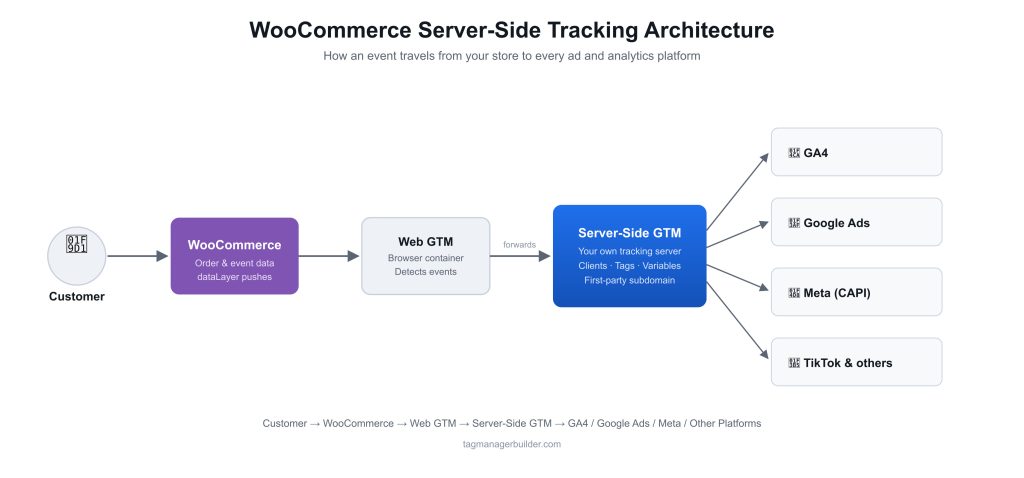
What you’re really buying here is event forwarding through infrastructure you control, instead of trusting the browser to deliver every tag to every destination on its own. Because the data routes through a server you own, you get visibility into what’s actually being sent, control over how it’s formatted, and a delivery path that doesn’t run into the same browser-level walls as a client-side pixel.
It’s also why server-side tracking gets talked about in the same breath as first-party data. Browsers treat requests to your own domain (or a subdomain you control) very differently from requests to some third-party ad or analytics domain.
One thing worth clearing up early: going server-side doesn’t mean the browser stops tracking anything. Almost every real-world WooCommerce setup runs client-side and server-side together — the browser still detects the event and kicks things off, but delivery to the destination platform happens through the server, either fully or in part.
Client-Side vs Server-Side Tracking
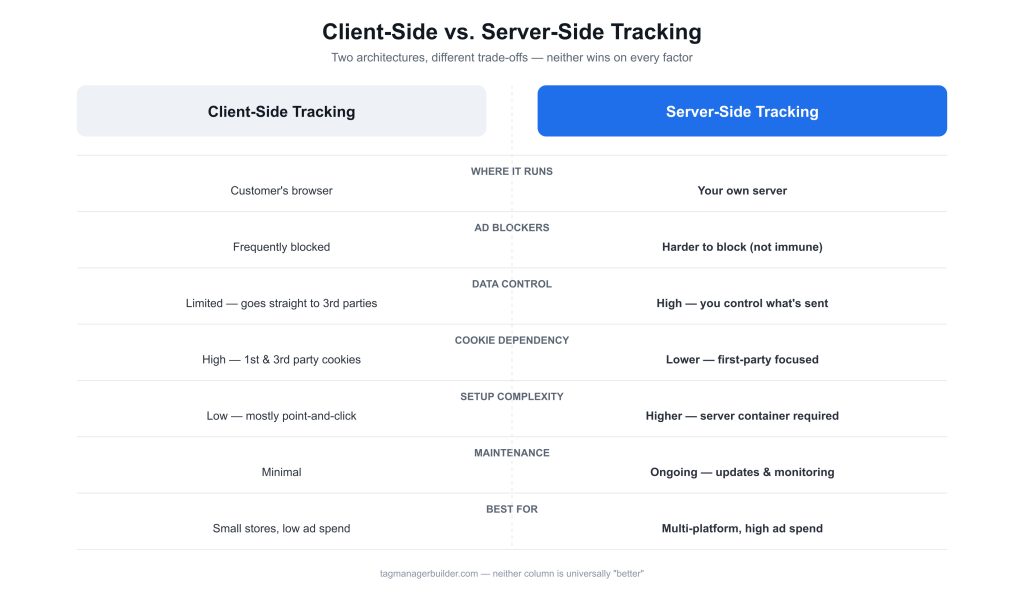
It’s tempting to treat server-side as the “upgraded” version of client-side tracking. It isn’t, really — it’s a different architecture, and it comes with its own set of trade-offs.
| Factor | Client-Side Tracking | Server-Side Tracking |
|---|---|---|
| Where it runs | Customer’s browser | Your own server/infrastructure |
| Browser dependency | High — blocked by ad blockers, ITP, ETP | Low — browser only needs to reach your server |
| Ad blockers | Frequently blocked | Harder to block, not immune |
| Data control | Limited — data goes straight to third parties | High — you control what’s sent, when, and how |
| Cookie dependency | Relies heavily on third-party and first-party cookies | Can use first-party cookies/identifiers more effectively |
| Performance | Multiple third-party scripts can slow page load | Fewer client-side scripts; server handles distribution |
| Complexity | Low — mostly point-and-click in GTM | Higher — requires a server container and hosting |
| Maintenance | Minimal | Ongoing — server updates, monitoring, debugging |
| Privacy considerations | Straightforward, but less visibility into what’s sent | Requires more deliberate consent and data-handling decisions |
| Typical use cases | Small stores, simple tracking needs | Stores running meaningful ad spend across multiple platforms |
Neither side of that table wins outright. A small store with modest ad spend probably won’t notice much practical difference from taking on server-side complexity. A store pouring real budget into Meta and Google Ads, feeding several destinations at once, has a lot more to gain from it.
Why WooCommerce Stores Need Better Tracking
WooCommerce, on its own, doesn’t do much beyond generating order data. GA4 ecommerce events, Google Ads conversions, Meta Pixel events — all of that gets bolted on afterward, usually through GTM or a plugin. And that’s exactly where things tend to break.
A few problems that come up constantly for WooCommerce stores running ads:
- Ad blockers stop Meta Pixel, Google Ads, and other client-side tags from ever firing for a chunk of visitors.
- Safari’s Intelligent Tracking Prevention (ITP) shortens the lifespan of client-side cookies, which makes it harder to tie a returning visitor or conversion back to the original ad click.
- iOS App Tracking Transparency cut into the volume and quality of data advertisers get from iOS users — Meta felt this one especially hard.
- Third-party cookie restrictions in Safari, Firefox, and (increasingly) Chrome make cross-site tracking cookies less and less reliable.
- Missing purchase events happen for boring reasons — a dropped connection, a browser extension blocking the pixel, or the confirmation page loading before scripts finish.
- Duplicate events show up when a client-side pixel and a plugin (or a second GTM tag) both fire the same purchase, quietly inflating your conversion numbers.
- Revenue discrepancies between GA4, Google Ads, Meta, and actual WooCommerce order totals are probably the single most common complaint from store owners running paid traffic.
To be upfront about it: server-side tracking doesn’t fix all of this on its own, and it would be flat-out wrong to say it “bypasses” ad blockers or “restores” every lost conversion. What it actually gives you is a more reliable, first-party-oriented delivery path for the events that do reach your server, plus real control over deduplication and data quality — control a purely client-side setup just doesn’t offer.
How Server-Side Tracking Works With WooCommerce
Here’s what the flow looks like in a typical WooCommerce server-side setup:
User
  → WooCommerce website
    → Data/event generation (dataLayer, order data)
      → Web GTM container
        → Server-side GTM container
          → Destination platforms (GA4, Google Ads, Meta, etc.)
Walk through a purchase and you’ll hit five distinct moments where tracking has to do its job:
1. Views a product — the product page loads, and WooCommerce pushes a view_item event to the dataLayer with product ID, name, price, and category.
2. Adds a product to cart — an add_to_cart event fires, usually via a WooCommerce AJAX or fragment hook, carrying the item and quantity added.
3. Starts checkout — reaching the checkout page triggers begin_checkout, typically with cart contents and value included.
4. Completes payment — WooCommerce processes the order and fires a purchase (or add_payment_info, depending on how your checkout is built) event with the order ID, value, currency, and line items.
5. Receives an order confirmation — the Thank You page is normally where the final purchase event actually gets captured, pulling transaction ID and revenue straight from the WooCommerce order object rather than trying to reconstruct it from the client-side cart, which is far less reliable.
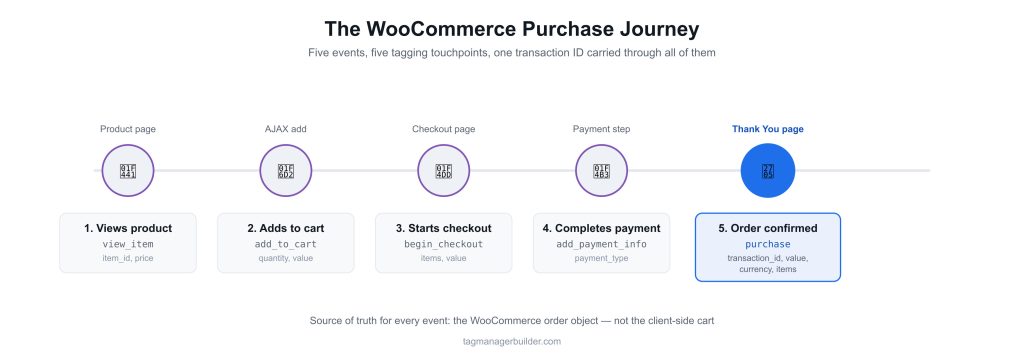
At each of those five points, the web GTM container picks up the event and either sends it straight to a destination or forwards it to the server-side container, which then redistributes it to GA4, Google Ads, Meta, and whatever else you’ve configured.
WooCommerce Events You Should Track
| Event | WooCommerce Action | Important Parameters | Destination Platforms |
|---|---|---|---|
view_item | Product page view | item_id, item_name, price, currency | GA4, Meta, Google Ads |
add_to_cart | Add to Cart button / AJAX add | item_id, item_name, price, quantity, value | GA4, Meta, TikTok |
view_cart | Cart page view | items, value, currency | GA4 |
begin_checkout | Checkout page load | items, value, currency | GA4, Meta, Google Ads |
add_payment_info | Payment method selected | payment_type, value, currency | GA4 |
purchase | Order completed / Thank You page | transaction_id, value, currency, items, tax, shipping | GA4, Google Ads, Meta, TikTok |
refund | Order refunded in WooCommerce | transaction_id, value, currency | GA4 |
search | Product search performed | search_term | GA4 |
Three parameters cause more headaches than everything else in this table combined:
transaction_id— the WooCommerce order ID. This is what stops the same purchase from getting counted twice across sessions, devices, and tags.valueandcurrency— these need to reflect the actual, final order total and your store’s real currency, not a cached cart value or an estimate.items— the line-item array, withitem_id,item_name,price, andquantityfor each product, structured the way GA4 and Google Ads expect ecommerce item data to look.
Get these right at the WooCommerce/dataLayer level and everything downstream gets easier. Get them wrong, and no amount of server-side processing will save you — bad source data stays bad data all the way through.
If wiring up each of these events and their triggers by hand isn’t how you want to spend an afternoon, TagManagerBuilder’s WooCommerce tracking guides break down the exact trigger and variable setup for each event, platform by platform.
WooCommerce Server-Side Tracking Architecture
A complete server-side setup for WooCommerce is really a handful of distinct pieces, each doing one job well.
WooCommerce
The source of truth for order data — transaction ID, line items, totals, currency, and (where consent allows) customer data. Everything downstream is only as good as the order and event data WooCommerce generates at checkout.
Google Tag Manager Web Container
Lives in the customer’s browser. It listens for dataLayer events pushed by WooCommerce (or a companion plugin) and either fires tags directly or hands events off to the server-side container via a GTM client/server tag pair.
Server-Side GTM Container
Runs on your own server infrastructure, not the browser. It receives events from the web container, routes them through Clients (which interpret what’s coming in) and Tags (which format and forward the data out), and applies whatever transformation, filtering, or enrichment you’ve configured.
Tracking Server
The actual hosting environment for that server-side container — most commonly Google Cloud Run, though other options exist. Mapping this to a custom subdomain of your own site is what gives the whole setup its “first-party” character.
GA4
Picks up ecommerce events (view_item, add_to_cart, purchase, and so on) either directly from the web container or via the server container, depending on how you’ve set things up.
Google Ads
Receives conversion events — usually through GA4-linked conversions or a dedicated server-side Google Ads conversion tag — using transaction ID and value to tie conversions back to ad clicks.
Meta Conversions API
Receives server-side events that mirror (and deduplicate against) the browser Pixel, using shared identifiers like event_id, fbp, and fbc to match server-side events to their browser counterparts.
Other Advertising Platforms
TikTok Events API, Microsoft UET, Pinterest, LinkedIn Insight Tag, and X Pixel all slot into the same server-side container as additional destinations, following the same client → server → destination pattern as everything above.
How to Set Up Server-Side Tracking for WooCommerce
None of this is copy-paste — the right configuration depends on your platform mix and what your business actually needs. But here’s the practical order of operations.
Step 1: Define the tracking requirements
Figure out which platforms you’re actually sending data to — GA4, Google Ads, Meta, others — and which events genuinely matter for your business. The common mistake here is trying to track every conceivable event on day one instead of starting with purchase, add_to_cart, and begin_checkout. TagManagerBuilder’s free WooCommerce GTM container builder is a fast way to scope this out — pick your platforms and events up front and see exactly what gets generated before you commit to a full server-side build.
Step 2: Configure WooCommerce ecommerce events
Set up dataLayer pushes for each ecommerce event — through a plugin, a GA4-for-WooCommerce integration, or custom code hooked into WooCommerce actions like woocommerce_thankyou and woocommerce_add_to_cart. Watch out for pulling value from the cart instead of the confirmed order total; that’s a fast way to create discrepancies against your actual WooCommerce reporting.
Step 3: Configure Google Tag Manager
Build out the web GTM container with triggers matched to your dataLayer events and variables that extract the ecommerce parameters. This is also the point where you decide which events fire client-side only, and which get forwarded server-side.
Step 4: Configure the data layer
Standardize the dataLayer structure so every event uses consistent naming and nesting — ideally matching GA4’s recommended ecommerce schema. Inconsistent parameter names between events (item_price in one, price in another) are a small mistake that causes outsized headaches later.
Step 5: Create a server-side GTM container
Spin up a new server container in GTM, separate from your web container, with its own Clients, Tags, and Variables configuration. TagManagerBuilder’s server-side tracking guide goes deeper into this setup than there’s room for here.
Step 6: Configure the tracking server
Deploy the server container to a hosting environment — commonly Google Cloud Run — and map it to a first-party subdomain of your own site rather than leaving it on the default *.appspot.com URL. Skipping the custom domain step is a common shortcut that quietly undoes most of the first-party benefit you were going for. Google’s own server-side tagging overview covers the provisioning options in more detail.
Step 7: Send events from the web container to the server
Set up a GTM client/server tag pairing (or use the built-in GA4 server-side forwarding) so events captured in the web container actually make it to your server container.
Step 8: Configure GA4
Add a GA4 configuration tag and event tags in the server container — or keep GA4 client-side and use the server for other platforms, both are legitimate depending on what you need. Either way, check GA4 DebugView to confirm events are showing up correctly.
Step 9: Configure Google Ads
Set up conversion tracking, either through GA4-linked conversions or a dedicated Google Ads conversion tag in the server container, using transaction_id for deduplication. TagManagerBuilder’s WooCommerce + Google Ads add-to-cart guide has a worked example of the trigger and tag configuration.
Step 10: Configure Meta Conversions API
Add a Meta CAPI tag in the server container, mapping event_id, fbp, fbc, and whatever customer parameters you have available. This runs alongside the browser Pixel, not instead of it. For more depth, see TagManagerBuilder’s WooCommerce + Meta purchase tracking guide and the Meta Conversions API advanced guide.
Step 11: Configure event deduplication
Make sure the same event_id (for Meta) or transaction_id (for GA4/Google Ads) gets used consistently across client-side and server-side events, so each platform can recognize duplicates and merge them instead of double-counting.
Step 12: Test the implementation
Run through GTM Preview mode on both containers, GA4 DebugView, Meta Events Manager’s Test Events tool, and Google Ads diagnostics before you publish anything. Publishing the server container without testing each destination tag individually is one of the most common — and most avoidable — mistakes in this whole process. TagManagerBuilder’s guide to debugging your container walks through this checklist step by step.
If building the container structure from scratch isn’t how you want to spend your time, TagManagerBuilder’s free WooCommerce GTM container builder will generate a starting WooCommerce container — GA4, Google Ads, and Meta tags included — that you can import and adapt instead of building every tag by hand.
WooCommerce + Google Tag Manager Server-Side Tracking
Web GTM and server GTM aren’t two versions of the same thing — they’re separate containers doing separate jobs. The web container lives in the browser and is responsible for spotting events and forwarding them where needed. The server container lives on your own infrastructure and handles receiving, processing, and redistributing those events to their final destinations.
Inside the server container, three pieces do the actual work:
- Clients figure out how to interpret incoming requests (the GA4 client, for instance, recognizes requests shaped like GA4 hits).
- Tags format the data and send it out to each destination platform.
- Variables extract and transform values from incoming requests so tags can use them.
Event forwarding is the mechanism linking the two containers together — a tag in the web container sends the event to your server container’s URL, and the server processes it as if it had arrived straight from the browser. For a deeper look at this handoff, Google’s documentation on client-side vs. server-side tagging is a good next stop, as is TagManagerBuilder’s server-side tracking guide.
What actually makes this setup “first-party” in any meaningful sense is a custom tracking domain — a subdomain of your own site pointed at the server container. Browsers treat requests to tracking.yourstore.com very differently from requests to a shared third-party domain.
A simplified version of the architecture:
[Browser: Web GTM Container]
        |
        | (event forwarding)
        v
[Server: Server-Side GTM Container]
        |
        |---> GA4
        |---> Google Ads
        |---> Meta Conversions API
        |---> Other platforms
WooCommerce + GA4 Server-Side Tracking
GA4’s ecommerce reporting for a WooCommerce store lives or dies on the quality of the events you’re sending it. A few things worth getting right:
- Ecommerce events should follow GA4’s standard event names and parameter structure —
view_item,add_to_cart,begin_checkout,purchase, and so on. - Purchase tracking needs to fire exactly once per order, using the WooCommerce order confirmation as the source of truth for
value,currency, and line items. - Revenue and currency have to match what WooCommerce actually charged, tax and shipping included — GA4’s revenue reporting is sensitive to whether these are folded into
valueor not. - Transaction IDs should always be the WooCommerce order ID, used consistently across every tag touching the
purchaseevent. - Refunds belong in a separate
refundevent referencing the originaltransaction_id, so GA4 can net them against reported revenue instead of just leaving the original purchase inflated. - Debugging happens in GA4 DebugView, which shows events arriving in near real time — the fastest way to confirm your parameters are actually populated.
For a full walkthrough of firing this correctly on WooCommerce, TagManagerBuilder’s WooCommerce + GA4 purchase tracking guide is worth a look. Google’s own ecommerce events setup documentation and event parameter reference are useful for checking exact parameter expectations.
How to Prevent Duplicate GA4 Purchase Events
Duplicate purchases in GA4 usually trace back to one of a handful of causes: the customer refreshed the Thank You page, the purchase event fired both client-side and server-side without any deduplication logic in place, or a plugin and a manually built GTM tag both sent the same event.
The fix, in every case, is consistent use of transaction_id. GA4 relies on this parameter to recognize and deduplicate purchase events — as long as every purchase-related tag references the same order ID, GA4 can spot repeat sends of the same transaction and treat them accordingly. This is exactly why Step 11 above isn’t optional for any setup running client-side and server-side purchase tags at the same time.
WooCommerce + Google Ads Server-Side Tracking
Server-side tracking can genuinely improve how reliably Google Ads conversion data gets delivered — but it’s worth being precise about what it actually fixes.
- Conversion tracking for WooCommerce purchases usually runs through either GA4-linked conversions (the recommended path for most stores) or a dedicated Google Ads conversion tag.
- Conversion value should map directly to the WooCommerce order value using dynamic value tracking, not a fixed value per conversion.
- Transaction IDs stop the same order from being counted as multiple conversions if the confirmation page happens to load more than once.
- Google Ads identifiers like GCLID need to be captured and stored — typically in a first-party cookie — at the moment of the ad click, then attached to the purchase event later so Google Ads can still attribute the conversion correctly even when it arrives via the server.
- Enhanced conversions (hashed customer data sent alongside standard conversions) can push match rates higher, and they fit naturally into a server-side setup since the server is well positioned to handle hashing consistently.
- Attribution considerations: server-side tracking makes the delivery of conversion data more reliable — it can’t recover attribution data that was never captured to begin with, like a lost GCLID from a user who cleared cookies before converting.
TagManagerBuilder’s WooCommerce + Google Ads add-to-cart tracking guide walks through a practical setup example, and the Enhanced Conversions guide covers improving match rates in more depth.
WooCommerce + Meta Conversions API
Meta tracking on a WooCommerce store typically runs on two parallel channels at once: the Meta Pixel, firing from the browser, and the Conversions API (CAPI), sending the same events from your server.
The identifiers and parameters that matter most:
event_id— shared between the Pixel and CAPI events for the same action, which is how Meta deduplicates them.fbp— the first-party Meta browser cookie, read client-side and passed along to the server event.fbc— captures ad click information when someone arrives via a Meta ad, which matters for attribution.- Customer information parameters — hashed email, phone, or other identifiers, where the customer has provided them and consent allows it.
- Purchase value and currency — matched to the WooCommerce order, same as GA4 and Google Ads.
Meta Pixel vs Conversions API
These two aren’t competing with each other — they’re complementary, and treating them as an either/or choice misses the point. The Pixel captures rich browser-side behavioral signals (page views, scroll depth, on-site interactions) that a server-side event alone simply can’t reproduce. CAPI adds a more dependable delivery path for the events that matter most to optimization, purchase especially.
Why WooCommerce Stores Often Use Both
Running both gives Meta two separate chances to receive each conversion — if the Pixel gets blocked, CAPI can still get the event through, and vice versa. That’s also exactly why event_id deduplication matters so much: skip it, and dual delivery just inflates your reported conversions instead of improving accuracy. CAPI was never meant to replace the Pixel — Meta’s own Conversions API documentation frames the two as a paired setup, not a choice between them.
For a WooCommerce-specific walkthrough, see TagManagerBuilder’s WooCommerce + Meta purchase tracking guide and its dedicated Meta Conversions API guide.
First-Party Tracking for WooCommerce
First-party tracking means data collection and cookies tied to your own domain, rather than a third-party ad or analytics domain. A cookie set by yourstore.com — or a subdomain you control, like tracking.yourstore.com — is first-party. A cookie set directly by facebook.com or google.com on your site is third-party.
Browsers are simply harsher on third-party cookies and cross-site requests than they are on first-party ones. That’s the core reason server-side tracking, especially when it’s routed through a custom subdomain, tends to hold up better against browser privacy restrictions than client-side tags calling third-party domains directly.
That said, it’s worth being precise about what first-party infrastructure actually buys you: data ownership and measurement reliability, not a way around privacy protections. It doesn’t change what data you’re allowed to collect or what consent you’re required to get — it just changes where the request originates and who technically controls the collection point.
Benefits of Server-Side Tracking for WooCommerce
- Better control over data — you decide what gets sent to each platform, when, and in what format, rather than every third-party script sending whatever it happens to be coded to send.
- More reliable event delivery — requests to a first-party server domain are less likely to get blocked than requests to a third-party ad domain.
- Better conversion measurement — consistent transaction IDs and server-side deduplication cut down on (though don’t eliminate) double-counting.
- Improved advertising signals — Meta and Google Ads both tend to optimize better with more complete, better-matched conversion data.
- Reduced browser dependency — less riding on every single visitor’s browser successfully executing every third-party script.
- Better data governance — one central point where you can review, filter, or redact data before it ever reaches a third party.
- Potential performance benefits — fewer third-party scripts running directly in the browser can modestly help page load, though how much depends heavily on the implementation.
- Centralized event management — one server container to maintain instead of separate client-side tags scattered across multiple platforms.
Notice the word “potential” doing a lot of work there. These are things that can happen, not guarantees — how much of this any given store actually sees depends on its current tracking gaps, its traffic mix (browser types, ad blocker usage), and how carefully the server-side setup gets implemented.
Limitations of Server-Side Tracking
This section matters more than the benefits list above, honestly — being upfront here is what separates a useful guide from a sales pitch.
- Implementation complexity — a server container, Clients, Tags, and a custom domain add up to meaningfully more technical work than client-side GTM.
- Hosting costs — running a server container (on Cloud Run, say) isn’t free. Usually modest, but non-zero, and it scales with traffic.
- Maintenance — server containers need occasional updates, monitoring, and troubleshooting. They don’t just run themselves forever.
- Debugging — problems can originate at the browser, the web container, the server container, or the destination platform, which makes root-causing an issue more involved than in a client-side-only setup.
- Consent requirements — going server-side doesn’t remove the obligation to manage consent properly.
- Privacy responsibilities — you’re now handling data through infrastructure you own, which means you’re also on the hook for how it’s processed and stored.
- Platform limitations — not every ad platform’s server-side integration is equally mature, and some data — certain in-platform behavioral signals, for instance — simply can’t be replicated server-side at all.
- Data quality issues — server-side tracking forwards whatever it’s given. It doesn’t clean up bad data at the source.
- It won’t magically recover every lost event — some events are gone before they ever reach any tracking layer, like a user closing the tab before checkout finishes.
- It doesn’t eliminate the need for proper consent — consent decisions still apply no matter which layer the tracking happens in.
If that list makes a self-managed setup sound like more than you want on your plate, that’s a completely reasonable conclusion for plenty of stores to land on — TagManagerBuilder’s server-side tracking service exists specifically for that situation.
Server-Side Tracking and Privacy
Server-side tracking changes where your data gets processed. It does nothing to change whether you need a lawful basis to collect and use it in the first place. Under GDPR and CCPA/CPRA, requirements around consent, data minimization, and personally identifiable information apply exactly the same whether a tag fires client-side or server-side.
A few practical points worth keeping in mind:
- Consent management should still gate whether tracking events fire at all, or whether they’re sent with limited data — a consent management platform tied into GTM’s Consent Mode is standard practice at this point.
- Consent Mode, Google’s framework, adjusts what data reaches Google’s platforms based on the user’s consent status, and this applies whether the tag runs client-side or gets forwarded server-side. See Google’s Consent Mode overview and TagManagerBuilder’s WooCommerce Consent Mode v2 guide for the implementation details.
- Data minimization — just because your server can pass along more customer data doesn’t mean it should. Only forward what each destination actually needs.
- PII handling — parameters like email or phone number sent to Meta for CAPI matching generally need to be hashed before they leave your server.
- Data retention and platform policies — GA4, Meta, and Google Ads each have their own retention and usage policies that apply no matter how the data got there.
None of this makes a website automatically GDPR or CCPA compliant, and it doesn’t remove the need for a proper cookie/consent banner. This section is informational, not legal advice — for anything compliance-specific, talk to a qualified privacy professional.
How to Test WooCommerce Server-Side Tracking
Before — and after — anything goes live, run through this. TagManagerBuilder’s guide to debugging your container covers this in more detail if you want the longer version.
- GTM Preview mode (web container) — confirm each event fires with the right trigger and populated variables.
- Server-side GTM Preview mode — confirm events arriving at the server container are being read and routed to the correct tags.
- GA4 DebugView — check that events and parameters are showing up correctly,
transaction_id,value, anditemsespecially. - Google Ads diagnostics — check the Conversions section for tag health status and recent activity.
- Meta Events Manager (Test Events tool) — confirm both Pixel and CAPI events arrive and match on the correct
event_id. - Browser developer tools — inspect network requests directly to confirm client-side tags are firing and check the actual payloads.
- Transaction ID checks — place a test order and confirm the same order ID shows up across GA4, Google Ads, and Meta.
- Revenue checks — confirm the reported value matches the real WooCommerce order total, tax and shipping included.
- Currency checks — confirm currency codes match your store’s configuration, especially if you’re running multi-currency.
- Duplicate event checks — place a test order and confirm the purchase event isn’t reported twice anywhere.
- Consent testing — test with consent granted and denied and confirm tags behave correctly in both states.
Common WooCommerce Server-Side Tracking Problems
Purchase events are not firing
Likely cause: The dataLayer push on the Thank You page isn’t executing, or the GTM trigger condition doesn’t actually match the page URL or structure. How to diagnose: Run a test order through GTM Preview mode and check the dataLayer directly in browser dev tools. Possible solution: Confirm the trigger fires on the correct order-received page, and that the dataLayer push happens before or alongside GTM’s tag evaluation.
Purchase events are duplicated
Likely cause: A plugin and a manual GTM tag are both sending the same purchase event, or the customer simply reloaded the confirmation page. How to diagnose: Compare GA4 DebugView entries with the same transaction_id; check GTM Preview for multiple tag firings. Possible solution: Use transaction_id/event_id consistently and lean on platform-side deduplication; turn off whichever tag is redundant.
Transaction ID is missing
Likely cause: The dataLayer variable pulling the order ID isn’t populated yet at the moment the tag fires. How to diagnose: Check the dataLayer object in GTM Preview for the purchase event. Possible solution: Confirm the order ID is actually available server-side by the time the Thank You page renders, and double-check the variable mapping in GTM references the right key.
Revenue is incorrect
Likely cause: value is being pulled from cart totals instead of the final order total, or tax/shipping treatment is inconsistent across tags. How to diagnose: Compare the value parameter in GA4 DebugView against the real WooCommerce order total. Possible solution: Source value directly from the WooCommerce order object at confirmation, and decide — and document — whether tax and shipping are consistently included across every platform.
Currency is missing
Likely cause: The currency variable isn’t mapped, or there’s no default set for a multi-currency store. How to diagnose: Check the currency parameter in GA4 DebugView or the raw event payload. Possible solution: Pull currency dynamically from the WooCommerce order instead of hardcoding it in GTM.
GA4 revenue doesn’t match WooCommerce
Likely cause: Some purchase events simply aren’t firing (lost conversions), or refunds aren’t reflected anywhere. How to diagnose: Compare order counts and totals between WooCommerce and GA4 over the same date range; look for missing refund events. Possible solution: Make sure purchase fires reliably — a server-side fallback using WooCommerce order webhooks is worth considering — and configure refund events for cancelled or refunded orders.
Meta events are not matching
Likely cause: fbp/fbc values aren’t reaching the server-side CAPI event correctly, or event_id differs between Pixel and CAPI. How to diagnose: Check Meta’s Test Events tool for the Event Match Quality score and deduplication status. Possible solution: Make sure fbp is read from the browser cookie and forwarded intact, and that Pixel and CAPI use an identical event_id for the same action.
Events disappear after consent
Likely cause: Consent Mode is correctly denying tags when consent isn’t granted — which is expected behavior, not a bug, though it can look like a broken setup if you’re not expecting it. How to diagnose: Test explicitly with consent denied, and confirm which tags are suppressed versus which still fire in a limited, consent-denied mode. Possible solution: Double-check that your consent banner and Consent Mode configuration actually match your intended behavior; adjust individual tag consent settings in GTM if not.
Server-side events arrive but attribution is poor
Likely cause: Ad click identifiers (GCLID, fbc) weren’t captured at click time, so the server has revenue data with no way to tie it back to the ad that drove it. If checkout runs on a separate domain — a hosted payment gateway, a headless frontend — this can also be a cross-domain issue rather than a server-side one. How to diagnose: Check whether click ID parameters exist in the stored first-party cookie/session data for converting users; if checkout spans multiple domains, check GA4’s real-time report to see whether the purchase is being counted as a new session. Possible solution: Capture and store click identifiers as early as possible — ideally right on landing — so they’re available to attach to the purchase event later, no matter which path it takes to get delivered. For checkout on a separate domain, TagManagerBuilder’s cross-domain tracking guide is the place to start.
Do You Need Server-Side Tracking for WooCommerce?
Honestly, it depends — on ad spend, on platform mix, on how much tracking loss you’re already dealing with.
Small WooCommerce store — Modest traffic, little or no paid advertising. Server-side tracking is probably more complexity than the store needs right now; a solid client-side GTM setup with GA4 will usually do the job.
Growing ecommerce business — Starting to run consistent Google Ads or Meta campaigns. Worth evaluating, particularly if conversion discrepancies are already noticeable, but there’s rarely urgency here.
High-spend advertising account — Significant monthly spend, where conversion data quality directly affects how efficiently the budget gets used. This is where server-side tracking generally earns its complexity.
Meta-heavy advertiser — Running substantial Meta campaigns. At this spend level, Conversions API is close to standard practice, given how much Meta’s optimization leans on conversion signal quality.
Google Ads-heavy advertiser — Server-side conversion tracking — or at minimum GA4-linked conversions with Enhanced Conversions — helps protect attribution accuracy as browser restrictions keep tightening.
Multi-platform advertiser — Running Google, Meta, and maybe TikTok or Microsoft at once. A centralized server-side container means fewer places to maintain the same tracking logic separately.
Agency managing multiple WooCommerce stores — A standardized, repeatable server-side architecture saves real time across client accounts compared to rebuilding client-side tracking from scratch for each one. TagManagerBuilder’s free container builder can speed up the repetitive parts of this across accounts too.
For a lot of stores sitting in the middle of that range, a hybrid approach — keeping some tags client-side while routing high-value events like purchase through the server — is a reasonable balance between reliability and how much work it takes to get there.
Server-Side Tracking Stack for WooCommerce
A common architecture for a WooCommerce store running server-side tracking looks like this:
WooCommerce
   ↓
Google Tag Manager (Web Container)
   ↓
Server-Side GTM Container
   ↓
   ├── GA4
   ├── Google Ads
   ├── Meta Conversions API
   ├── TikTok Events API
   ├── Microsoft Ads
   └── Other platforms
The exact stack should reflect where you actually advertise — there’s no reason to wire up TikTok Events API if you don’t run TikTok ads. Start with whatever’s driving meaningful spend, and expand the container from there as needed.
Server-Side Tracking vs Traditional WooCommerce Tracking
| Factor | Traditional (Client-Side) Tracking | Server-Side Tracking |
|---|---|---|
| Setup difficulty | Low | Moderate to high |
| Cost | Free (aside from GTM/GA4, which are free) | Hosting cost for server container, plus setup time |
| Data control | Limited | High |
| Reliability | Vulnerable to ad blockers, ITP | More resilient, not immune |
| Browser dependency | High | Lower |
| Maintenance | Minimal | Ongoing |
| Suitable business size | Small to mid-sized stores | Mid-sized to large stores running meaningful ad spend |
| Recommended use cases | Basic analytics, low ad spend | Multi-platform advertising, high-spend accounts, agencies |
FAQ
1. What is server-side tracking in WooCommerce?
It’s a tracking architecture where events from your WooCommerce store go first to a server you control, which then forwards them to platforms like GA4, Google Ads, and Meta — rather than the browser talking to each platform directly.
2. Is server-side tracking better than client-side tracking?
Not automatically. It buys more reliability and control, but it also adds complexity and cost. Whether it’s “better” for you comes down to traffic, ad spend, and the tracking gaps you’re already dealing with.
3. Does WooCommerce support server-side tracking?
Not natively — WooCommerce doesn’t include a server-side tracking layer out of the box. What it does generate is the order and event data that powers a server-side setup built with Google Tag Manager or similar tools.
4. Do I need Google Tag Manager for server-side tracking?
GTM, with its server container feature, is the most common way to build this for WooCommerce, though it’s not technically the only approach.
5. How much does WooCommerce server-side tracking cost?
GTM itself costs nothing. The main ongoing expense is hosting the server container — often on something like Google Cloud Run — which is usually modest but scales with traffic, on top of whatever time or money setup and maintenance take.
6. Does server-side tracking bypass ad blockers?
No. It reduces how much you rely on browser-executed third-party scripts, which can make tracking more resilient, but it’s not a guaranteed workaround for ad blockers.
7. Can server-side tracking improve Meta Ads tracking?
Generally, yes — running Meta Conversions API alongside the Pixel improves event delivery reliability and can lift Event Match Quality, though how much varies by store and traffic.
8. Can I use server-side tracking with GA4?
Yes. GA4 events can flow through a server-side GTM container, either alongside or in place of client-side GA4 tags.
9. Is server-side tracking GDPR compliant?
It doesn’t automatically make a site GDPR compliant. Compliance comes down to proper consent management and data handling practices, regardless of where the tracking itself happens.
10. Can server-side tracking prevent duplicate purchases?
It can help a lot, paired with consistent transaction IDs and proper deduplication settings — but that takes deliberate configuration. It doesn’t happen automatically just because you added a server container.
11. Do I need both Meta Pixel and Conversions API?
In most cases, yes. They’re built to work together — CAPI complements the Pixel, it doesn’t replace it.
12. Is server-side tracking worth it for a small WooCommerce store?
Usually not yet. Small stores with limited ad spend tend to get more value from getting client-side tracking clean and well-configured first, before taking on the added complexity of going server-side.