WooCommerce DataLayer Not Pushing Events: Why It’s Empty and How to Fix Each Cause
Quick answer
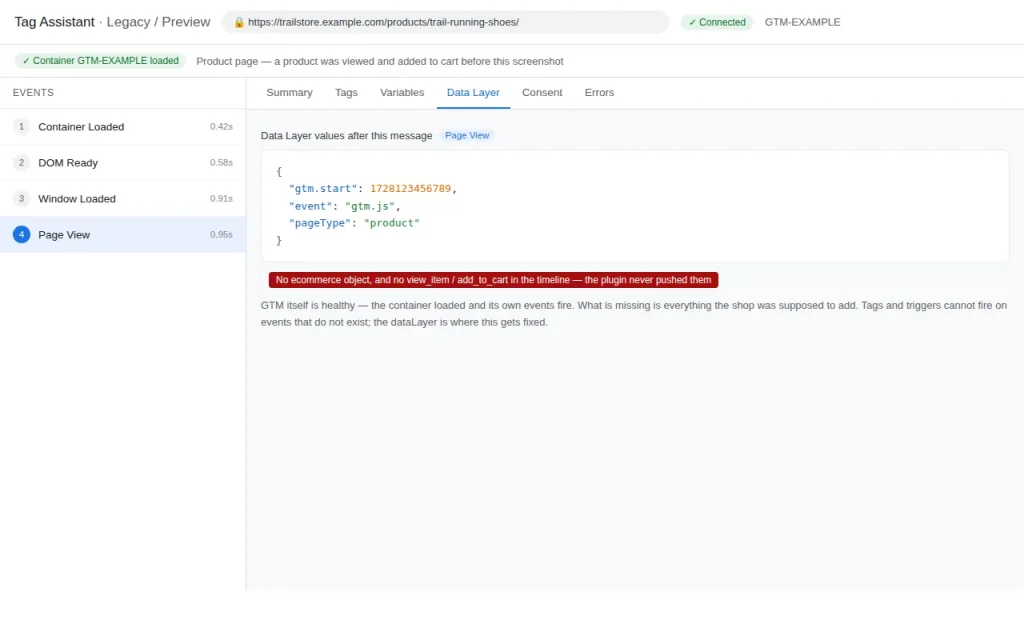
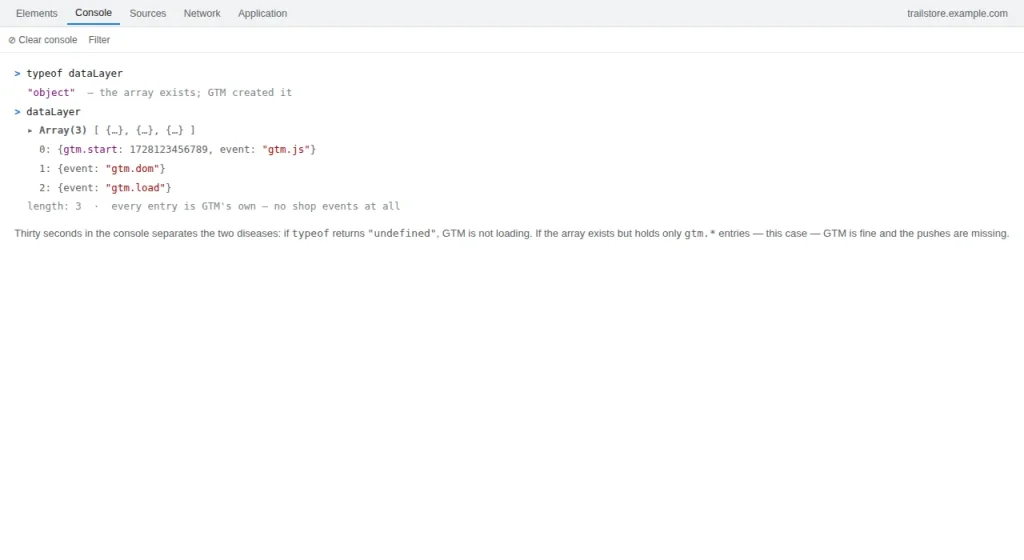
WooCommerce core pushes nothing to the dataLayer by itself — every ecommerce event comes from a plugin or custom code. So an empty dataLayer means the layer was never built, was switched off, or is being built where your triggers are not looking. Start with the three shapes below to find which one is yours.
You open GTM Preview, place an order — and the dataLayer stays empty. No view_item, no add_to_cart, no purchase at all. GA4’s DebugView shows nothing, so the problem is not your tags — nothing is being pushed.
WooCommerce does not push events to the dataLayer by itself. Something — a plugin, a snippet, or a theme function — has to do it. When it is missing or broken, there is nothing for GTM to forward, and every downstream symptom looks the same: silence. This guide works through the chain that has to exist for an event to reach GTM, and the six ways it breaks.
How WooCommerce really sends events
Every WooCommerce event you see in GTM comes from a dataLayer push — a line of JavaScript that writes an object into the dataLayer array. GA4 does not read WooCommerce directly, and GTM does not scrape the page. If no push happens, nothing downstream can work: no tag fires, no variable populates, no purchase is recorded. That is the rule this guide is built on: no push, no event.
Three push patterns cover every event, and recognising them tells you which mechanism is responsible for your events:
- The purchase push, from PHP. The only reliable way to push
purchaseis from the thank-you page itself — server-side, where the order actually exists. That is why the purchase push lives in PHP (see the purchase push below). - The other events, from JavaScript.
view_item,add_to_cart,begin_checkoutand the rest are pushed by JavaScript running in the browser, usually by a plugin listening to WooCommerce’s own JavaScript events. - Automatic pushes, from your ecommerce plugin. WooCommerce’s own ecommerce events — the ones behind view_item, add_to_cart, begin_checkout, purchase — are pushed by a plugin like GTM4WP, which listens to WooCommerce’s own JavaScript events.
- Custom pushes, from your code. Anything bespoke — a form submission, a custom funnel step — needs its own push, written in your theme or a snippet.
The chain: four links, one test per link
For any event to reach GTM, four things must be true, in this order. When an event is missing, work the chain from the top — the first link that fails is the cause:
- The push exists. Something in the site writes the event into the dataLayer.
- The push runs. The code that pushes it actually executes on the page where the event happens.
- The push carries data. The event object has the fields your tags expect —
items,value,currency,transaction_id. - GTM hears it. The container is on the page, the trigger matches, and the tag fires.
If link 1 fails, the event never existed. If link 2 fails, the code is there but does not run. If link 3 fails, the event fires but your tags find nothing to send. If link 4 fails, the event is in the dataLayer and GTM is ignoring it. The diagnosis order below follows this chain.
The six causes
1. No plugin or code pushes the event at all
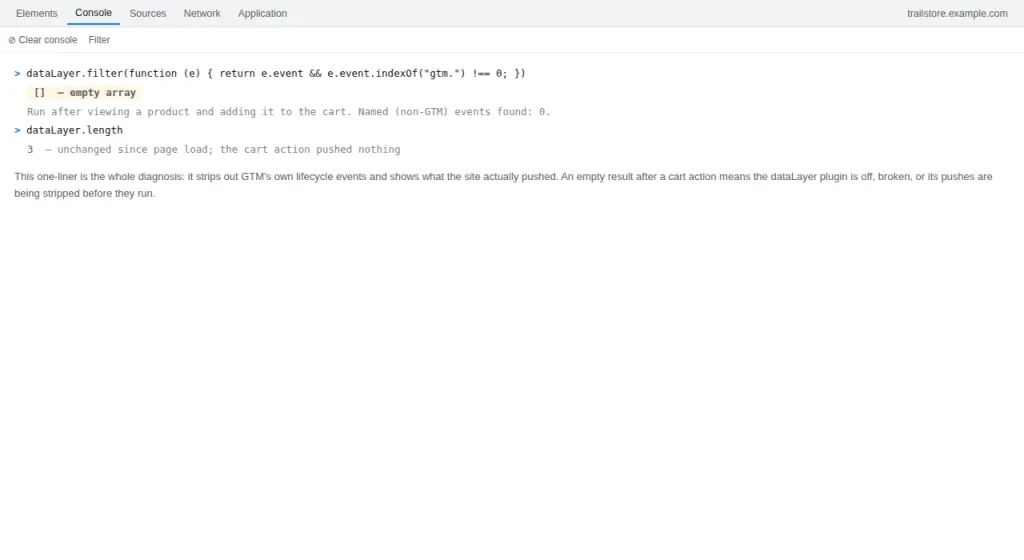
Symptom: The dataLayer is empty for every WooCommerce event — not just purchase. The DebugView shows nothing, and the console shows no dataLayer pushes.
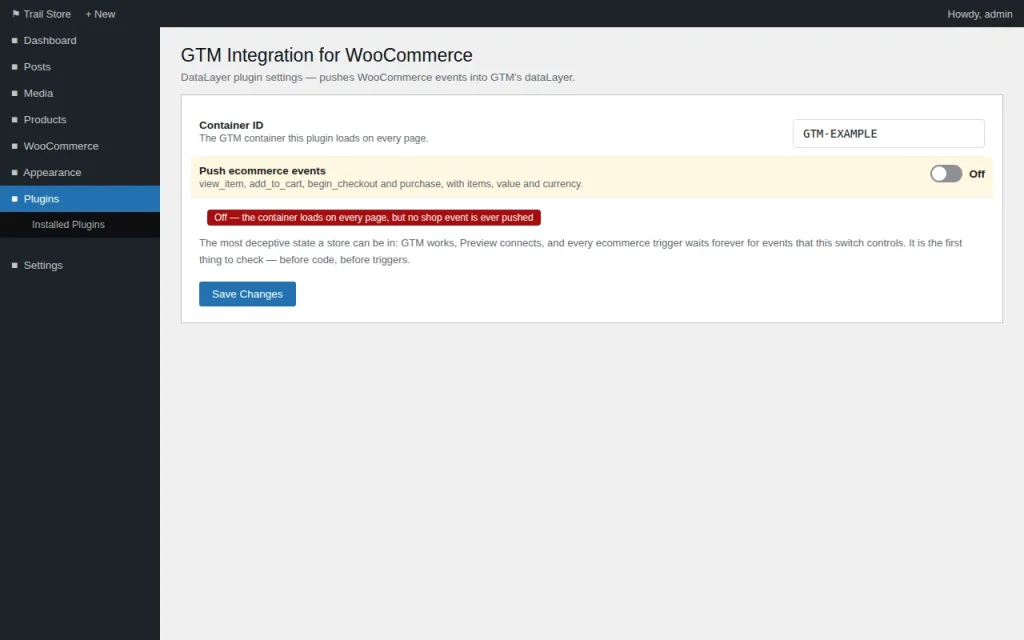
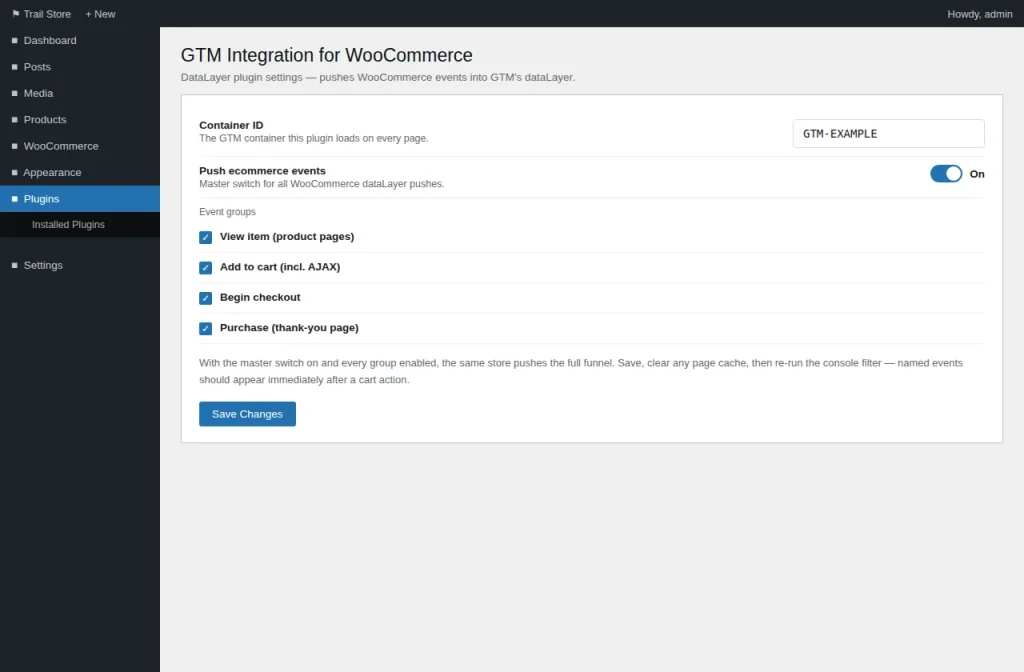
Fix: Install something that pushes. The standard solution is the GTM4WP plugin (or an equivalent): install it, enable its WooCommerce integration, and check its settings for the events you need. Without it — or an equivalent snippet — WooCommerce sends nothing to the dataLayer. If you already have a plugin, check that its WooCommerce integration is enabled; many plugins ship with it off by default. Then test in Preview: place an order and watch the dataLayer.
2. The push runs, but on the wrong page
Symptom: view_item fires on product pages, but purchase never appears — or the reverse.
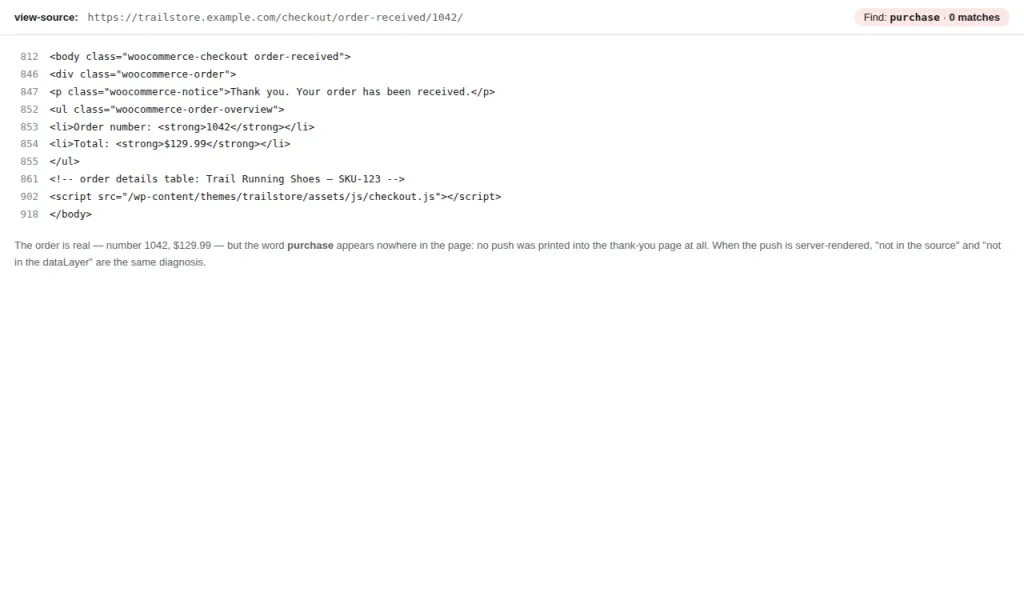
Fix: Check where the push is hooked. The purchase push belongs on the thank-you page (the woocommerce_thankyou hook), and only there. If the push is hooked to a different page, or the theme overrides the thank-you template without the hook, the order completes and nothing is pushed. Open the thank-you page source and search for dataLayer.push. If it is not there, the hook is missing or the template override dropped it. The fix is in the theme or the plugin’s settings — not in GTM.
3. The event is pushed, but the data is wrong
Symptom: The event fires, but GA4 shows items: (not set), value: 0, or the purchase without its items.
Fix: The push exists but the fields are wrong. Open the dataLayer in Preview, click the purchase event, and read the ecommerce object. If items is empty, the push is reading the wrong order or the wrong cart. If value is 0, the push is using the wrong total. The most common cause is a plugin that pushes the event before the order is saved — or a custom snippet that reads the cart after it has been emptied. Fix the data at the source: the push, not the tag. The GA4 Purchase Missing Items, Not Set, Zero Revenue guide covers the field-by-field diagnosis.
4. A plugin conflict stops the push
Symptom: Events worked, then stopped after a plugin update — or they fire on one page type and not another.
Fix: Deactivate the most recently updated plugins one at a time and test. Caching plugins are the usual suspects: a cached thank-you page serves the old HTML without the push. Clear the cache after every change, and exclude the checkout and thank-you pages from caching entirely. Also check for JavaScript errors in the console — a single error in an unrelated script can stop every push after it.
5. The container is not on the page where the event happens
Symptom: The push is in the page source, but Preview shows no events at all.
Fix: The container is not loading on that page. Check that the GTM snippet is on the thank-you page — some themes load a different header on checkout, and some checkout plugins replace the page entirely. If the snippet is missing from that template, the push has nowhere to go. Add the container to the template, clear the cache, and test again. If the container is there but Preview will not connect, work the GTM Preview Mode Not Connecting guide.
6. The purchase push itself is missing or broken
Symptom: Everything else works — view_item, add_to_cart, begin_checkout all fire — but purchase never appears.
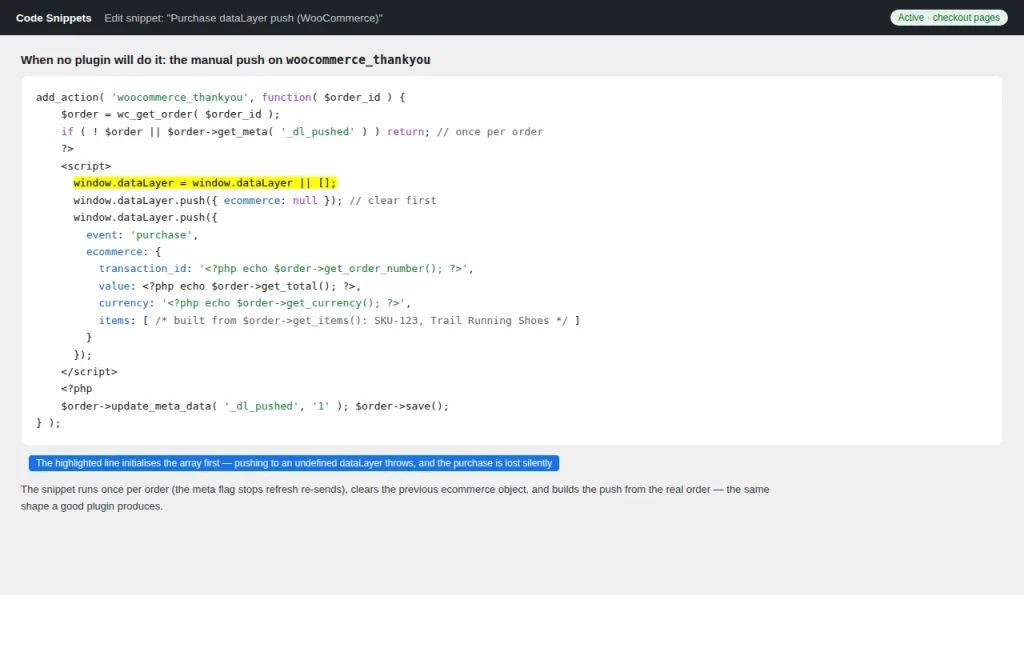
Fix: The purchase push is the one event that cannot be pushed from JavaScript, because the order only exists on the server. If it is missing, add it in PHP on the thank-you page. The push below is the one this site uses — it reads the order from the thank-you hook and writes the purchase event with its items, value and currency:
The purchase push this site uses
<?php
// In your theme's functions.php — or a code snippet plugin.
add_action( 'woocommerce_thankyou', 'tmb_push_purchase_datalayer', 10, 1 );

function tmb_push_purchase_datalayer( $order_id ) {
    $order = wc_get_order( $order_id );
    if ( ! $order ) {
        return;
    }

    $items = array();
    foreach ( $order->get_items() as $item ) {
        $product = $item->get_product();
        $items[] = array(
            'item_id'       => $product ? $product->get_sku() : '',
            'item_name'     => $item->get_name(),
            'price'         => $item->get_total(),
            'quantity'      => $item->get_quantity(),
        );
    }

    $data = array(
        'event'        => 'purchase',
        'ecommerce'    => array(
            'transaction_id' => $order->get_order_number(),
            'value'          => $order->get_total(),
            'currency'       => $order->get_currency(),
            'items'          => $items,
        ),
    );
    ?>
    <script>
    window.dataLayer = window.dataLayer || [];
    window.dataLayer.push(<?php echo wp_json_encode( $data ); ?>);
    </script>
    <?php
}
What to check before you blame WooCommerce
Before you change plugins or snippets, run these four checks. They take five minutes and they rule out the causes that look like WooCommerce but are not:
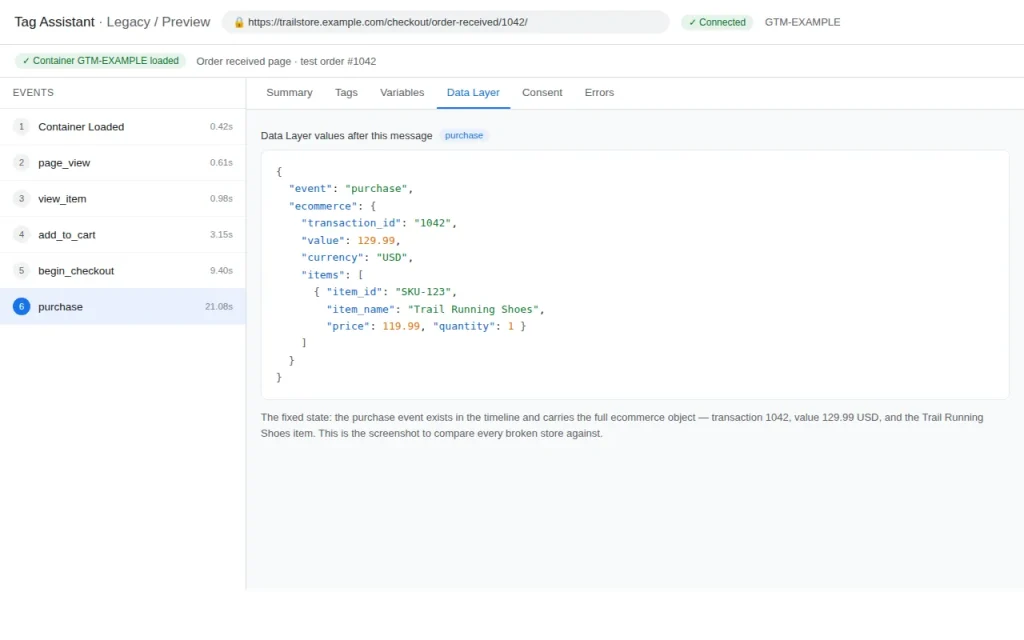
- Open Preview and place a test order. Watch the dataLayer tab: if the purchase push appears there, the chain works and the problem is in GTM.
- Search the thank-you page source for
dataLayer.push. If it is there, the push exists; if it is not, the push is missing. - Check the console for JavaScript errors. A single error can stop every push after it.
- Clear the cache — every layer of it — and test again. A cached thank-you page is the most common false negative in WooCommerce debugging.
The diagnosis order
Work the shapes in order — the shape tells you which cause to check first:
- Fully empty (nothing at all): the push does not exist. Start with cause 1 — install or enable the push — then cause 5, the container.
- Some events, not purchase: the purchase push is the problem. Start with cause 6, then cause 2.
- Events fire, data wrong: the push exists but the fields are wrong. Start with cause 3.
- Worked, then stopped: something changed. Start with cause 4 — plugin or cache — then cause 2.
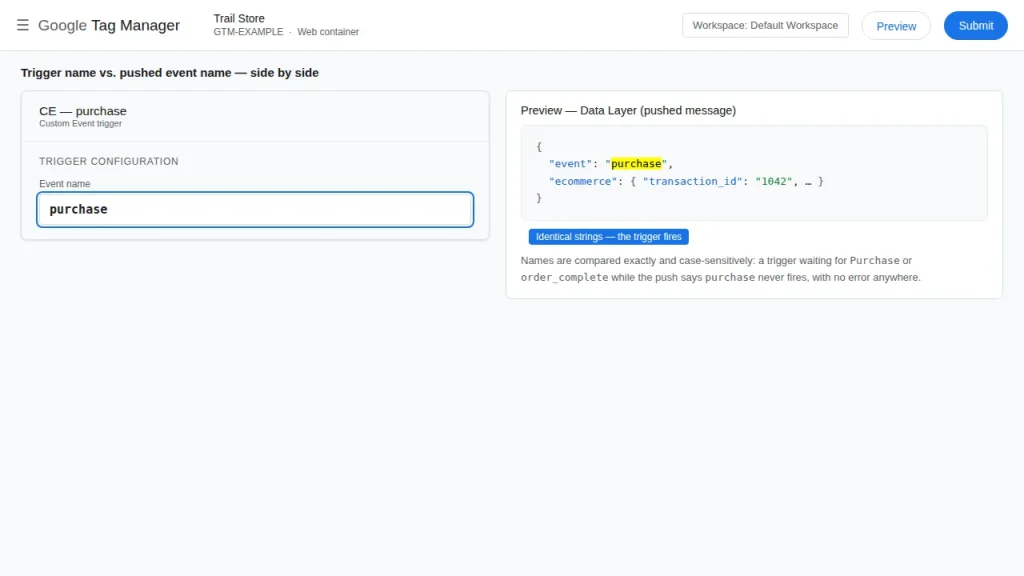
When the purchase fires but the numbers are wrong — items missing, value zero — the problem has moved downstream from the push into the fields. The GA4 Purchase Missing Items, Not Set, Zero Revenue guide covers that diagnosis, and the WooCommerce + GA4 hub and WooCommerce + Meta hub show the finished setup for each platform.
Frequently asked questions
Why is my dataLayer empty for every WooCommerce event?
Usually the push does not exist: WooCommerce sends nothing to the dataLayer by itself. Install the GTM4WP plugin (or an equivalent) and enable its WooCommerce integration — or add the pushes yourself. Then test in Preview: place an order and watch the dataLayer tab.
Why does purchase never fire when view_item and add_to_cart work?
Usually the event itself was never created because the purchase confirmation never runs the push — its code, its trigger, its data, or the push itself. Work the shapes above to identify it, then the chain below to locate it.
I added the purchase push and Preview still shows nothing. What now?
Then the problem is Preview itself, not WooCommerce — work the guide on the GTM preview not connecting. Or the container is not on the thank-you page: search the page source for the GTM snippet and check that the theme loads it on checkout.
Can I push purchase from JavaScript instead of PHP?
No — not reliably. The order only exists on the server, and by the time JavaScript runs on the thank-you page the cart is already empty. A JavaScript push reads the wrong data or nothing at all. The PHP push on the thank-you hook is the only reliable way.
Do I need a plugin, or can I write the pushes myself?
Either works. A plugin (GTM4WP is the standard) is faster and covers the standard events. A custom snippet gives you control over exactly what is pushed and when. What does not work is neither — WooCommerce alone pushes nothing.
My purchase fires, but GA4 shows it without items or with zero revenue. Is that the same problem?
No — that is a fields problem, not a push problem. The event exists; its data is wrong. Duplicate Purchase Events in GA4 explains why.