GTM Preview Mode Not Connecting: 8 Causes, a Diagnosis Order, and Fixes
Quick answer
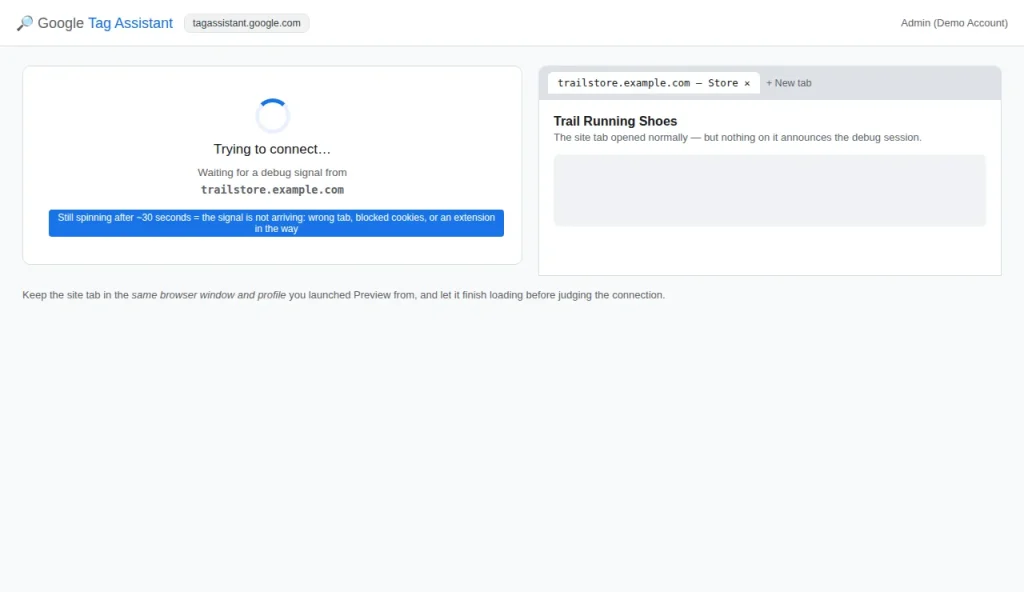
GTM Preview almost never fails at random: it needs the same container ID on the page, loaded in the browser where you launched Preview, on the host you started on, with nothing blocking the handshake. One of those four preconditions is broken — work the eight causes in this order and the failure usually names itself.
You open Tag Assistant, press Connect, and nothing happens. Or the page loads, but Tag Assistant says no tags found — even though you installed GTM yourself.
Nine times out of ten, that is not a GTM problem. It is a connection problem: the wrong container, the wrong page, something blocking the debug session, or the browser refusing to show it to you. The fixes below are ordered from the most common cause to the rarest, and each one tells you exactly what to check before you move on.
How Preview actually connects — and what can break it
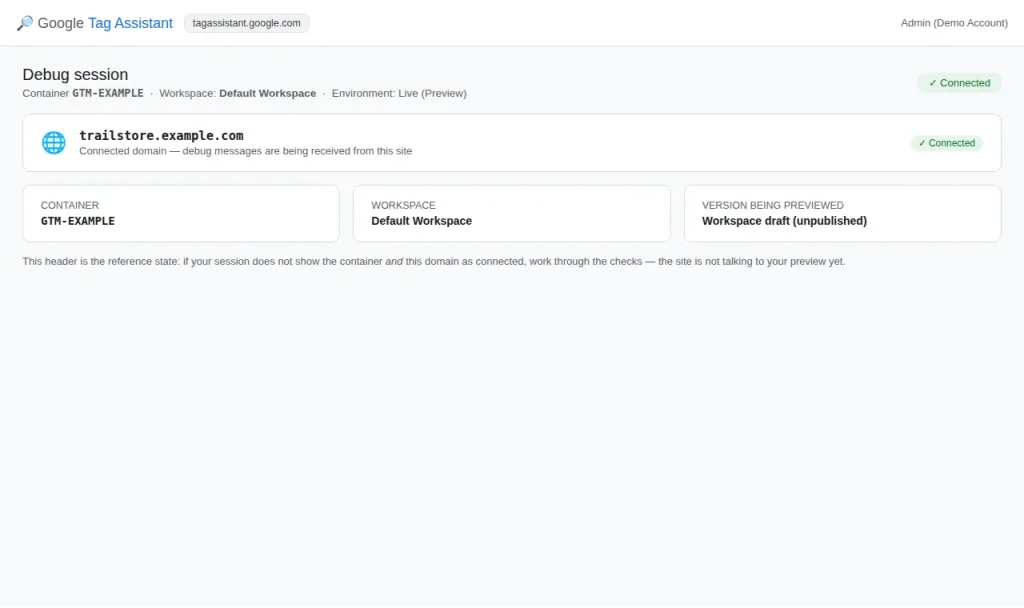
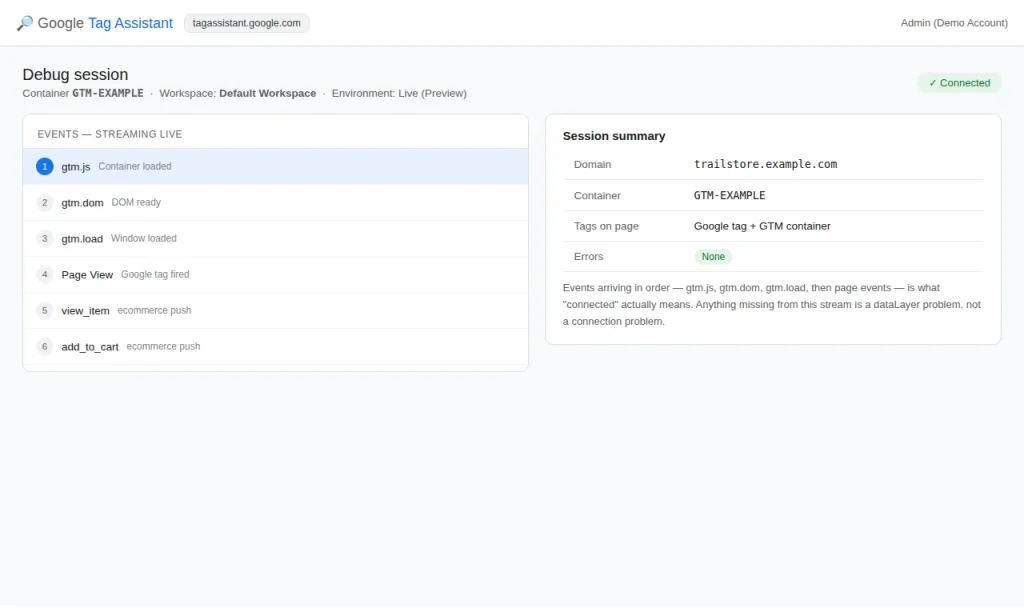
Preview is not a magic window into your website. It is a handshake between three things: your browser, Google’s Tag Assistant service, and the GTM container on your page. Tag Assistant is the tool you open from Preview mode (tagassistant.google.com), and you use it to see every tag firing on your site. Tag Assistant is a browser extension and a web interface for inspecting tags on the page, and it connects through a debug signal your container sends.
That mechanism — a debug signal in the page, matched to a request from Tag Assistant — is what every cause below can break. Keep the mechanism in mind and the diagnosis becomes quick: if the signal never reaches your browser, nothing else matters.
- GTM loads on the page. If the container is not on the page, there is nothing to connect to.
- Preview mode adds a debug signal to the page.
- Tag Assistant detects that debug signal and connects to your browser.
- The debug view shows the tags firing on your page.
Hold those four steps in mind, because the rest of this guide follows them. If Tag Assistant says no tags found, the problem is in steps 1 or 2. If it cannot connect at all, the problem is in step 3 or a browser issue.
First, read the symptom correctly
Before you change anything, decide which of these you actually have. They look similar and have different causes.
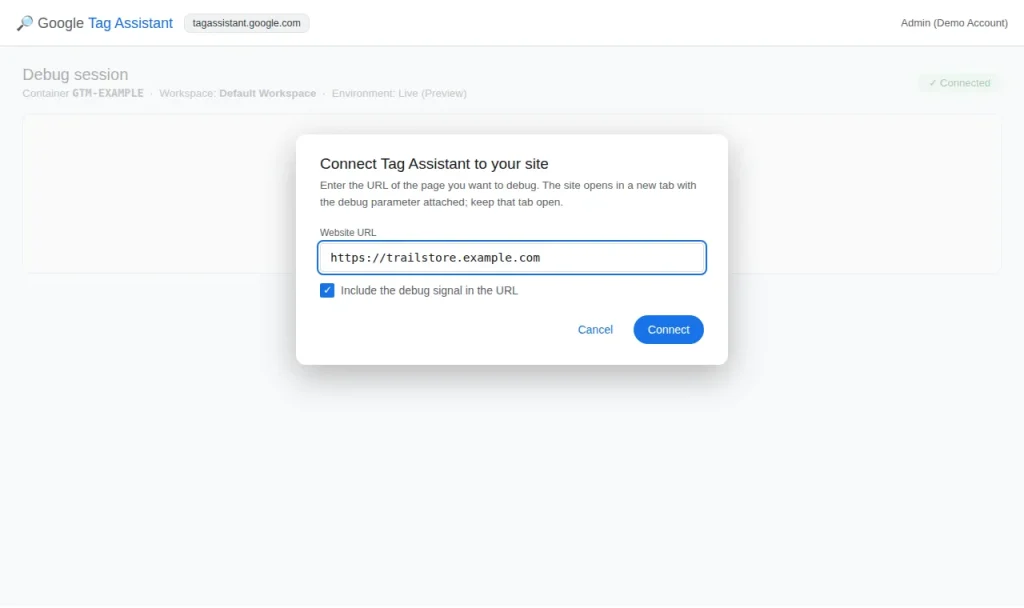
- Tag Assistant opens, but nothing connects: the debug window appears and loads, but never shows your site.
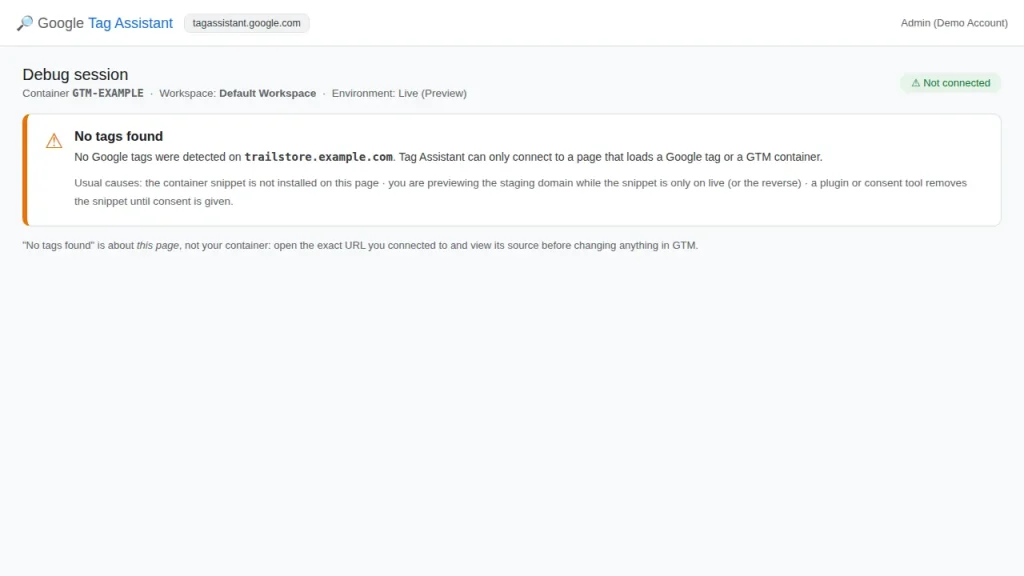
- Tag Assistant says no tags found: the site loads in Preview, but Tag Assistant reports that it found no GTM container.
- Preview works on one page, not another: the same container connects on your homepage but not on a checkout or product page.
- Preview connects, then drops: the session starts, then disconnects partway through testing.
That last symptom — works, then drops — usually means a redirect, a page reload to a different domain, or a browser extension interfering mid-session.
The 8 causes and fixes
1. The container ID doesn’t match
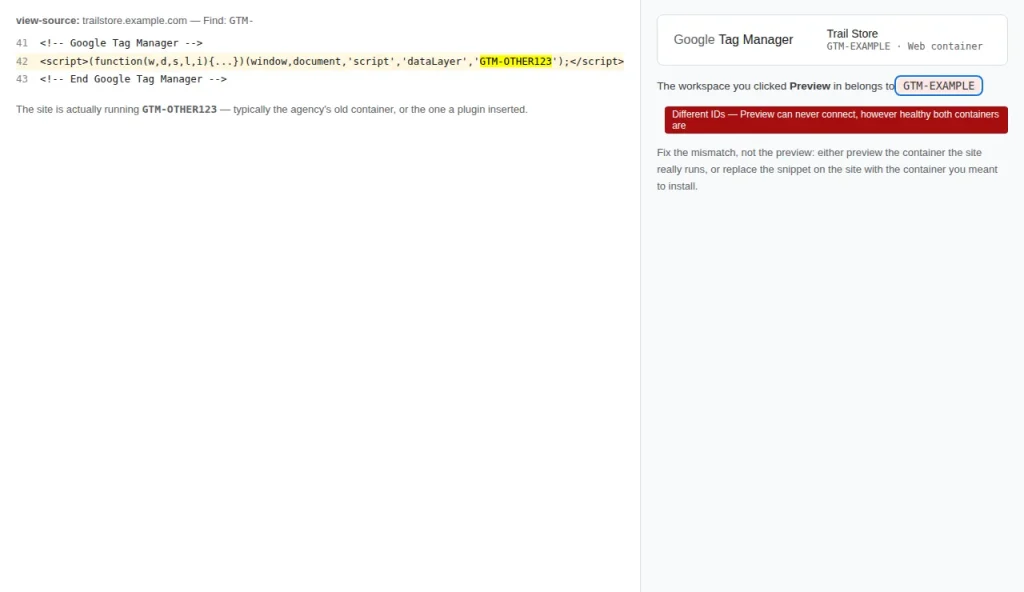
Symptom: Tag Assistant loads your site but reports no tags found, even though GTM is installed.
Fix: Open the page source and search for GTM-. Compare the container ID you find there with the one in your GTM account. If they differ, you installed the wrong container. In GTM, check the container ID in the top bar. If you use a staging or test environment, confirm you are not looking at a production container. Then, replace the snippet with the correct container — or, if the site is built with our free container builder, regenerate the container from the builder and replace the snippet.
2. The GTM snippet is missing or incomplete
Symptom: Tag Assistant cannot connect, and the page source has no GTM- ID at all.
Fix: Open the page source (View > Developer > View Source, or Ctrl+U) and search for GTM-. If you find nothing, the snippet was never added, or a plugin or theme update removed it. If you find only one half — the script in <head> or the <noscript> in <body> — the snippet is incomplete. Reinstall both parts exactly as GTM gives them, then clear the cache and test again.
3. Preview is connected to the wrong container
Symptom: Preview opens and shows tags firing, but they are not your tags — or your latest changes are missing.
Fix: Preview always follows the container ID in the page. If two containers are on the page, or you pasted the wrong snippet, Preview attaches to the one it finds first. Check the page source for a second GTM- ID. If you find two, remove one — a page should only have one GTM container. Then confirm the container ID in the top bar of your GTM account matches the one in the source.
4. Your browser or an extension is blocking the debug session
Symptom: Preview worked yesterday, and nothing changed on the site — but now it will not connect.
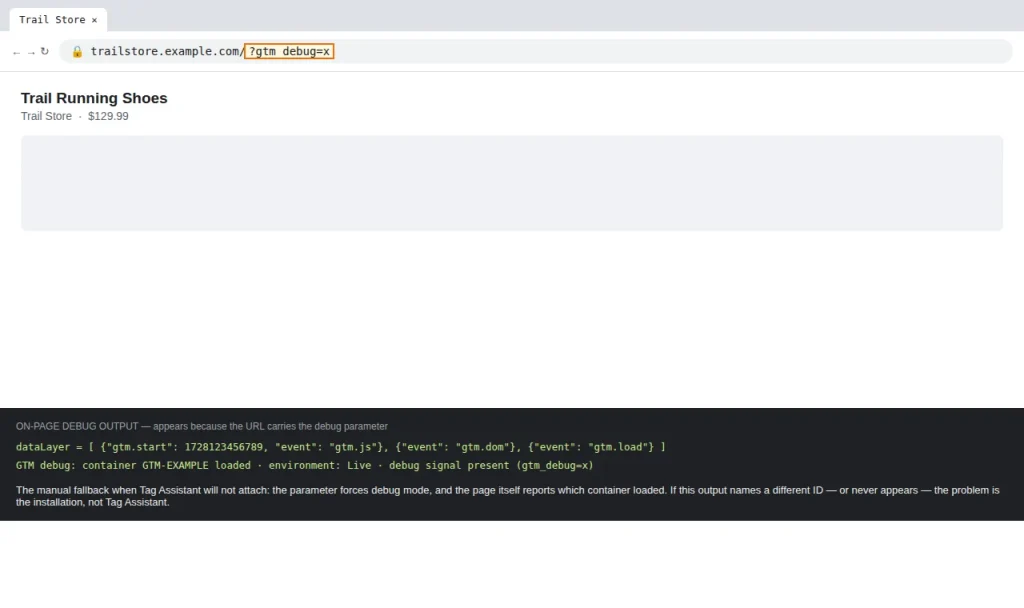
Fix: Open an incognito window with no extensions and try again. If Preview connects, an extension is the cause. Ad blockers, privacy tools and VPN extensions are the usual suspects. Turn them off one at a time until Preview works, then leave that one off for debugging. If you use Brave, turn Shields off for the test page as well. And check that you are not using a browser profile signed into a different Google account than the one with access to the container.
5. The page redirects to a different domain or protocol
Symptom: Preview connects briefly, then drops — or it never connects on a page you reach through a redirect.
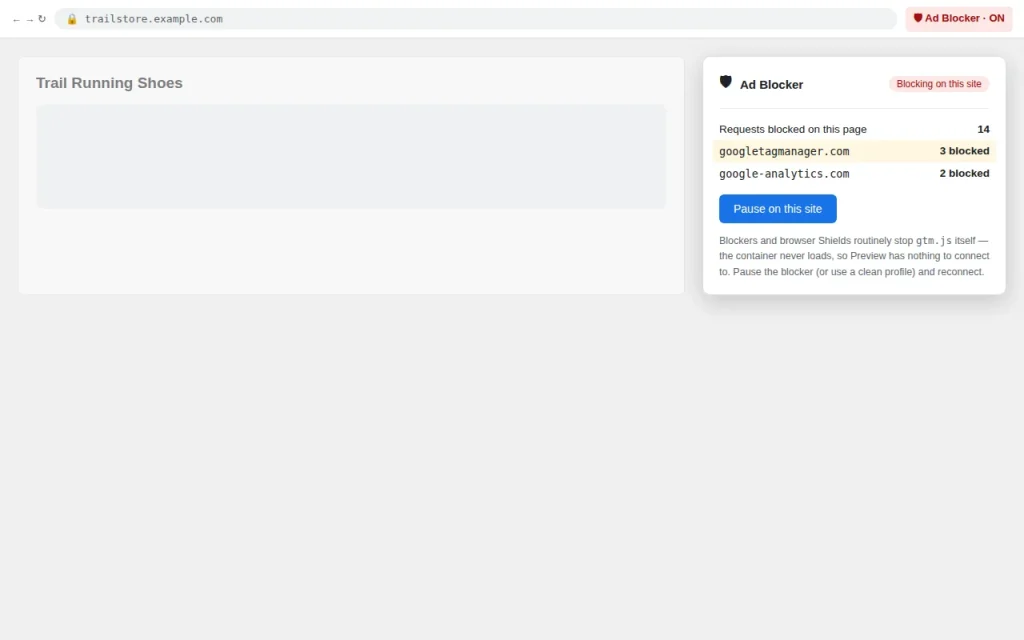
Fix: Preview follows the URL you give it, and the debug signal does not survive a redirect to another host or a switch from http:// to https://. Try entering the final URL directly — the one in the address bar after the redirect. If the site redirects www to non-www (or the reverse), use the version the browser ends on. On the live site, check for a redirect chain that changes the host mid-way, and fix the redirect so the URL you test is the URL the browser actually loads.
6. The site is behind a login, a firewall, or an IP block
Symptom: Preview cannot load the site at all, or Tag Assistant times out before the page appears.
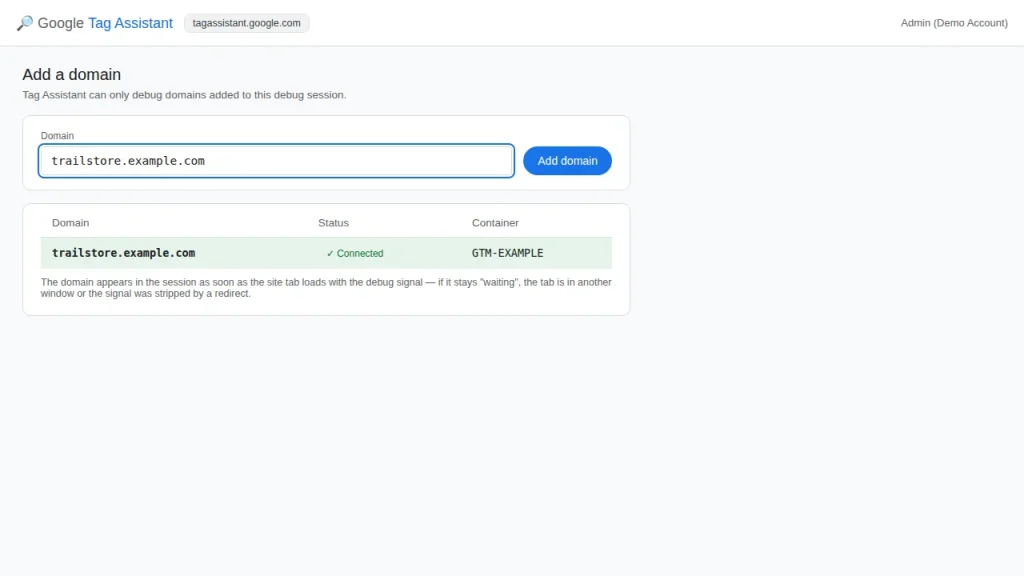
Fix: If the site is behind a login, sign in first, then start Preview in the same browser session. If your host or a security plugin blocks Tag Assistant’s requests, whitelist the debug service’s IP ranges, or temporarily disable the firewall rule and test again. Some staging sites block all traffic except whitelisted IPs — add your own IP, then try Preview again.
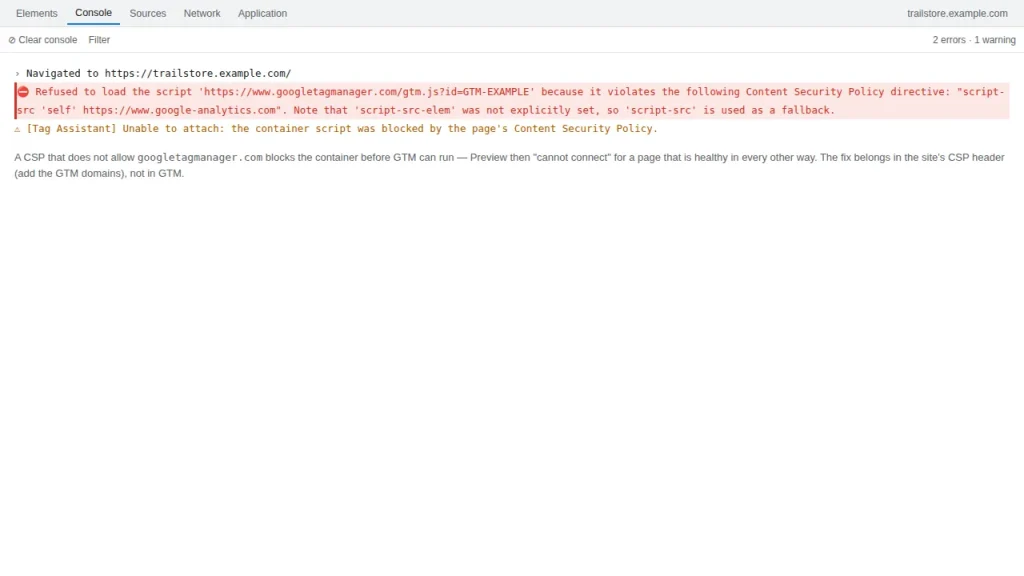
7. A Content Security Policy blocks the debug connection
Symptom: The site loads, but Preview shows nothing, and the browser console shows CSP errors.
Fix: Open the browser console and look for Content Security Policy errors mentioning googletagmanager.com or tagassistant.google.com. If you find them, add those domains to your CSP directives (script-src and connect-src at minimum), or relax the policy on the test page. This is a common cause on sites with strict security headers, and it is easy to miss because the page itself looks fine.
8. The browser or a setting is blocking third-party cookies
Symptom: Preview worked on one browser, but not another — or it stopped working after a browser update.
Fix: Tag Assistant relies on cookies to hold the debug session. In Chrome, go to Settings > Privacy and security > Third-party cookies and allow third-party cookies for the test. Also, check that the browser is not in Incognito with cookies blocked, and that your operating system has not turned on a stricter privacy mode after an update. After changing the setting, restart the browser and try Preview again.
The diagnosis order (fastest first)
Work this list from the top. Stop as soon as Preview connects — you have found the cause.
- Open an incognito window with no extensions and try Preview. If it works, an extension is the cause.
- Enter the exact URL from the address bar — after redirects — and try again.
- View the page source and search for
GTM-. Confirm the container ID matches your GTM account. - Clear the cache, hard-refresh the page, and try again.
- Open the browser console and look for CSP errors or blocked requests.
- Check that third-party cookies are allowed for the test browser.
- If the site is behind a login or firewall, sign in or whitelist your IP, then retry.
Still stuck? The escalation checklist
If none of the 8 causes fit, gather these five facts before you escalate — they are what any support team will ask for:
- The container ID in the page source, and the container ID in your GTM account.
- Whether Preview connects in an incognito window with no extensions.
- Whether it connects on the homepage but not on the problem page.
- Any errors in the browser console, copied verbatim.
- Whether the site sits behind a login, a firewall, or a redirect.
If Preview connects but your tags do not fire, that is a different problem — the GTM Tag Fires in Preview but Events Don’t Show in GA4 guide covers it. And if the site is a WooCommerce store, the WooCommerce + GA4 hub and the duplicate purchase guide are the next places to look.
Frequently asked questions
Why does Tag Assistant say “no tags found” when I installed GTM myself?
Usually the container ID in the page does not match the one in your GTM account, or the snippet is incomplete. Search the page source for GTM- and compare the ID with the one in your GTM top bar. If they differ, you installed the wrong container; if you find only one half of the snippet, reinstall both parts.
Does Preview need the container to be published first?
No. Preview runs against the current workspace, so unpublished changes are visible in Preview — that is the point. But remember that visitors on the live site only see the published version, so test in Preview, then publish.
Why does Preview connect on one computer but not another?
That is almost always a browser issue on the machine that fails: an extension, a privacy setting, third-party cookies blocked, or a different Google account signed in. Test in an incognito window with no extensions on the failing machine first.
I have two GTM containers on my site. Which one does Preview attach to?
The one it finds first in the page. That is also why two containers cause double events and unreliable debugging. Remove one container so the page has exactly one, then test again.
Can I preview a site that’s behind a login?
Yes. Sign in first in the same browser session, then start Preview. The debug signal needs the same cookies and session your login uses, so starting Preview from a different profile or browser will not work.
Preview connected, but my new tag doesn’t fire. Is that the same problem?
No — that is a tag or trigger problem, not a connection problem. Once Preview connects, check the tag’s trigger, its consent settings, and the order of events in the timeline. The GTM Tag Fires in Preview but Events Don’t Show in GA4 guide walks through those checks.