TikTok Events API via Server GTM: Setup, One Event ID, and Deduplication That Actually Works
Quick answer
Through server-side GTM, the TikTok Events API works as a second copy of your web events — and deduplication is decided on the web side: the event_id is created once in the web container and the server copy carries that identical ID. This guide builds that route step by step.
TikTok is the third major ad platform most stores now run, and the second that needs a server route to survive ad blocking. But adding a server channel creates a new risk: two copies of every event — one from the browser pixel, one from the Events API — and no deduplication means every purchase counts twice, in reporting and in optimisation.
TikTok’s deduplication rules are more forgiving than Meta’s, but only around a key you control — the event_id. This guide explains how the browser and server copies are meant to meet, how to build the route so they merge instead of double, and the mistakes that undo the build.
The build assumes your TikTok pixel is already firing from web GTM; if you are starting from a store setup, the WooCommerce + TikTok hub shows the full route.
How the server route actually works
Events move through three steps, and each one has to work:
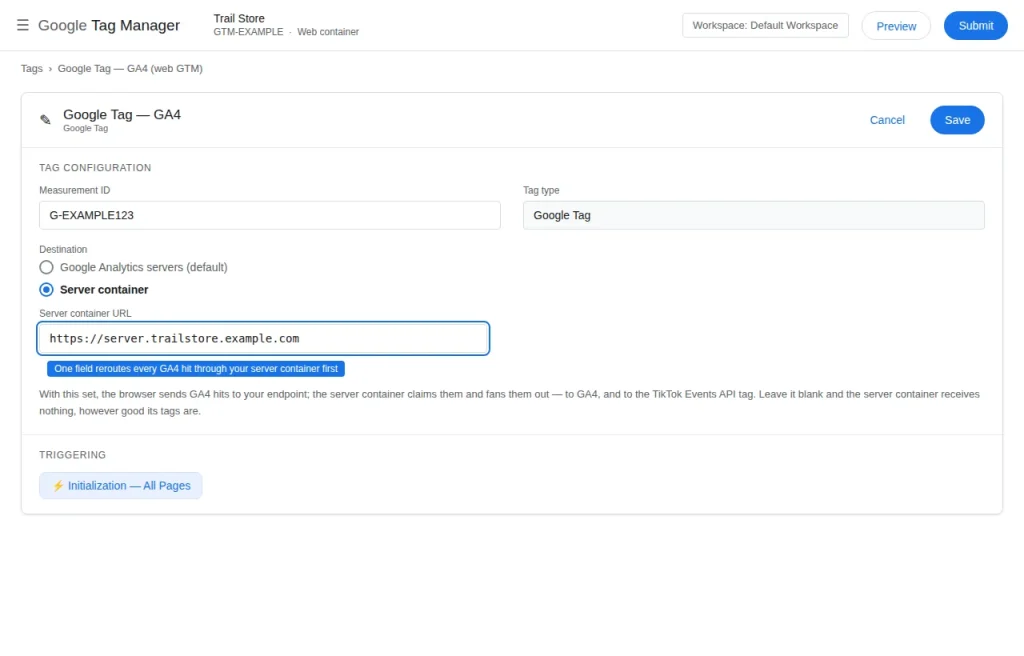
- The web container fires as usual — and also ships the event to your server container. The web TikTok tag sends the browser copy directly to TikTok; separately, the event data is forwarded to your server container’s endpoint. In most builds this rides on the GA4 setup you already have: the web GA4 tag points at the server container’s URL instead of (or as well as) Google’s endpoint, and every event arrives with its parameters attached. Some builds use a dedicated TikTok client template instead; that changes which fields need mapping, not the shape.
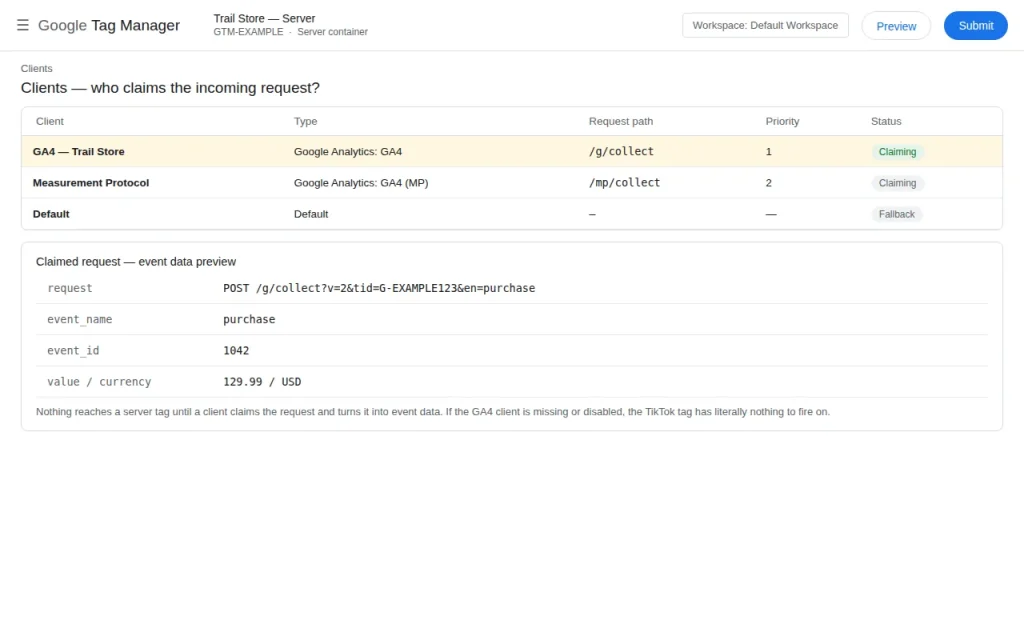
- The server container receives the event as a request, not as a page view. A client inside it claims the request and turns it into event data the server’s tags can read: event name, contents, value — and, if the web side sent them, the
event_id,ttclidand_ttpvalues. What the web side does not send, the server cannot invent. - A TikTok Events API tag in the server container sends the server copy. A server-side template posts the event to TikTok’s Events API endpoint, authorised by an access token tied to your pixel. It fires on the claimed event, rebuilds the parameters, and attaches the received
event_id.
Two consequences follow. The server copy is only as good as the web event that fed it — a malformed contents array upstream arrives faithfully downstream. And deduplication is decided at step 1: the ID is born web-side.
TikTok’s deduplication rules — exactly as they behave
TikTok’s rules are more forgiving than Meta’s, but only around a key you control — the TikTok hub rules:
- The key is three-part. Copies merge only when pixel ID, event name and
event_idare identical. - Timing decides the outcome. If the second copy arrives within about 5 minutes of the first, TikTok merges them — one event, parameters and match data combined from both. If it arrives later, up to 48 hours after the first, TikTok deduplicates: the first copy is kept, the later one dropped. Beyond 48 hours, both stand.
- Same-channel repeats count too. Unlike Meta, TikTok dedupes within one channel — a second browser or server copy with a matching
event_idis also dropped. - The
_ttpcookie is the fallback, not the plan. If a server event arrives with noevent_idat all, TikTok falls back to matching on the_ttpcookie value when present — the cookie the base pixel set when it captured thettclidfrom the landing URL. Far weaker than an ID. - Names must match, in their current form. In May 2025 TikTok renamed
CompletePayment→PurchaseandSubmitForm→Lead. Legacy names are auto-converted in reporting, but deduplication keys on the name as sent: webPurchaseand serverCompletePaymentare different names, and the pair will not merge.
The contrast with Meta matters: stores copy their Meta build and assume the rules travel. Meta merges browser/server copies on a shared event_id, but never two copies from the same channel — see Meta CAPI deduplication. Configure each platform to its own rules.
The build: server Events API in six steps
Step 1 — Generate the event_id once, on the web side
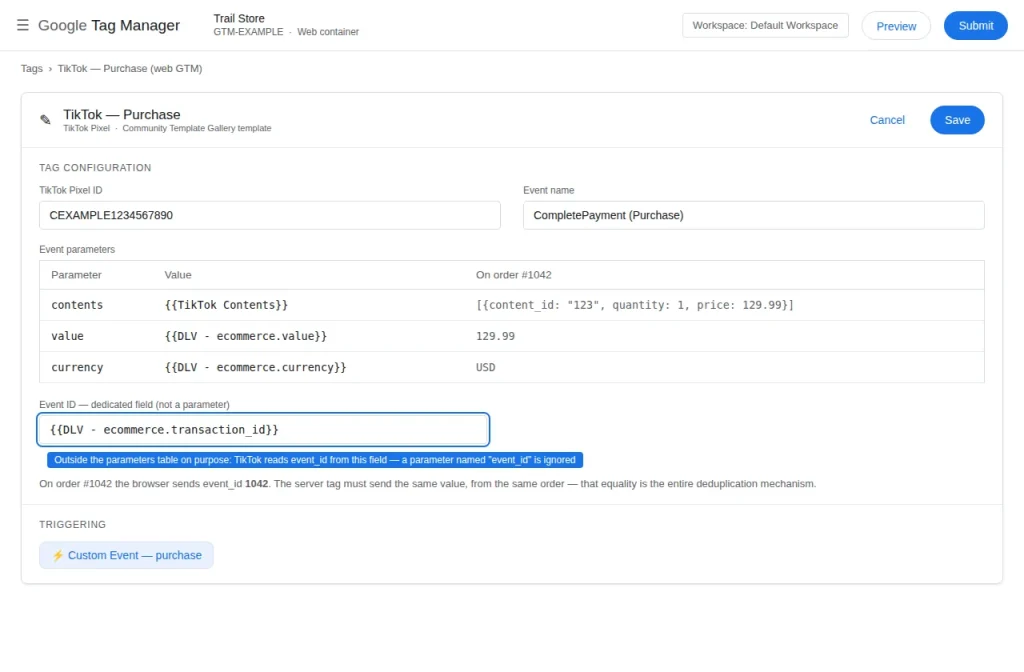
In the web container, every TikTok event tag carries an event_id. For Purchase, that ID is the order ID — the transaction_id from the data layer — placed in the tag’s dedicated Event ID field, or as the third argument of a ttq.track() call, never inside the parameters object:
ttq.track('Purchase', {
  contents: [{ content_id: '123', content_type: 'product', quantity: 1, price: 129.99 }],
  value: 129.99,
  currency: 'USD'
}, { event_id: '1042' });
For events with no natural order ID (ViewContent, AddToCart), generate one ID per event occurrence and carry it in the data layer push itself, where the browser tag and forwarding logic read the same value. Nothing downstream may mint a fresh ID.
Step 2 — Forward the events to the server container
Provision the server container (type Server, hosted on Google Cloud or a provider such as Stape) and note its endpoint URL. Point the web forwarding route at that endpoint — in the common GA4-client route, the web GA4 configuration tag gets the server container URL as its server destination. Confirm the key parameters are travelling: the event_id from step 1, the ttclid/_ttp values, and the items data the server tag rebuilds contents from.
Step 3 — Claim the request in the server container
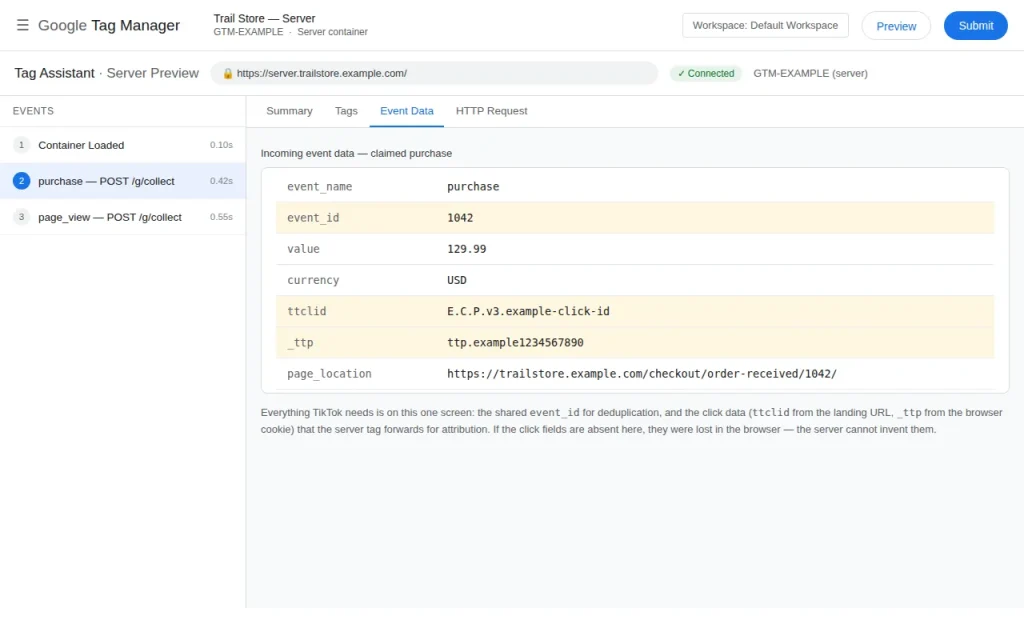
In the server container, the client (the GA4 client in the common route, or a TikTok client pattern where used) claims the incoming requests and exposes the event data. Preview the server container now — before any TikTok tag exists — and place a test order. The purchase request should arrive carrying the same event_id the web tag sent. If it arrives ID-less, fix the forwarding; no tag configuration repairs a key that never travelled.
Step 4 — Add the Events API tag (two fields decide it)
Add the TikTok Events API tag template (Community Template Gallery) in the server container, triggered on the claimed events you want server copies of — start with Purchase, then the funnel. Two fields decide whether it works:
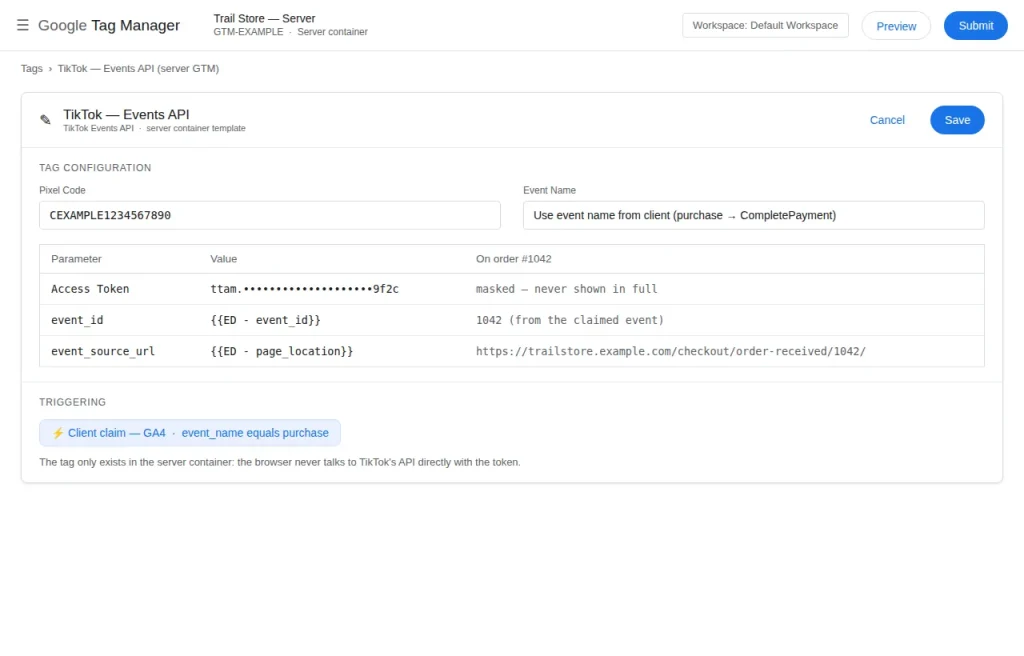
- Pixel code: the same pixel the web tags use —
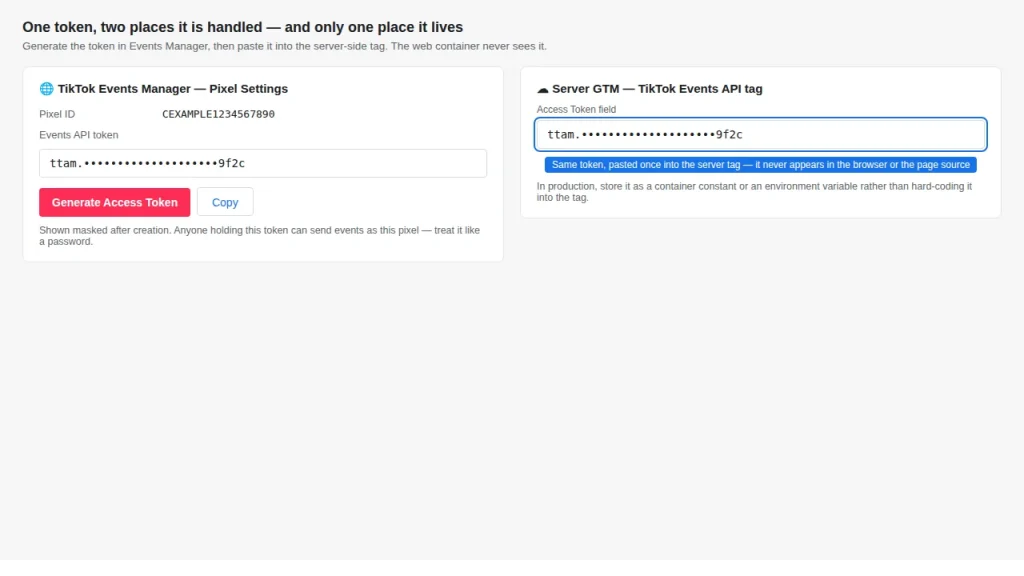
CEXAMPLE1234567890in our dummy examples. A token and pixel from different assets is this build’s most common silent failure (see mistakes). - Access token: generated in TikTok Events Manager under your pixel’s Settings — a long-lived credential authorising the API calls. Paste it into the tag (or a server-side constant variable) and treat it like a password: server container only, never in web code.
Map the event name from the claimed event — in its current name (Purchase, not CompletePayment) — and set the tag’s event ID from the claimed event_id. The tag is a courier for the web event’s identity, not an author of a new one.
Step 5 — Map the parameters the server tag needs
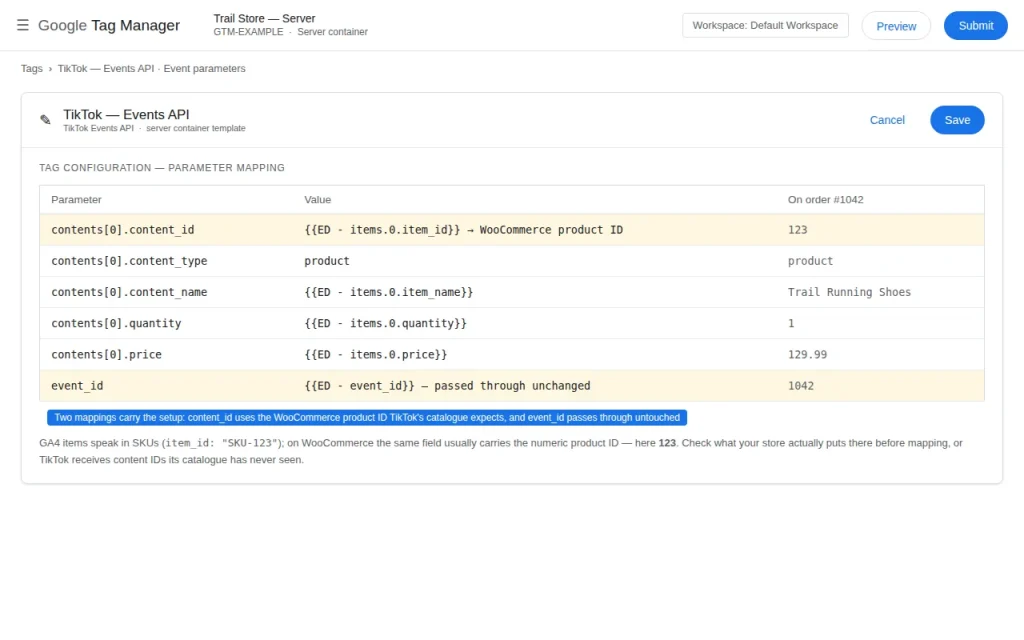
The server tag needs the web tag’s parameters, rebuilt from the claimed data:
contents: an array of{ content_id, content_type: 'product', quantity, price }per item, mapped from the items in the request. Thecontent_idvalues must be the identifier your TikTok catalog carries — product ID or SKU, decided once, as in the WooCommerce + TikTok hub.- Click/cookie data: the
ttclidand_ttpvalues travel as event parameters so the server copy attaches to the click. Events without them count but match poorly. - Value and currency on the money events, identical to the web copy.
Step 6 — Test Events, then remove the test code
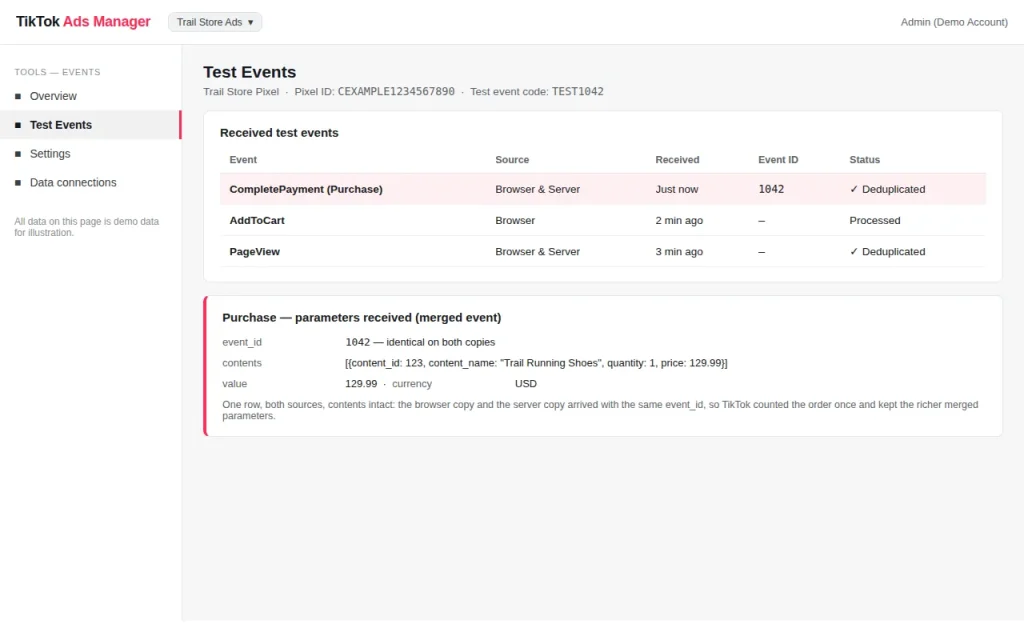
In Events Manager, open the pixel’s Test Events and copy the test event code. Add it in the server tag’s test-code field (and the web side too, if testing both channels), then place a test order and compare three views — web Preview (the event_id the web tag sent), server Preview (same request, same ID), and Test Events (what TikTok made of the pair). Success looks like one Purchase, marked as deduplicated / browser & server, carrying the full contents. Then — before publishing — remove the test event code. Left in production, it routes real events into the test view, out of optimisation.
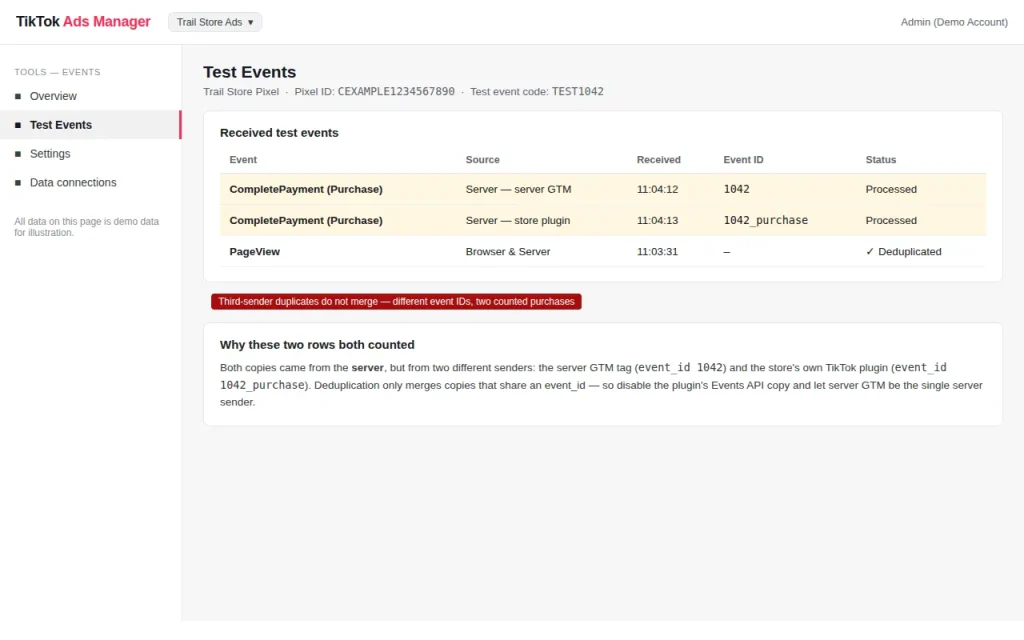
The third-sender trap: the official plugin changes the maths
Everything above assumes your web GTM setup is the browser sender. On WooCommerce there is a common exception: the official TikTok for WooCommerce plugin already sends the Pixel and the Events API itself, with automatic deduplication built on event IDs the plugin generates internally — not your order IDs.
Add a server GTM tag on top and you have built a third sender whose IDs match neither plugin channel. The plugin’s copies merge with each other; yours stands alone and counts — purchases inflate by exactly your server volume.
The discipline is the hub’s: pick one architecture. Either the plugin is your sender (Option A) — no TikTok tags in web GTM and none in the server container — or the plugin goes and GTM web + server run the route under your IDs (Option B, this guide). There is no Option C where the server container “just helps” a plugin estate.
The mistakes that undo this build
- The event_id is regenerated server-side. A lookup table, a random-ID variable, a timestamp in the server tag — anything minting a new ID produces a second, perfectly formatted purchase. The ID is created once, on the web side, and only passed through.
- The web sends Purchase, the server still sends CompletePayment. Old templates and copied containers are full of the legacy name. TikTok converts it in reporting; deduplication does not forgive it.
- ttclid and _ttp never make the trip. The events arrive and deduplicate, but match quality craters — the server copies cannot be tied to clicks. Carry both through as parameters and check them in server Preview.
- The access token belongs to a different pixel. Token from pixel B, pixel code set to pixel A: the calls fail or land where nobody looks. Generate the token in the pixel’s own settings.
- The test event code is left in the production tag. Everything looks wonderful in Test Events and nothing optimises, because production events are still flagged as tests. Removing the code is part of the build.
- The server tag fires on every claimed event, including noise. Pageviews get expensive, low-value server twins. Scope the trigger to the events you chose.
- The plugin is still active “just for catalog sync”. If its measurement features are on, it is a sender — see the third-sender trap. Separate the feed.
When duplicates slip through, the diagnosis discipline from duplicate purchase events in GA4 transfers directly: identify the shape first (channel, name, ID), then fix the sender — never compensate downstream. Starting blank? The GTM Container Builder builds the web-side setup with the event ID field in place.
Frequently asked questions
If TikTok can match on the _ttp cookie, do I still need an event_id?
Yes. The _ttp fallback is a rescue attempt for server events arriving without an ID — weaker, cookie-dependent, and unverifiable in Preview. The event_id is the only key you control end to end; build on it, and let _ttp do its other job: click matching.
What counts as a duplicate on TikTok — and when does it merge?
Copies arriving within about 5 minutes merge into one event; later copies, up to 48 hours after the first, are deduplicated, first copy kept. Past 48 hours both count — a route batching daily is fine; one replaying an old backlog is not.
Can I run the official TikTok for WooCommerce plugin and server GTM together?
No — that is the third-sender trap. The plugin already runs its own Pixel + Events API pair on internal IDs; your server copy would carry a different ID and count as an extra event. Choose the plugin, or remove it.
Does the Events API replace the pixel?
No. The Events API is a second channel, not a substitute. The web pixel still sets _ttp, captures ttclid on landing and fires in real time; the server copy recovers what the browser loses — and depends on the web side for cookie/click data.
Where do I get the Events API access token?
From TikTok Events Manager: open your pixel, go to Settings, generate the Events API access token there. It is tied to that pixel — why a token from another pixel is a classic failure. Keep it in the server container only.
My events are doubling — what is the single most likely cause?
Work the key in order: same pixel ID on both channels? Same event name — really the same, or a legacy CompletePayment in the server tag? Same event_id — in the web tag’s Event ID field, carried through the request, and set on the server tag rather than regenerated? It is one of those three; the name mismatch is checked last.