Duplicate GTM Containers on One Site: How to Find Them, Choose One, and Remove the Other Safely
Quick answer
Two GTM containers on one site double every event, and nobody dares remove either. Do it as a protocol instead: detect every container, inventory what each holds, find every place a container ID is installed, then remove one source at a time with an export as rollback — deleting the old container comes last, or never.
One site, one container — that is the arrangement GTM is designed for. Yet a large share of “everything fires twice” cases trace back to a site quietly running two containers: the current one, installed properly, and an older one left behind by a previous developer, a theme change, or a marketing plugin that brought its own. Both load. Both fire. Every pageview, purchase and lead is counted twice, the containers’ consent settings argue with each other, and nobody dares remove either one because nobody knows what the old one does.
The fear is the real problem, so this guide replaces it with a protocol: detect every container on the site, inventory what each one contains, find every place a container ID is installed, then remove one source at a time, testing after each step, with an export as rollback. Nothing here is destructive — and the one destructive action (deleting the old container) is the step you do last, weeks later, or never.
How to detect duplicate containers
Do not guess from symptoms alone. Get the actual list of container IDs the site loads — three reliable ways, five minutes together:
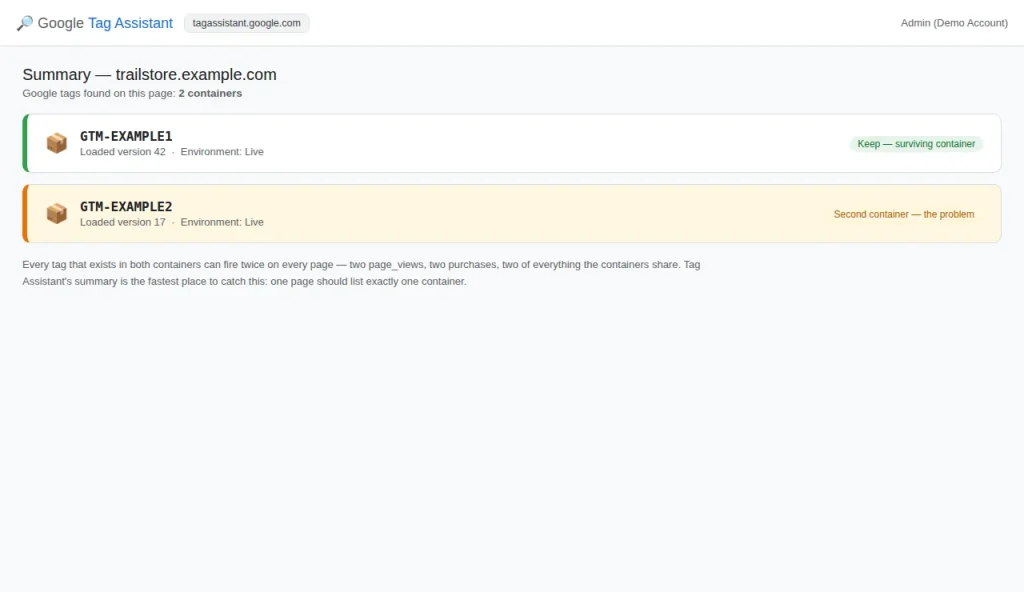
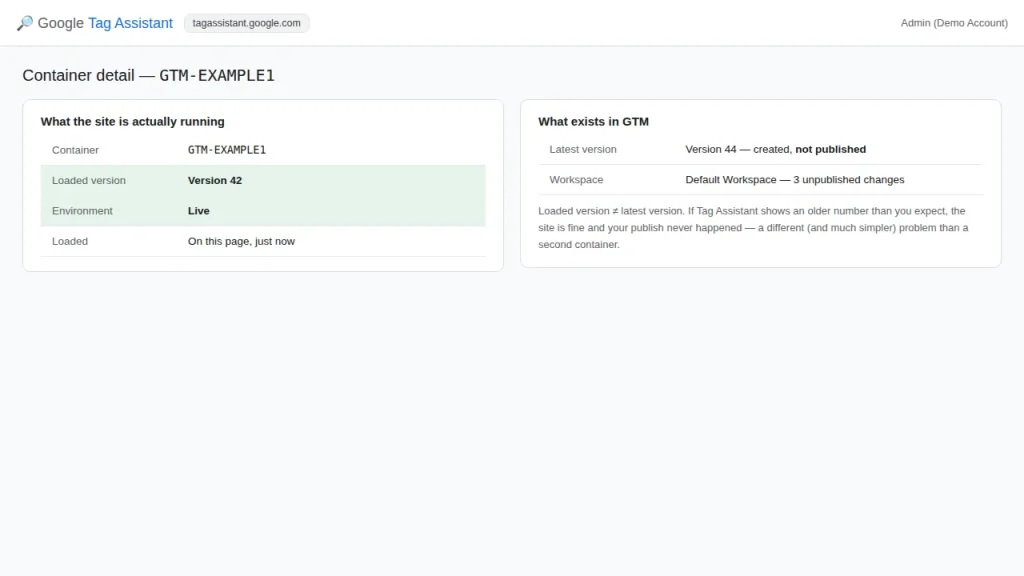
- Tag Assistant’s summary. Connect Tag Assistant to the site and read the summary page’s container list: it shows every GTM container found on the page, each with its ID and the version/environment loaded. Two IDs listed here is the whole diagnosis in one screenshot — the second ID’s name usually tells you whose it is.
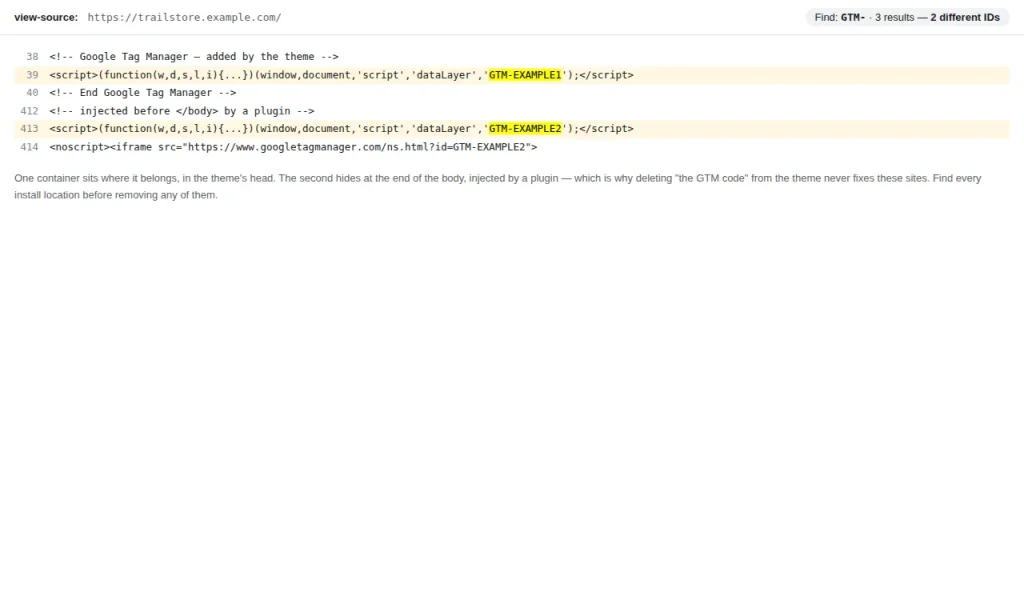
- The page source. View the homepage source (and a product or checkout page — installs differ per template) and search for
GTM-. Every snippet announces its ID in plain text, twice per container (script and noscript). Two distinct IDs is proof, and the surrounding code often shows how each was installed. - Your own GTM account list. Open Google Tag Manager and read the accounts/containers list with fresh eyes. Hand-me-down sites often have containers nobody on the current team created — named after an old agency, a “test” that went live, or the previous domain. An ID from the page source that your team does not recognise almost always lives in someone else’s account, which matters later: you may remove its snippet but not open it.
Then widen the search: containers have close relatives with the same symptoms. Some WooCommerce and WordPress plugins inject their own container or hardcode a gtag.js snippet alongside GTM, and a site-kit-type plugin keeps its own Google tag connection. Search the source for gtag and your GA4 Measurement ID (G-) too. A hardcoded Google tag next to one healthy container doubles GA4 as efficiently as a second container.
Unsure whether you are seeing duplication at all? The tests in GTM tag fires in Preview but events don’t show in GA4 cover the Preview side; here we deal with the estate.
Why two containers break things
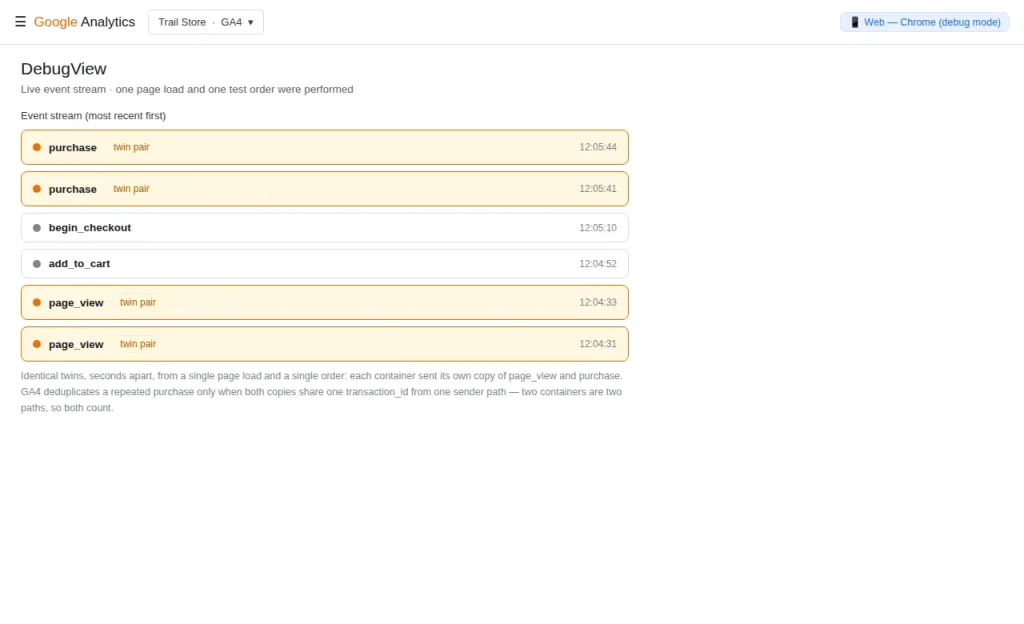
- Every shared tag fires twice. Both containers load their own Google tag and event tags, all reading the same page. Pageviews double, and purchases double with real revenue attached — this is cause 2 of duplicate purchase events in GA4, and no
transaction_iddiscipline fixes cross-container copies with different user/session identities. - The dataLayer is shared, so the triggers conspire. There is one dataLayer per page, and both containers listen to it. Every push —
add_to_cart,purchase,generate_lead— triggers matching tags in both containers. A container you think of as “just the old one, only a pageview tag” may hold a forgotten funnel tag double-sending for a year. - Consent becomes a coin flip. If both containers set consent defaults or load a CMP integration, the settings race: whichever runs second wins, per page, sometimes per load order. The symptom — ads tags sometimes blocked, sometimes not — looks intermittent because it is.
- Performance and debugging both degrade. Two container scripts, two sets of tag evaluations on every event, and a Preview session that only shows you the container you connected to — while the other fires invisibly beside it. Half of all “Preview looks clean, data wrong” mysteries are exactly this.
The close cousin: container version confusion
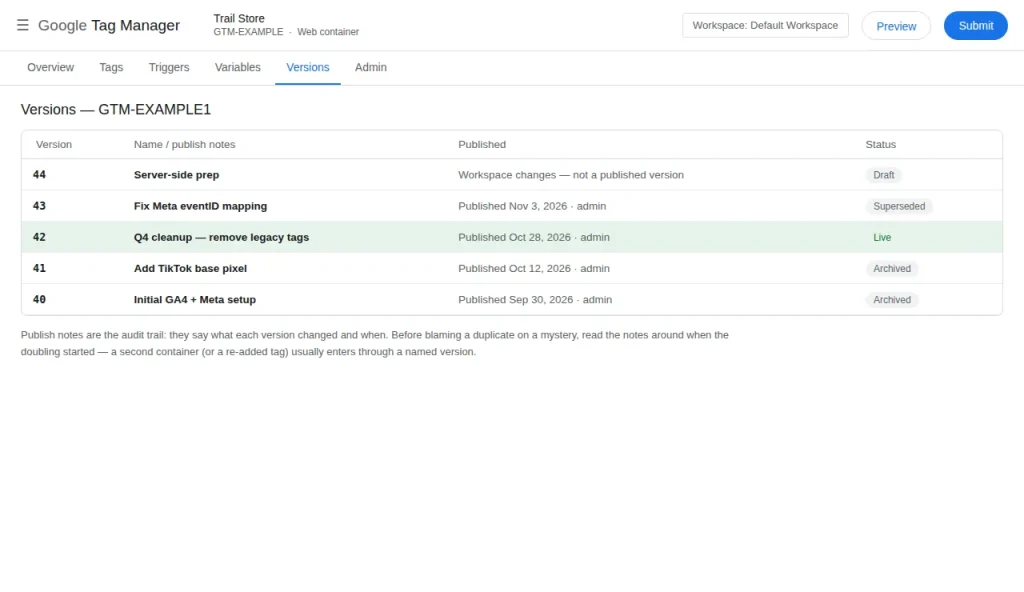
Sometimes there is only one container and the duplication is in the humans’ heads. GTM versions are the published snapshots of a container; workspaces are drafts. The classic failure: you preview your workspace, fix a tag, and test happily — while the live site runs an older published version that never received the fix. Or the reverse: a colleague published version 42 Tuesday, your workspace is still based on version 39, and your Friday publish silently rolls their changes back.
Version confusion produces the same doubled-or-missing symptoms as a second container, so rule it out during detection: in Tag Assistant, the container’s entry shows the live version number actually loaded. Compare it with the latest in GTM’s Versions tab. If they differ, you do not have a container problem — you have a publishing problem, and the fix is process, not removal (see the hygiene section).
Decide which container stays
Usually the answer is obvious once the inventory exists: keep the container your team owns, holding the GA4/Meta/Ads setup that the site’s documentation (if any) names. The old one typically belongs to a departed developer or agency, contains a stale subset, and has not been published to in a year. Two edge cases deserve care:
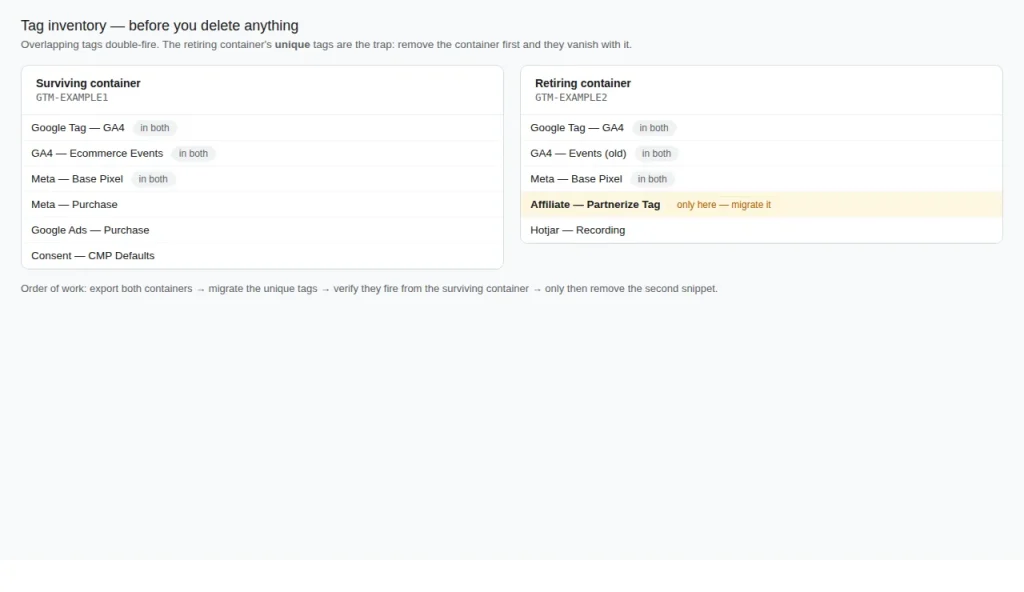
- The old container holds something unique and live — a tag nobody rebuilt in the new container (a legacy affiliate pixel is the usual specimen). Unique tags get moved, not kept alive with their container: recreate them in the survivor and test.
- Neither container is fully “yours” — the survivor lives in an agency’s account. Removal day is the moment to fix ownership too: build or claim a container under the business’s own account, migrate deliberately, treating the agency container as the one retired. A container the business cannot open is a liability regardless of duplication.
Rebuilding rather than rescuing? The GTM Container Builder generates a clean single-container starting point for the standard platforms — for WooCommerce stores, the WooCommerce + GA4 hub shows the one-container arrangement the finished estate should match.
The safe removal protocol
Seven steps, in order. Do not skip ahead — the order is the safety:
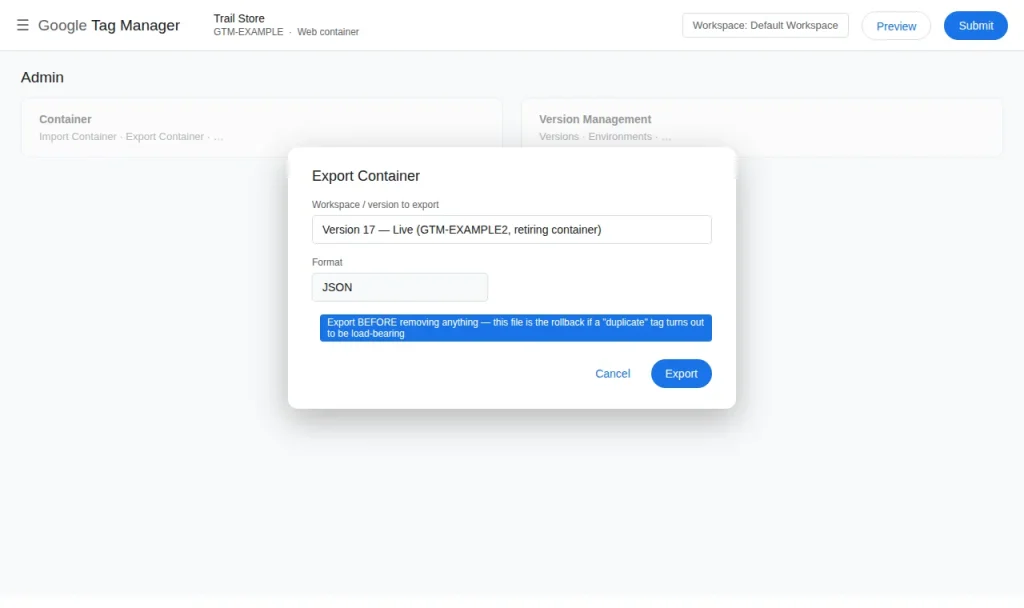
- Export both containers. In each container you can open: Admin → Export Container, choose the latest version, and save the JSON somewhere durable. This file is your rollback — any tag, trigger or variable can be re-imported into the survivor in minutes. For a container you cannot open (someone else’s account), note that in the inventory; its rollback is re-adding the snippet, so keep a copy.
- Inventory what each container actually fires. List every tag in both, side by side. Mark tags that exist only in the old container — the migration list. Also record each container’s published version and last publish date; a container unpublished since 2023 is telling you something.
- Recreate the unique tags in the surviving container. Build them in a workspace and test in Preview — events will double during testing because the old container still fires its copy; expected, and it ends at removal — then publish.
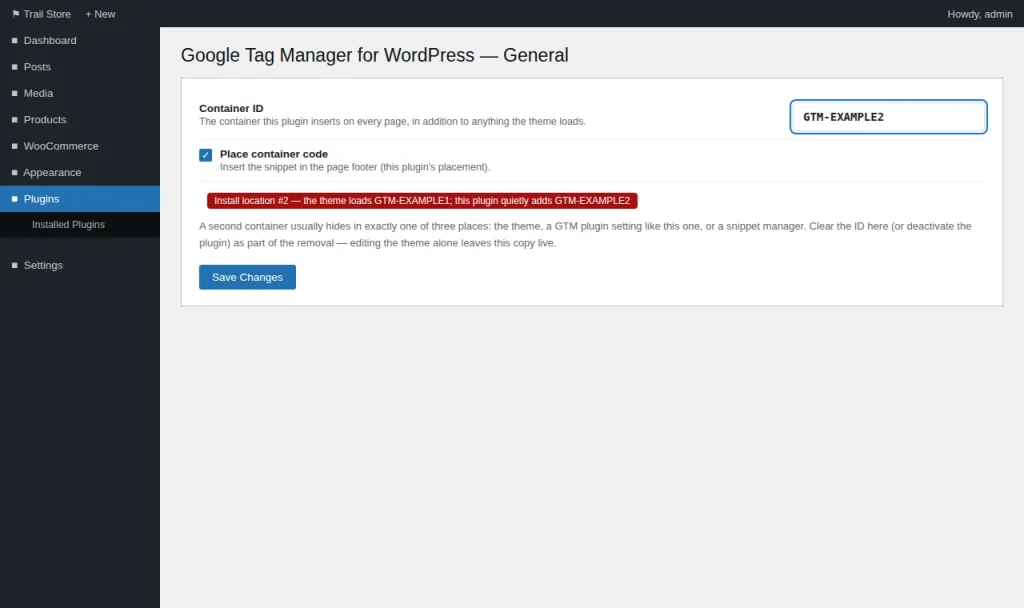
- Find every install location of the retiring container’s ID. This is the step people skip — why “I removed it and it’s still there” happens. A container ID can live in: the theme’s header template (and a child theme’s override of it), a GTM/plugin setting field (GTM4WP and its cousins each hold an ID), another plugin’s integration field (pixel managers and site-kit-type plugins have their own), a header/footer injector plugin, or a tag inside the surviving container that loads it (rare, real). Search files and settings for the ID string itself —
GTM-EXAMPLE2, in our dummy example — and list every hit first. - Remove one source at a time, and re-test after each. Clear the retiring ID from the first location only, then load the site and check Tag Assistant: the ID should vanish, or — if a second source exists — stubbornly remain, telling you the next location matters. One-at-a-time removal means a breakage has exactly one suspect.
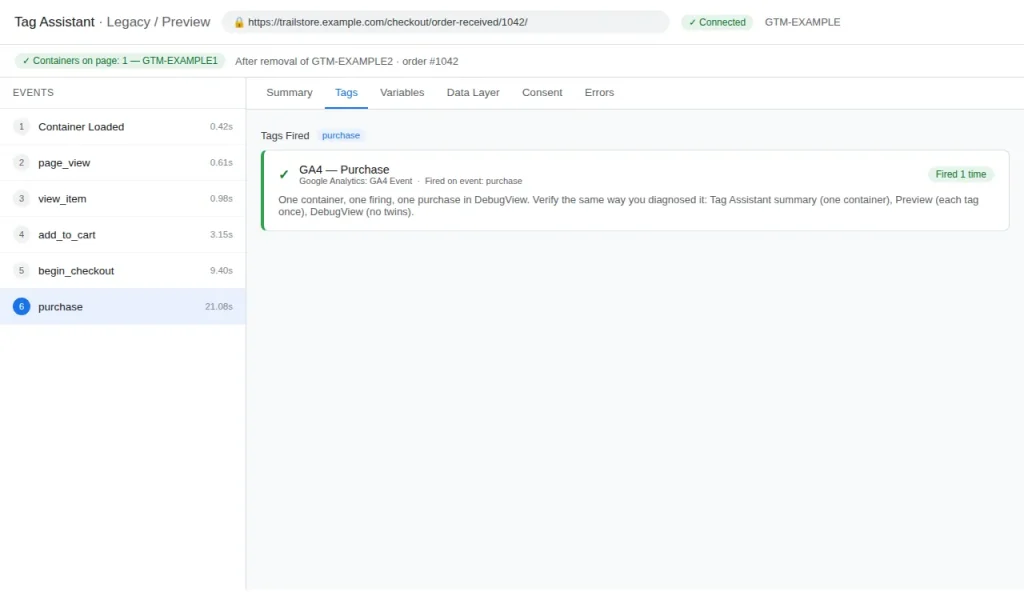
- Prove the site clean, end to end. Tag Assistant lists exactly one container. Preview a session — product view, add to cart, a test purchase — and each event fires once, in the survivor, with GA4 DebugView agreeing (one event per action, no twins). If Preview itself will not connect at this point, work the GTM Preview mode not connecting checklist. Watch live reporting for a few days: pageviews and purchases should land at roughly half the previous inflated level. If they do not fall, a sender remains.
- Leave the old container itself alone. Removing the snippet is not deleting the container — keep it that way. The retired container sits unpublished, unloaded, doing nothing. Deleting it is the only irreversible step in this guide and buys you nothing. Rename it RETIRED — do not install, so its name warns the next person. Renaming today costs nothing and prevents resurrection by a future developer finding the ID in an old email. Deletion — months later, after reporting has been stable and the export is safely stored — is a separate, deliberate decision, not today’s step.
Version and workspace hygiene, so this never recurs
- One owner, named. One person (or documented role) publishes the production container. Others work in workspaces; publishing is the owner’s job, and the owner is the one who checks the live version after.
- Name workspaces like changes, not people. Fix – TikTok
event_idages better than John’s workspace, and readers learn the intent. - Write a publish note on every version. GTM asks for a version name and notes at publish — thirty seconds there (“Added Meta Lead tag, removed old GA3”) saves hours of archaeology later.
- Verify the live version after publishing. Refresh the site in Tag Assistant and confirm the environment shows the version you just published.
- One container per site, written down. Record the canonical container ID where the business keeps its GA4 property ID and ad account IDs. Make it a list someone checks — an unlisted container is how a second one sneaks back in.
Frequently asked questions
Can two GTM containers ever be legitimate?
Deliberately, rarely: a corporate parent container alongside a local one, with disjoint tag sets and a documented split, can work. What never works is two containers with overlapping measurement tags — the shared dataLayer means overlapping triggers fire on the same pushes, and duplication, consent races and debugging blindness follow. If nobody can state the split in one sentence, it is an accident.
Does removing the snippet delete the container?
No. Removing the snippet only stops the site loading that container. The container, its versions and its configuration remain intact in its GTM account, and data already collected in GA4 or Meta is untouched. Re-adding it restores the previous state exactly — why removal, not deletion, is the method.
I removed one container and events still double. What is left?
A second sender that is not a container: a hardcoded gtag.js snippet in the theme, a plugin’s own GA4 connection, or a platform’s native integration sending alongside GTM. Search the page source for gtag and your Measurement ID, and work the sender inventory in the duplicate purchase events guide — its causes 1 and 2 are precisely this.
How do I tell which version the live site is running?
Connect Tag Assistant to any page: the container’s entry shows the version number and environment actually loaded. Compare it with GTM’s Versions tab. A mismatch means the site is not running what you last published — or someone published after you — and you learn it in ten seconds, not after a week of odd data.
What if the old container is in an account I cannot open?
Yes — removal happens on the site, not in the account. Find every install location of its ID (step 4), remove the snippet and settings from your site, and the container never loads again. What you cannot do without access is export or inventory its contents, so lean on Tag Assistant’s view of what fires, and watch reporting for a few days for anything dropping to zero.
Can I merge the old container into the new one by importing it?
Merging by import is step 3 done carelessly: importing the old container into the survivor with Merge duplicates every overlapping tag under new names and recreates the doubling inside one container. Move only the unique tags, deliberately, one at a time. A fresh start — new empty container, tags rebuilt from a list — suits very small estates, but it is a migration project with its own testing pass, not a shortcut.