GTM Form Submission Trigger Not Firing? 7 Checks to Fix It and Track Leads in GA4
A contact form nobody measures is a lead source nobody can improve. Yet form tracking is the setup most people get wrong in Google Tag Manager: the trigger sits there, the tag is built, the form is submitted — and Preview shows nothing at all. Or worse, the tag fires on every submit-button click, including ones validation rejected, and the “leads” in GA4 are mostly people who never got through.
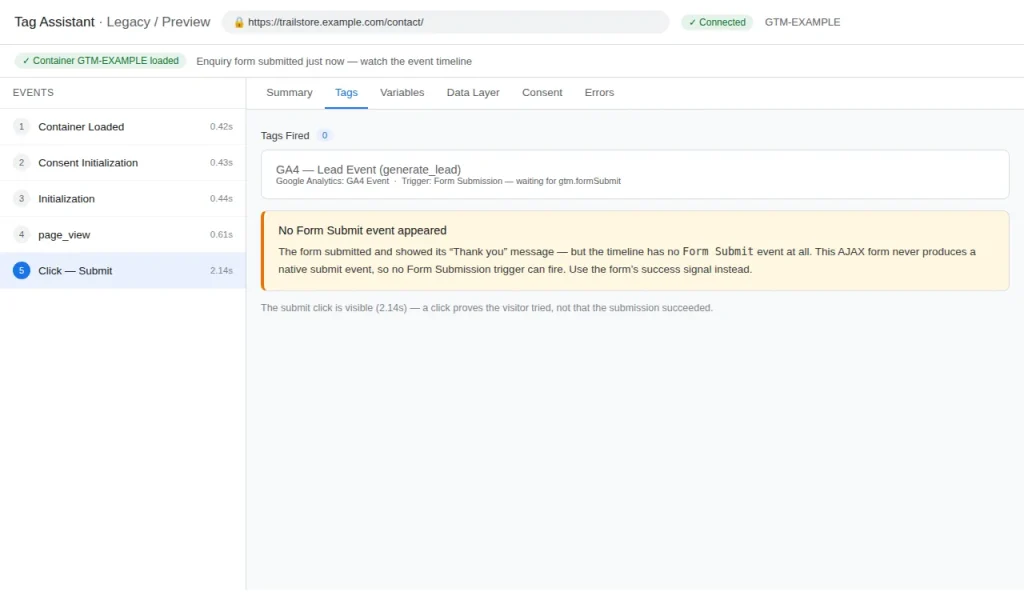
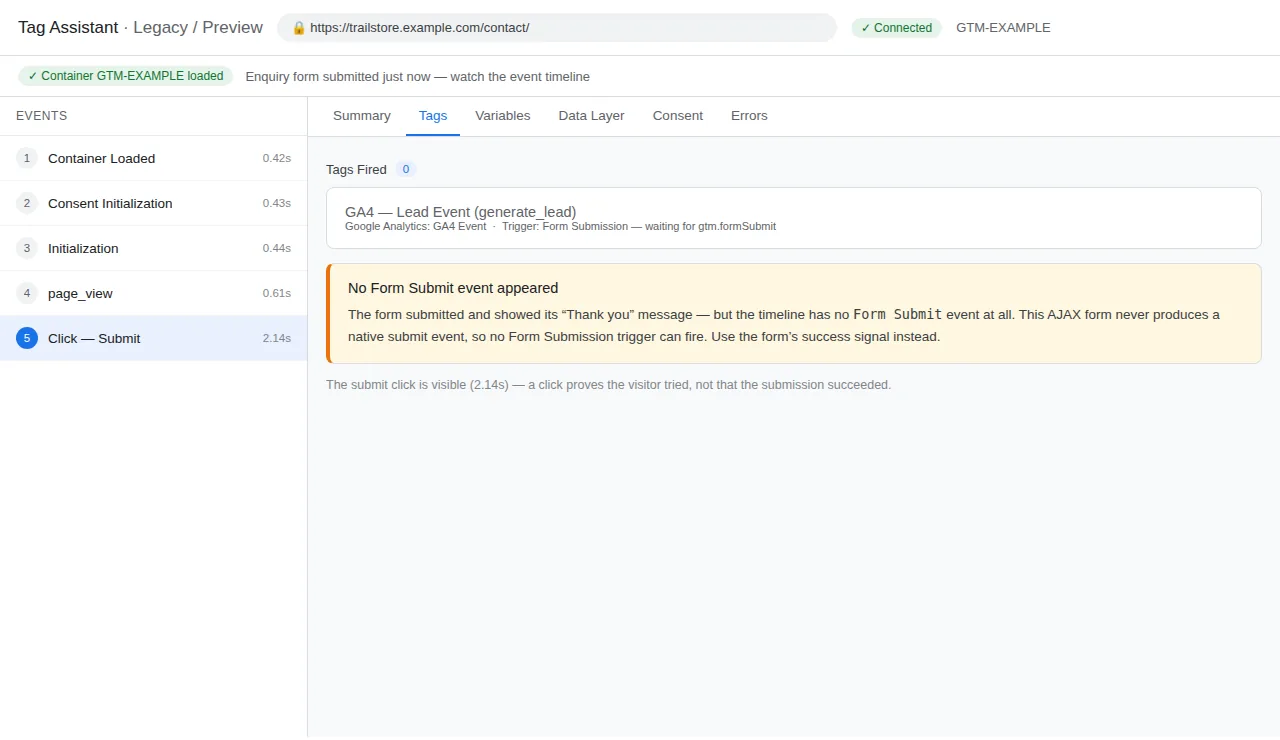
The confusion has one root cause: GTM’s Form Submission trigger listens for the browser’s native submit event, and most modern forms never produce one. WordPress plugins, HubSpot embeds and page-builder forms submit in the background with JavaScript (AJAX) and show a success message without reloading the page. No native submit, no gtm.formSubmit event, no trigger.
So the fix is not to rebuild the tag: find out, in order, which kind of form you have, what signal proves a successful submission for it, and which trigger catches that signal.
Quick answer
If your Form Submission trigger never fires, your form almost certainly submits with AJAX and never produces a native submit event — check Preview’s Data Layer tab for gtm.formSubmit first. If it is absent, use the form’s success signal instead: a thank-you page view, an Element Visibility trigger, or a dataLayer.push. A submit-button click is not proof of a lead — only a server-confirmed success is.
The terms, in one sentence each
- Form Submission trigger: a GTM trigger that fires on the browser’s native form submit event.
gtm.formSubmit: the dataLayer event GTM pushes on a native form submission — if it never appears in Preview, no Form Submission trigger can fire.- Check Validation: a trigger setting that makes GTM fire only when the browser considers the submission valid, ignoring submits the page blocks.
- Wait for Tags: a trigger setting that delays the form’s navigation until your tags have fired, so hits are not lost on a page reload.
- AJAX form: a form that submits in the background with JavaScript, without reloading the page — the type that defeats the Form Submission trigger.
generate_lead: the GA4 recommended event name for a completed lead submission — mark it as a key event once verified.
Quick diagnostic: what are you seeing?
| What you see | Most likely cause | Go to |
|---|---|---|
| No Form Submit event in Preview | Form variables off, or no trigger exists yet | Check 1 |
| Form Submit never appears, success message shows in place | AJAX form — no native submit event | Check 2 |
| Form Submit appears but the tag does not fire | Check Validation is blocking it | Check 3 |
| Tag fires on the wrong form, or every form | Trigger set to All Forms, or conditions too loose | Check 4 |
| Form lives in an embedded widget | Iframe — the parent page cannot see inside | Check 5 |
| Tag fires in Preview, nothing in GA4 | Event name, key event, consent, filter or delay | Check 6 |
| Tag fires on failed submissions too | Click or submit used as proof of success | Check 7 |
| Tag fires, but the hit is lost on redirect | Page reloads before the tag sends | Check 3 |
| Leads counted twice | GA4’s automatic form_submit counted alongside your own event | Check 6 |
Check 1: No Form Submit event in Preview — enable the form variables first
Symptom: You submit the form in Preview and the timeline shows nothing new — no Form Submit, no click, nothing to attach a trigger to.
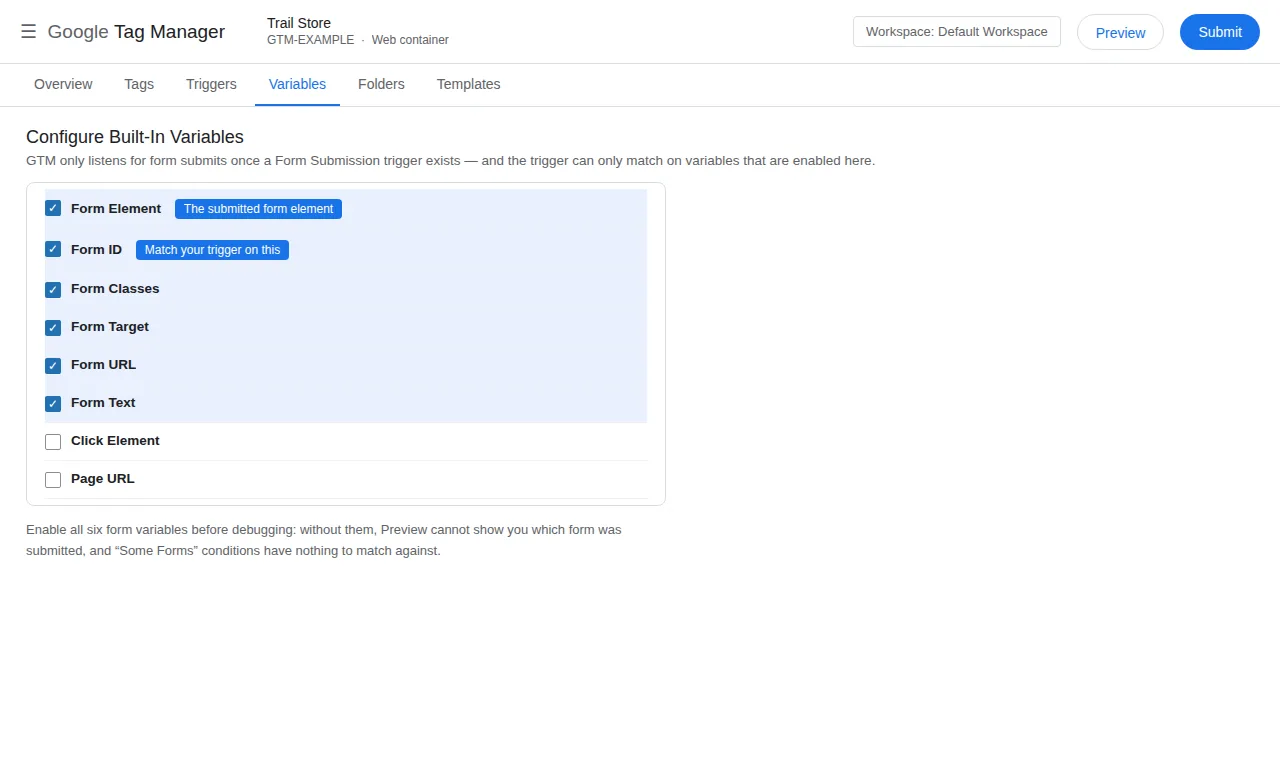
Verify: In GTM, go to Variables > Configure under Built-In Variables and tick Form Element, Form ID, Form Classes, Form Target, Form URL and Form Text. Then create a Form Submission trigger if you have not already — GTM only starts listening once one exists. Submit again in Preview and open the Data Layer tab: a real submission shows gtm.formSubmit.
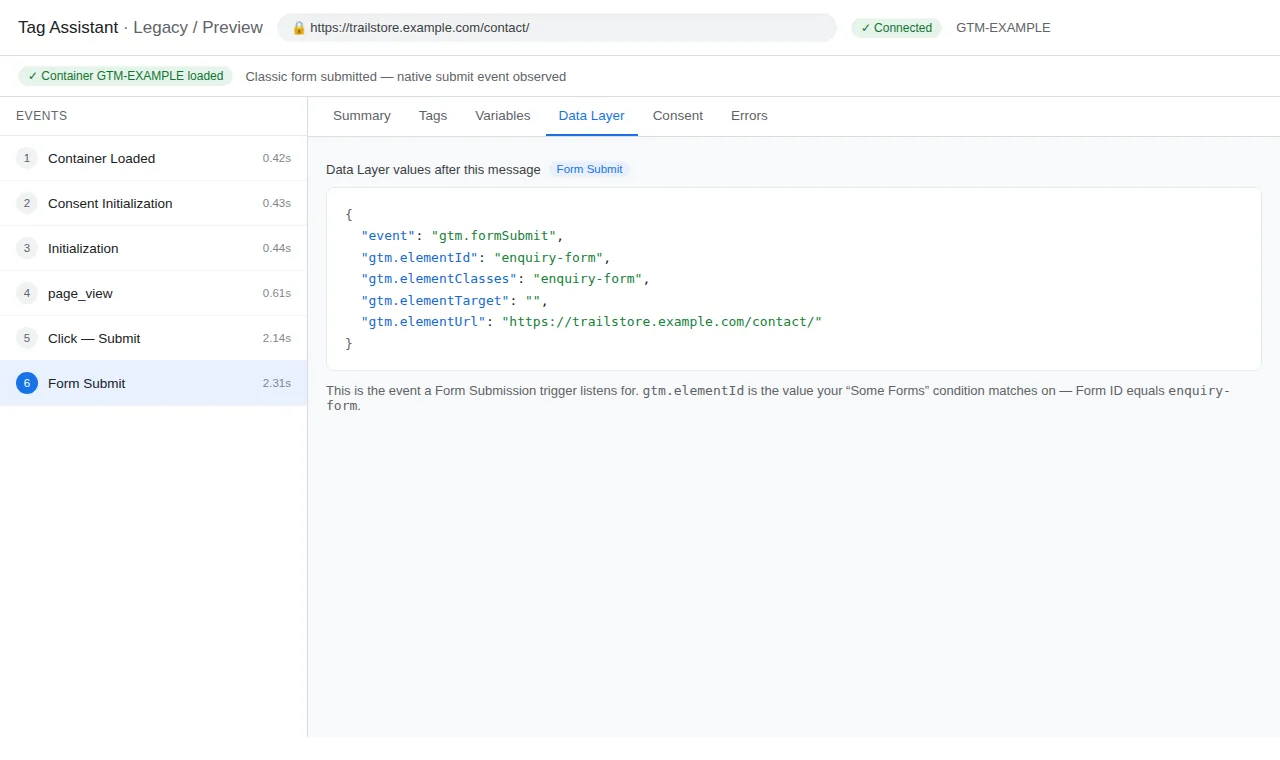
Fix: Enable the variables, create the trigger, and re-test. If gtm.formSubmit appears, the built-in trigger is the right tool — the rest is scoping it (Check 4). If not, the form is not submitting natively — go to Check 2.
Check 2: The form is AJAX — use the success signal, not the submit
Symptom: gtm.formSubmit never appears, however many times you submit — but the form itself works, showing a “Thank you” message without reloading the page.
Verify: This is the most common cause, and a property of the form, not a bug in your setup: these forms call preventDefault and send the data with JavaScript instead, so the browser’s submit event never happens. Confirm it in Preview’s Data Layer tab — no gtm.formSubmit, ever.
Fix: Pick the strongest success signal the form exposes, in this order:
- A
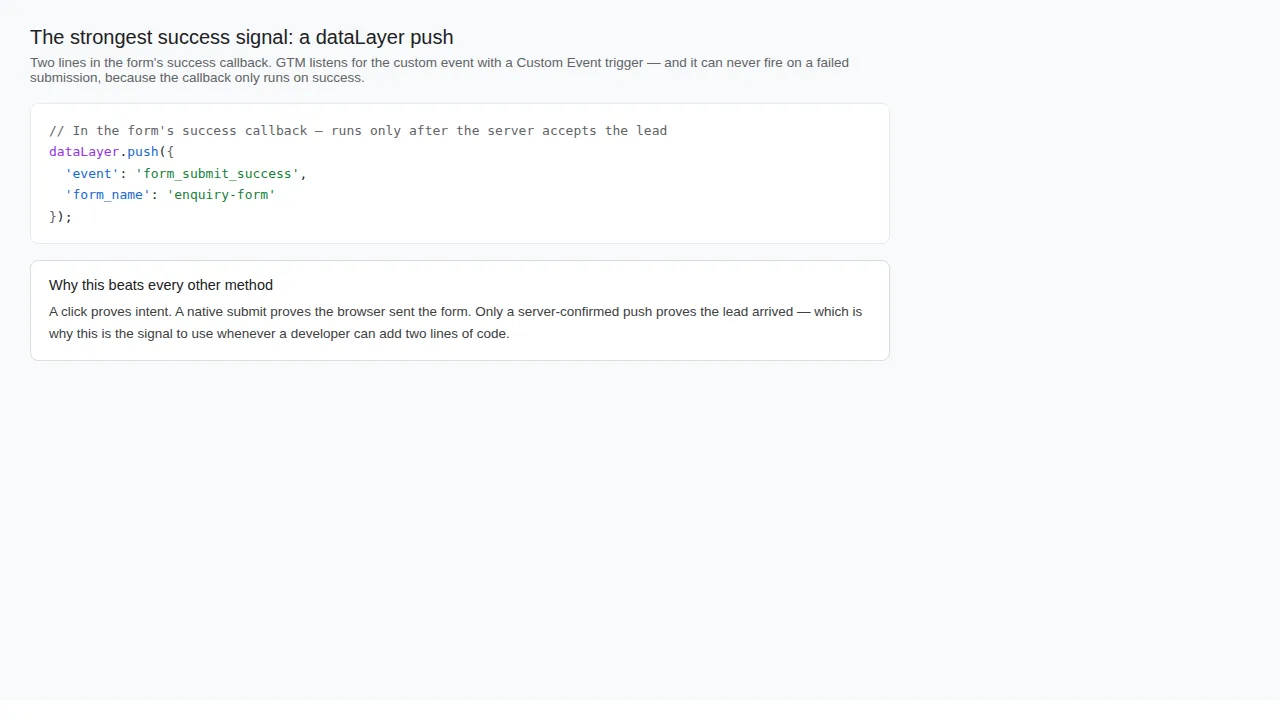
dataLayer.pushfrom the developer — two lines in the form’s success callback, pushing an event such asform_submit_success— it fires only after the server has accepted the lead, the most reliable option if you can touch code.
- A thank-you page view — a Page View trigger on the thank-you URL is simple and robust.
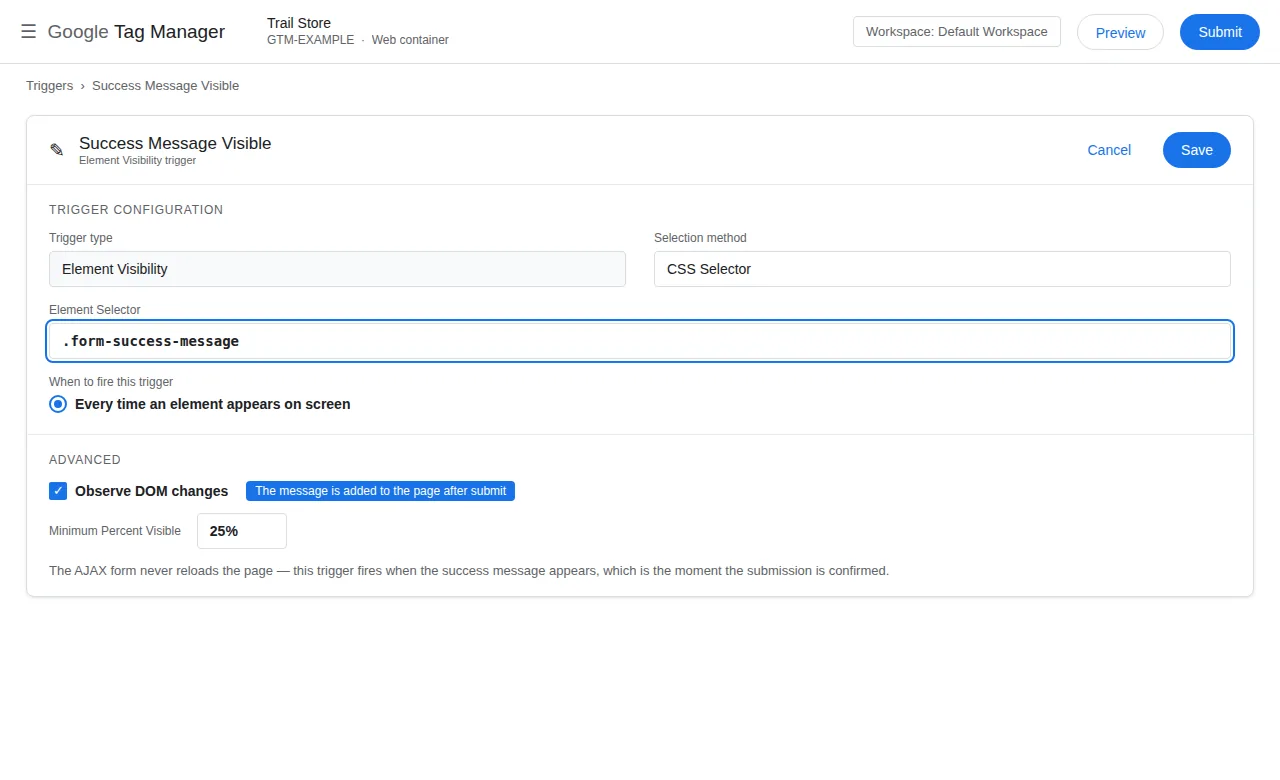
- Element Visibility on the success message — when the form swaps in a “Thank you” message, trigger on that element becoming visible. Tick Observe DOM changes and keep the minimum percent visible low (25%).
Do not keep fighting the Form Submission trigger for a form with no native submit — it is simply the wrong tool for it.
Check 3: Check Validation is blocking the trigger
Symptom: gtm.formSubmit appears in Preview, but the tag does not fire — or fires only sometimes.
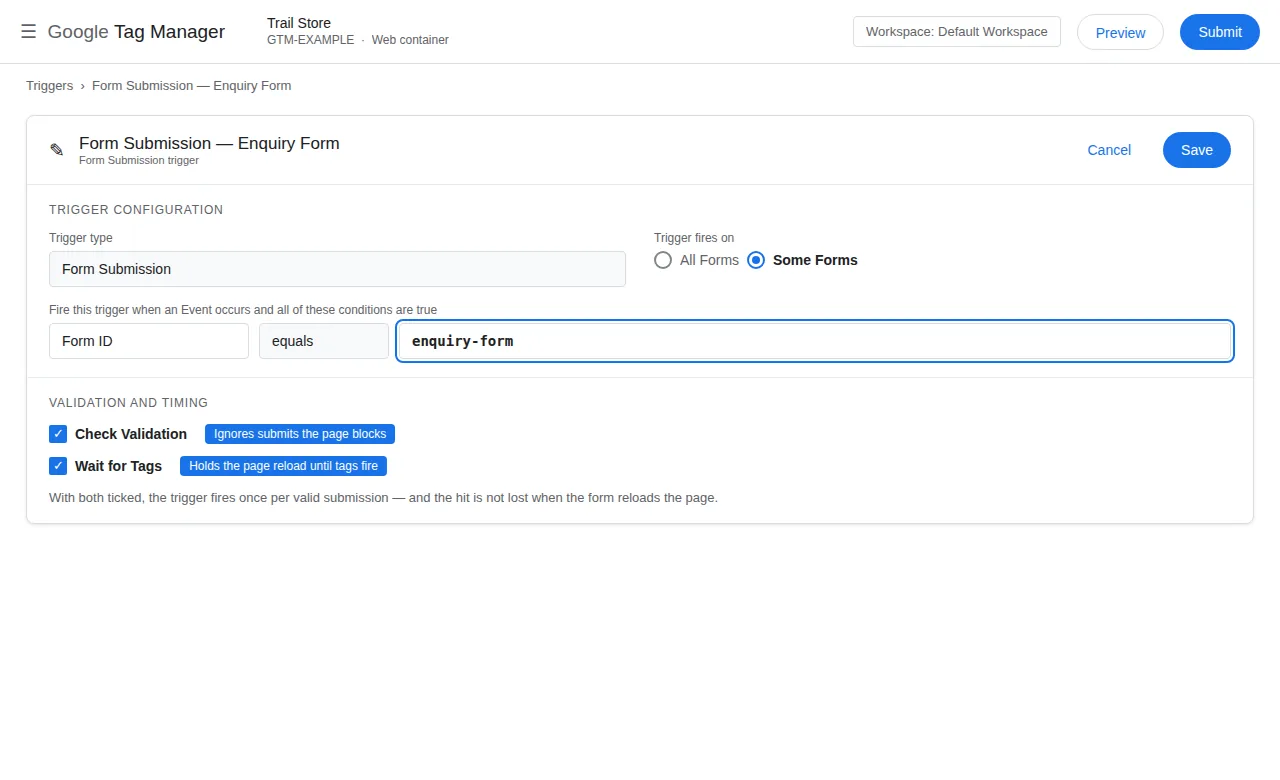
Verify: Open the trigger and look at Check Validation. With it ticked, GTM ignores submits the page blocks — an empty required field, a failed captcha, a script that cancels the submit. That is usually what you want. But some forms validate in JavaScript after the submit event and cancel the native submit, so the trigger stays silent on a genuine submission.
Fix: Turn Check Validation off once and submit a valid form. If the tag fires, validation handling is the culprit. Do not leave it off — that re-admits failed submissions (Check 7); switch to the form’s own success signal (Check 2) instead. The trigger’s other setting, Wait for Tags, solves a different race: on a classic form that reloads the page, the browser navigates away the moment the form submits, and a tag that has not finished sending loses its hit — intermittent, because fast connections usually win the race. Tick Wait for Tags (keep the default maximum wait time) so GTM holds the navigation until tags fire, and scope the trigger to only the pages that need it. If the race persists, prefer the thank-you page view trigger: it fires after navigation, where there is no race at all.
Check 4: The trigger fires on the wrong form — scope it with “Some Forms”
Symptom: The tag fires on the newsletter box, the search box, or every form — while the contact form’s leads mix in with junk.
Verify: A trigger set to All Forms fires on any form anywhere, and GA4 cannot tell them apart from the event name alone. In Preview, submit each form and read its Form ID and Form Classes in the Data Layer tab.
Fix: Change the trigger to Some Forms with a condition on a stable attribute — Form ID equals enquiry-form, or Form Classes contains the form’s class. Avoid Page Path equals when the form appears on several URLs; contains is safer, since a trailing slash or query string silently fails an equals test. One trigger per form, each with its own form_name parameter.
Check 5: The form is inside an iframe — the parent page cannot see it
Symptom: Nothing appears in Preview when the form is submitted — no click, no Form Submit, no dataLayer event — even though the form visibly works.
Verify: Embedded forms from Typeform, HubSpot, Calendly and similar tools run inside an iframe on another domain, and your page’s GTM container cannot observe anything inside that frame. If the form element lives in an <iframe>, no trigger on the parent page will ever catch its submission.
Fix: Use the vendor’s own channel: a built-in GA4 integration (Calendly’s sends invitee_meeting_scheduled when a booking completes), a JavaScript event the embed sends to the parent page (Calendly’s calendly.event_scheduled via postMessage, Typeform’s TypeformSubmit), or a redirect to a thank-you page you control. Listen for that vendor event with a Custom Event trigger — never put GTM inside a third-party iframe. If the vendor offers no event and no redirect, the form cannot be tracked from the parent page.
Check 6: The tag fires in Preview, but nothing reaches GA4
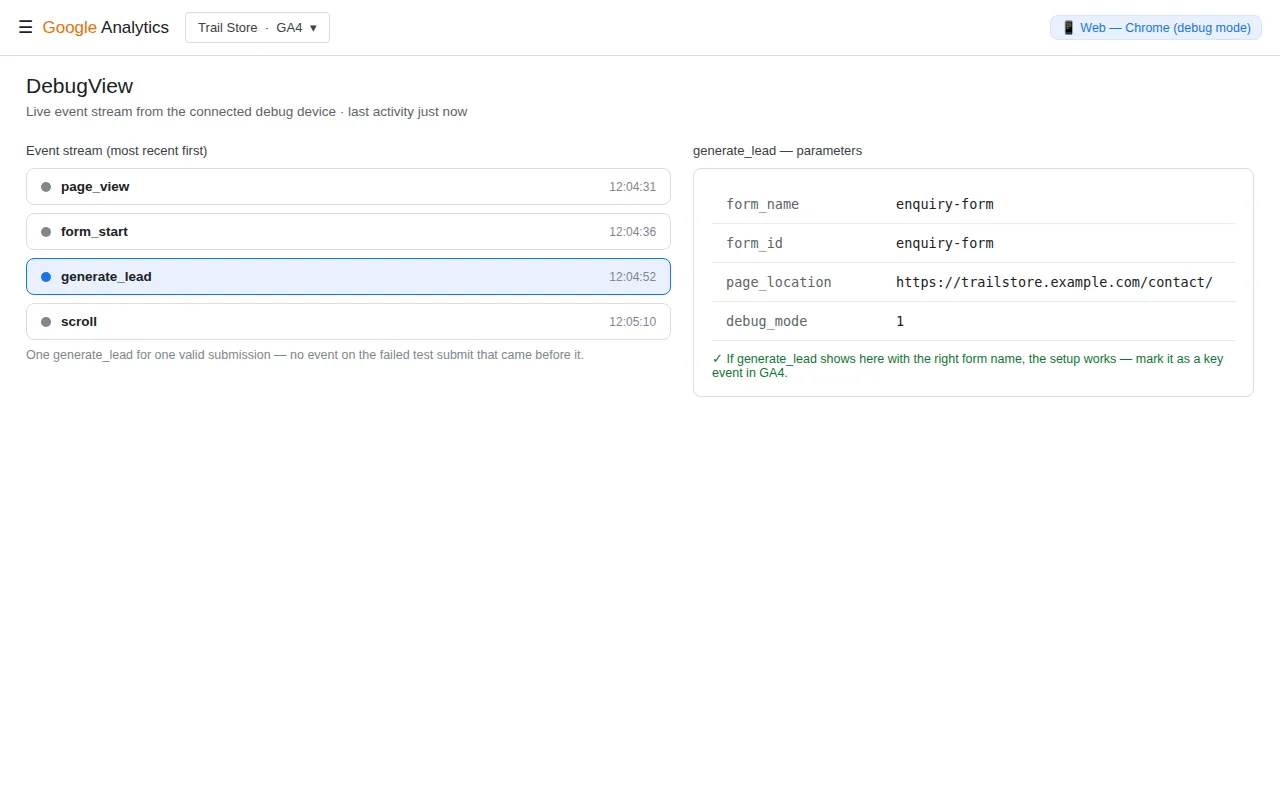
Symptom: Preview shows the tag fired, DebugView stays empty, no generate_lead in GA4.
Verify: A firing tag is only half the journey. Work the same checks as any event that fires but never lands: the Measurement ID must match the GA4 data stream exactly; the container must be published (Preview tests the draft, not the live site); consent must be granted for analytics_storage if your banner gates the tag; your own IP may be hidden by an internal traffic filter. Event names are case-sensitive — generate_lead and Generate_Lead are two different events.
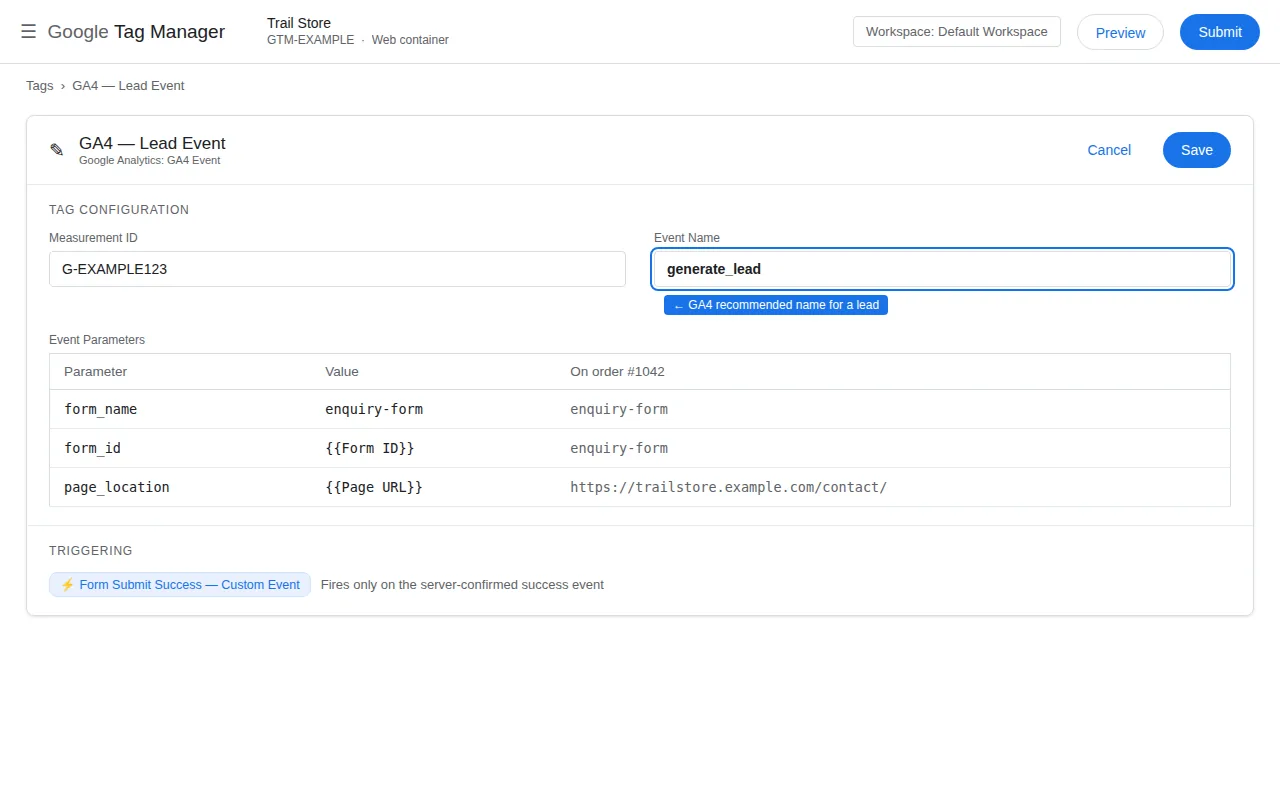
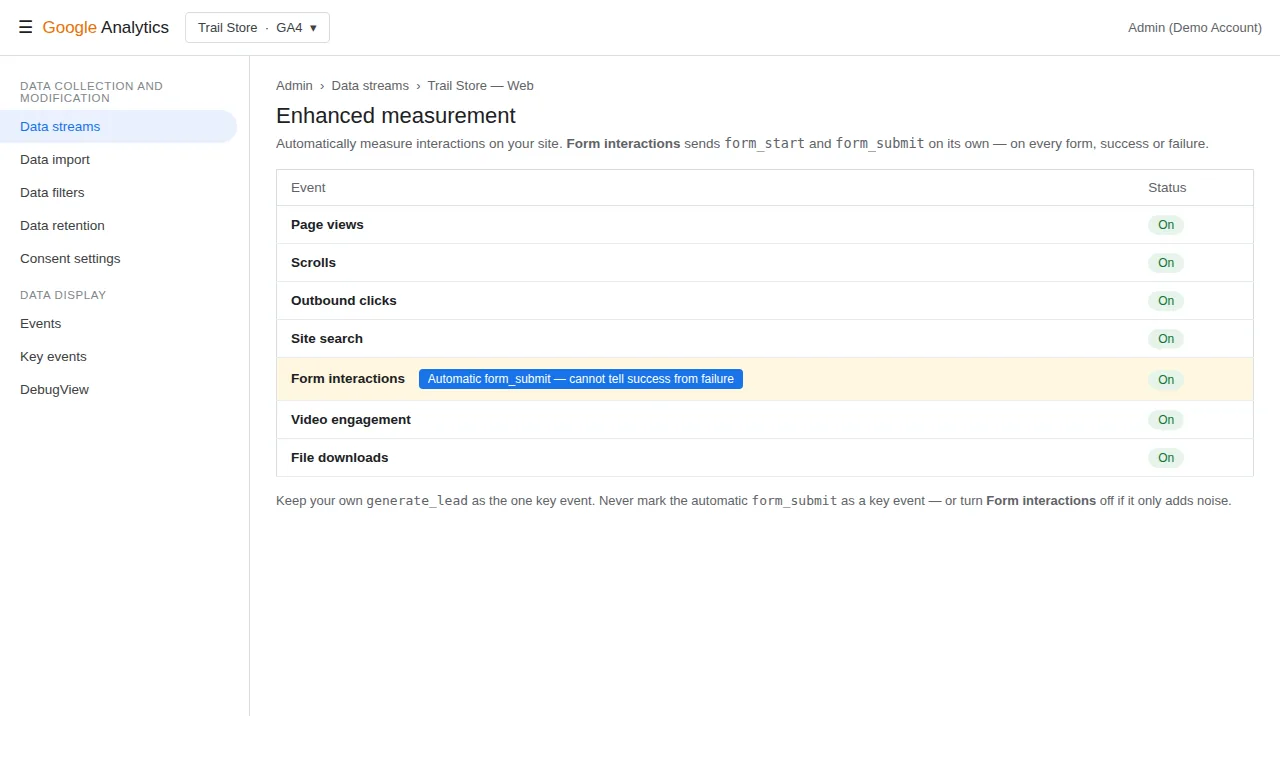
Fix: Fix the break where it is, then verify in DebugView — standard reports take 24–48 hours. The full ordered checklist is the GTM tag fires in Preview but not in GA4 guide; if consent is the suspect, the Consent Mode v2 guide covers the banner side. Once the event lands in DebugView, mark generate_lead as a key event (Admin > Data display > Events) — marking only counts events from that moment on. One last trap: with Form interactions on in GA4’s enhanced measurement, GA4 also sends an automatic form_submit on every submit attempt, which cannot tell success from failure. Never mark it as a key event, or your leads will count roughly double; turn Form interactions off if the automatic events only add noise.
Check 7: The tag fires on failed submissions — clicks are not leads
Symptom: Lead counts look healthy, but sales says half the “leads” never arrived — the form errored, or the visitor clicked submit three times.
Verify: A submit-button click proves intent, not success: validation can fail after the click, an AJAX request can return an error, and an impatient visitor can click repeatedly. A Click trigger on the submit button, or a Form Submission trigger without Check Validation, counts those attempts as leads.
Fix: Trigger only on a server-confirmed success signal — the dataLayer.push from Check 2, the thank-you page, or the success message. Then test the failure path deliberately: submit the form empty, with a bad email, and twice in a row. None should produce a generate_lead. If your inbox and GA4 counts disagree by more than a handful, the trigger is still counting attempts.
Verify the fix end to end
Run this five-minute test before calling the job done:
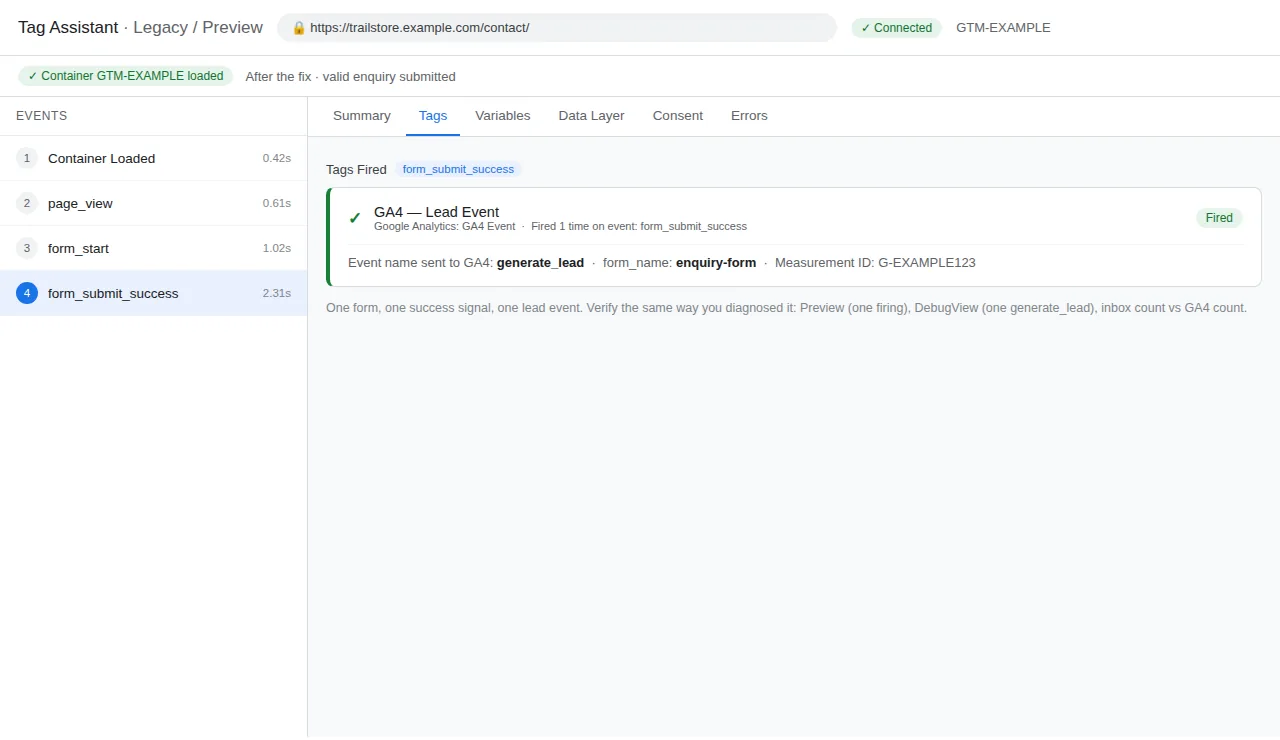
- Preview, success path: Submit a valid form. The right event appears in Preview, the GA4 tag fires once, and the event is
generate_leadwith the form name as a parameter. - Preview, failure path: Submit the form empty, then with an invalid email. No
generate_leadfires. - DebugView: The
generate_leadevent appears within seconds, with the right parameters. If it does not, work Check 6. - Realtime and reports: Wait a day, then check the Events report — the count should be close to the inbox count, not double it.
- Consent off: Decline cookies and submit again. If your banner gates analytics, no event should fire — correct behaviour, and why lead counts sit slightly below form submissions.
If Preview itself will not connect during this test, that is a separate fault — see the GTM Preview mode not connecting guide.
Summary checklist
- ☐ Form variables enabled (all six)
- ☐
gtm.formSubmitconfirmed — or the form identified as AJAX - ☐ Trigger scoped to Some Forms with a Form ID condition
- ☐ Check Validation on
- ☐ Wait for Tags ticked if the form reloads the page
- ☐ Iframe forms handled through the vendor’s own event
- ☐ GA4 tag sends
generate_lead, IDs match, container published - ☐
generate_leadmarked as a key event in GA4 - ☐ Failed submissions tested — no event fires
- ☐ Automatic
form_submitnot a key event (or Form interactions off)
Frequently asked questions
Why does my GTM Form Submission trigger not fire at all?
Usually because the form submits with JavaScript (AJAX) and never fires a standard browser submit event. If gtm.formSubmit never appears in Preview, use the form’s success signal instead: a thank-you page view, an Element Visibility trigger, or a dataLayer.push.
Should I use a Click trigger on the submit button instead?
Only as a diagnostic, never as the lead event. A click proves the visitor tried to submit, not that it succeeded — validation can fail and double-clicks count twice. Send generate_lead from a server-confirmed success signal.
What is the difference between Check Validation and Wait for Tags?
Check Validation makes the trigger fire only when the browser considers the submission valid, ignoring blocked submits. Wait for Tags delays the form’s navigation until your tags have fired, so hits are not lost on a redirect. They solve different problems.
Can I track a form inside an iframe, like Typeform or HubSpot?
Not from the parent page — GTM cannot observe inside a cross-domain iframe. Use the vendor’s own channel: its GA4 integration, the JavaScript event it sends to the parent page, or a redirect to a thank-you page you control.
Why does GA4 show form_submit but not my generate_lead?
GA4’s automatic form_submit comes from enhanced measurement and fires on any submit attempt, while your generate_lead only fires on the success signal your trigger listens to. If the automatic event arrives and yours does not, the trigger is the problem. Never mark the automatic event as a key event; it cannot tell success from failure.
How long until form submissions appear in GA4 reports?
In DebugView, within seconds; in Realtime, within minutes; in standard reports, 24–48 hours. If the event is in DebugView with the right name and parameters, the setup works. If it never appears in DebugView, the hit never reached GA4.