Meta Events Not Showing in Events Manager? Split Browser vs Server First, Then Fix the Cause
Quick answer
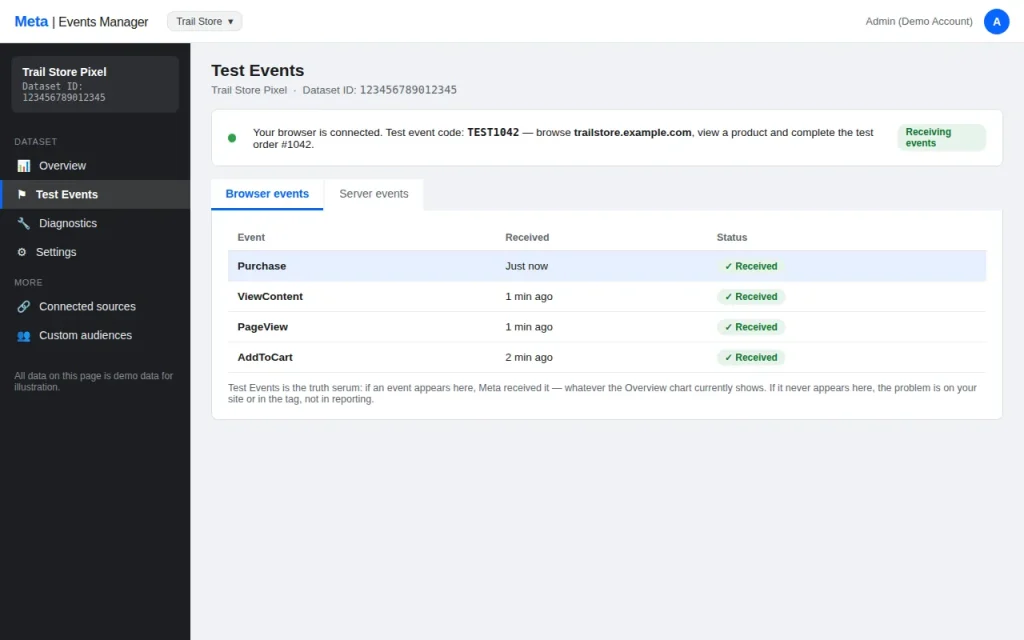
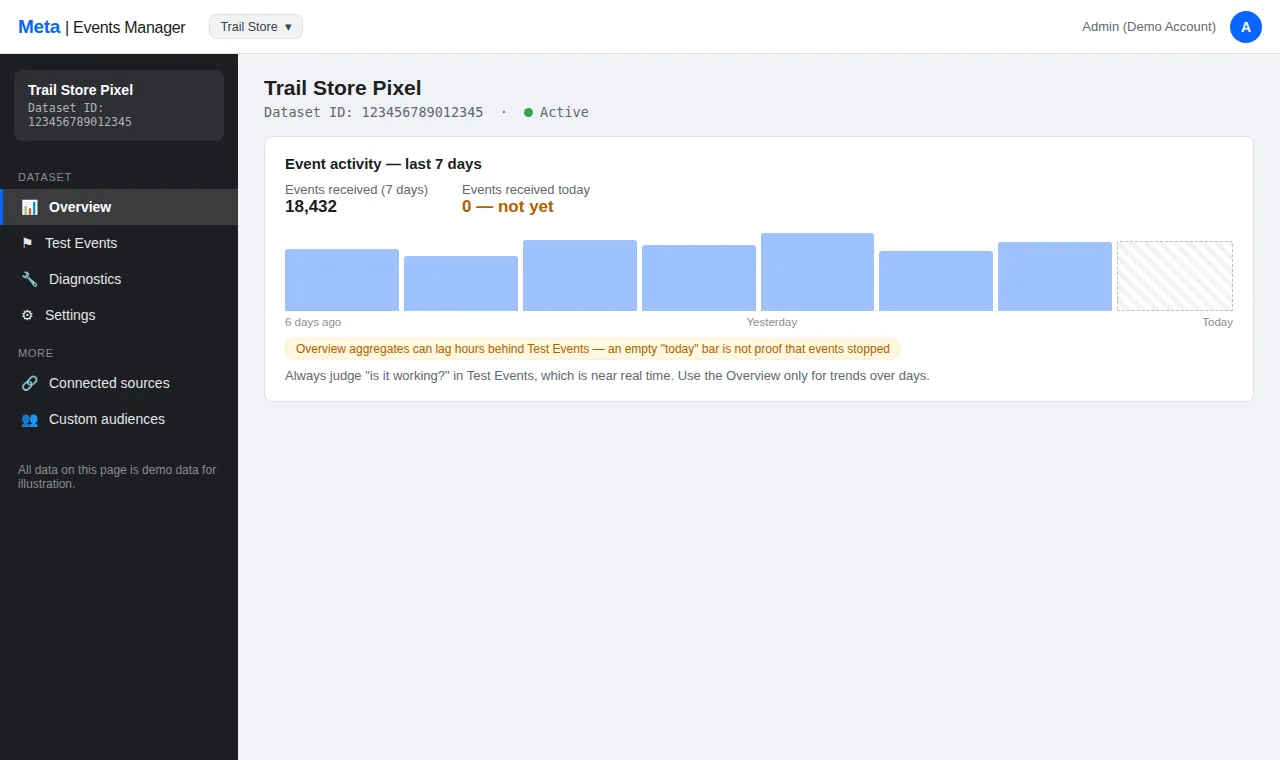
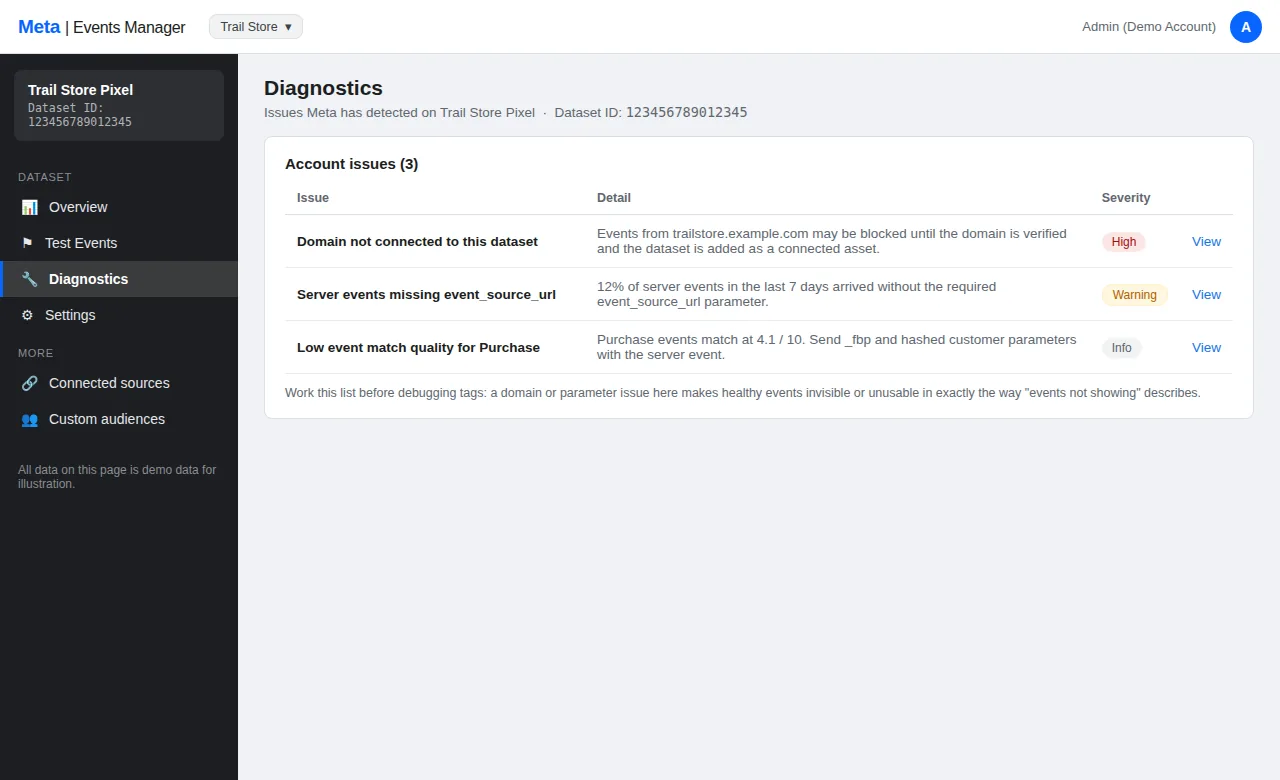
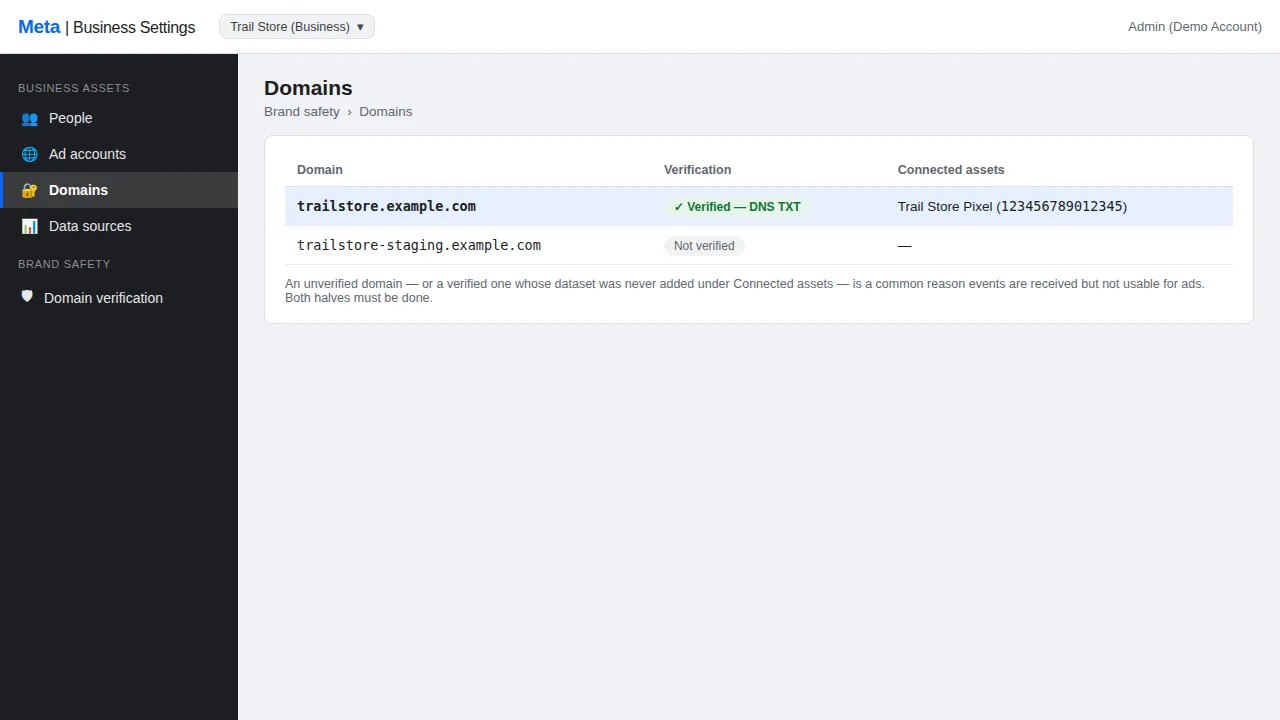
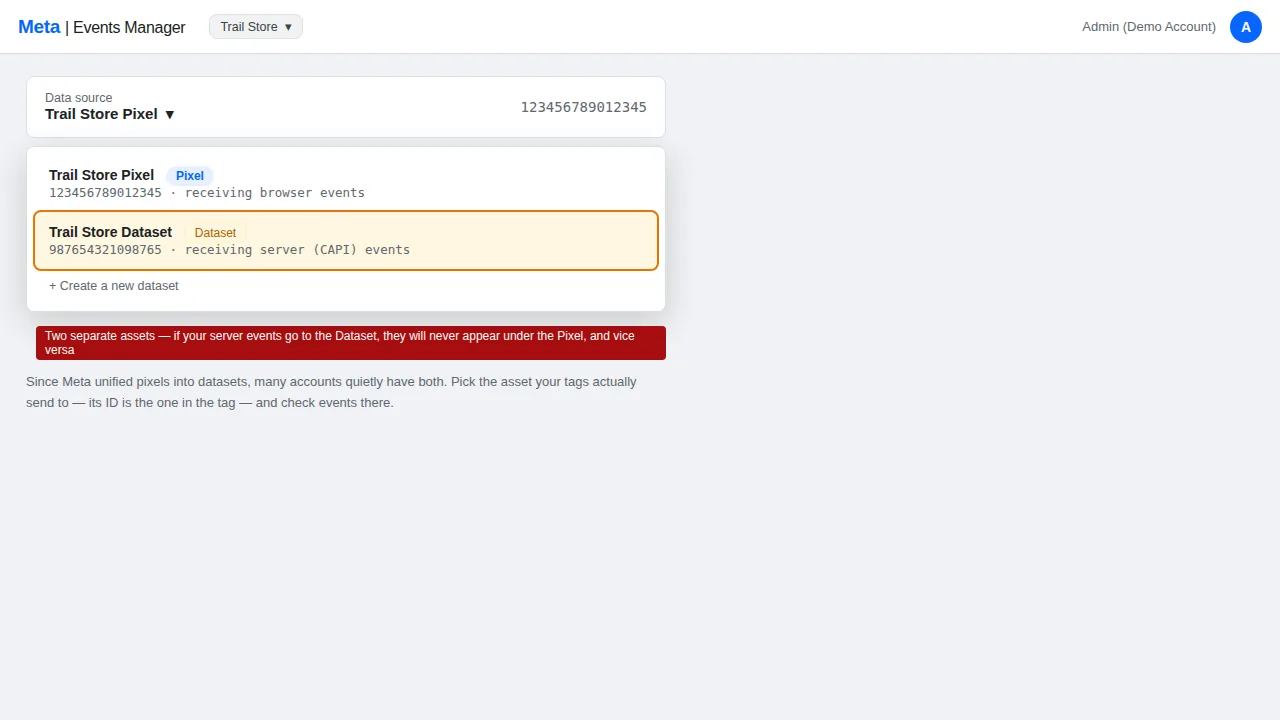
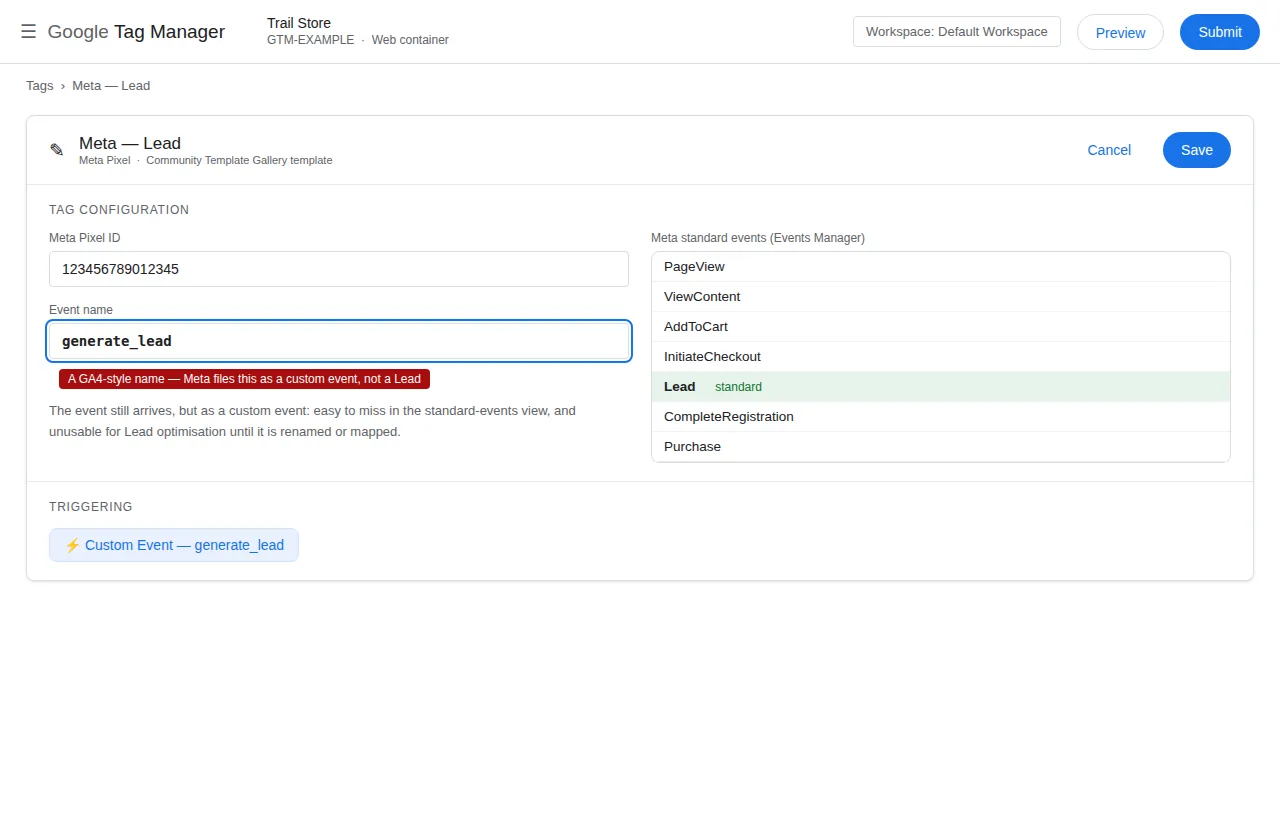
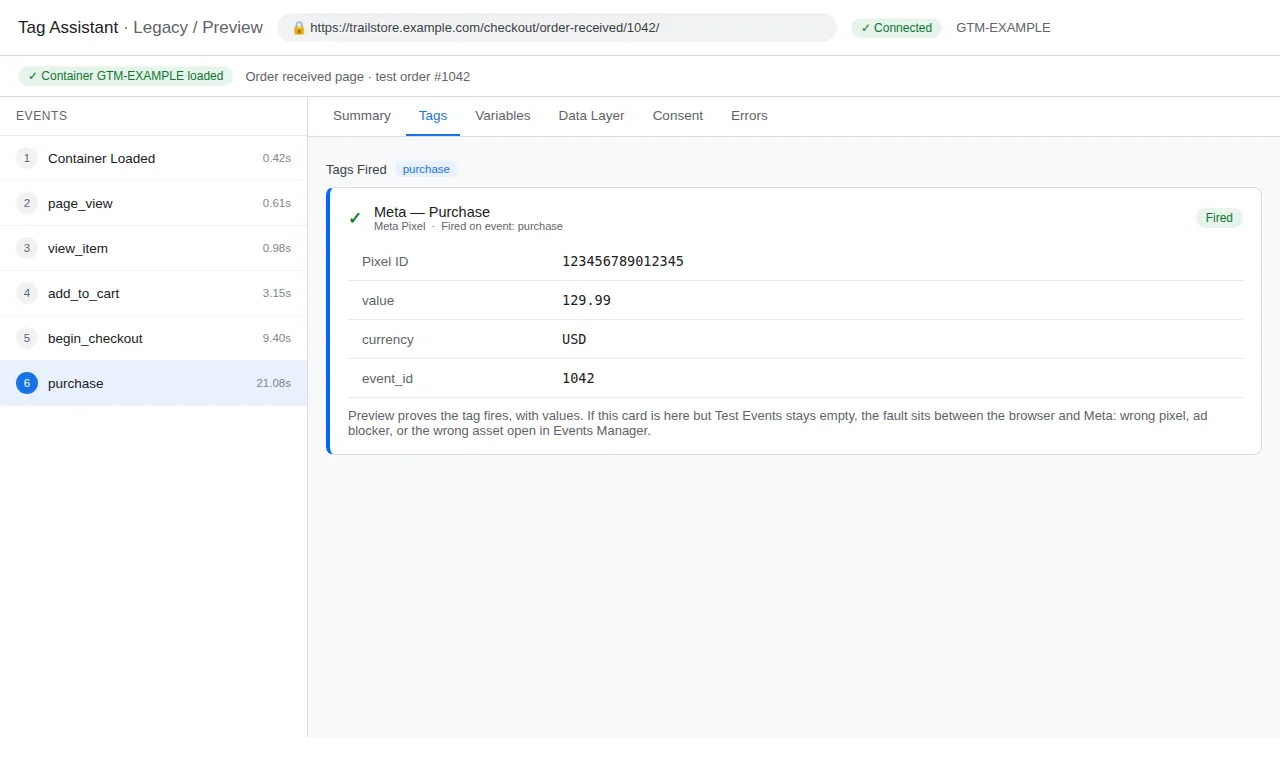
If the Pixel fires but events don’t show, the likely causes, in order: you’re looking at the aggregated overview, which is delayed and, at low traffic, sampled — the real-time truth is Test Events; the GTM tag carries a different pixel ID from the one you’re viewing (accounts often hold two pixels); events are arriving under a dataset, or on an unverified domain; your own browser blocked the test; or server events are being rejected for missing parameters, visible only in Test Events’ server tab. Diagnose in this order: Pixel Helper → GTM Preview → Test Events (browser) → Test Events (server) → Diagnostics tab.
You fire a Purchase, open Events Manager, and nothing is there. The Pixel Helper says the event fired. The browser says it fired. Meta says it never happened.
Events Manager is not a live feed — it is a filtered view of what Meta accepted, matched, and kept. When events do not show, the problem is in one of three places: the event never left the browser, it left but Meta rejected it, or it arrived and was filtered out. The fastest way to find which one is to split browser from server first, then work the causes in order.
First, split browser from server
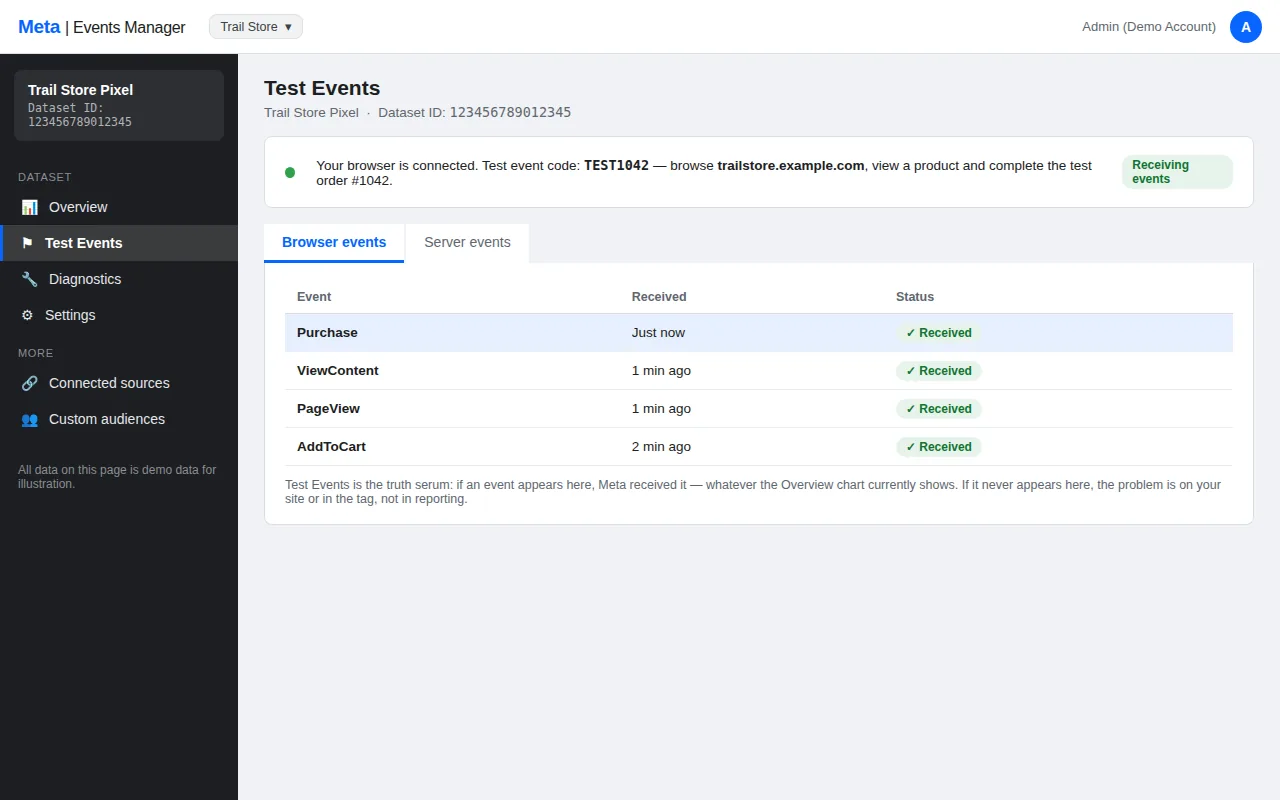
Every Meta event arrives by one of two channels. Knowing which one is empty tells you where to look:
| What you see | What it means |
|---|---|
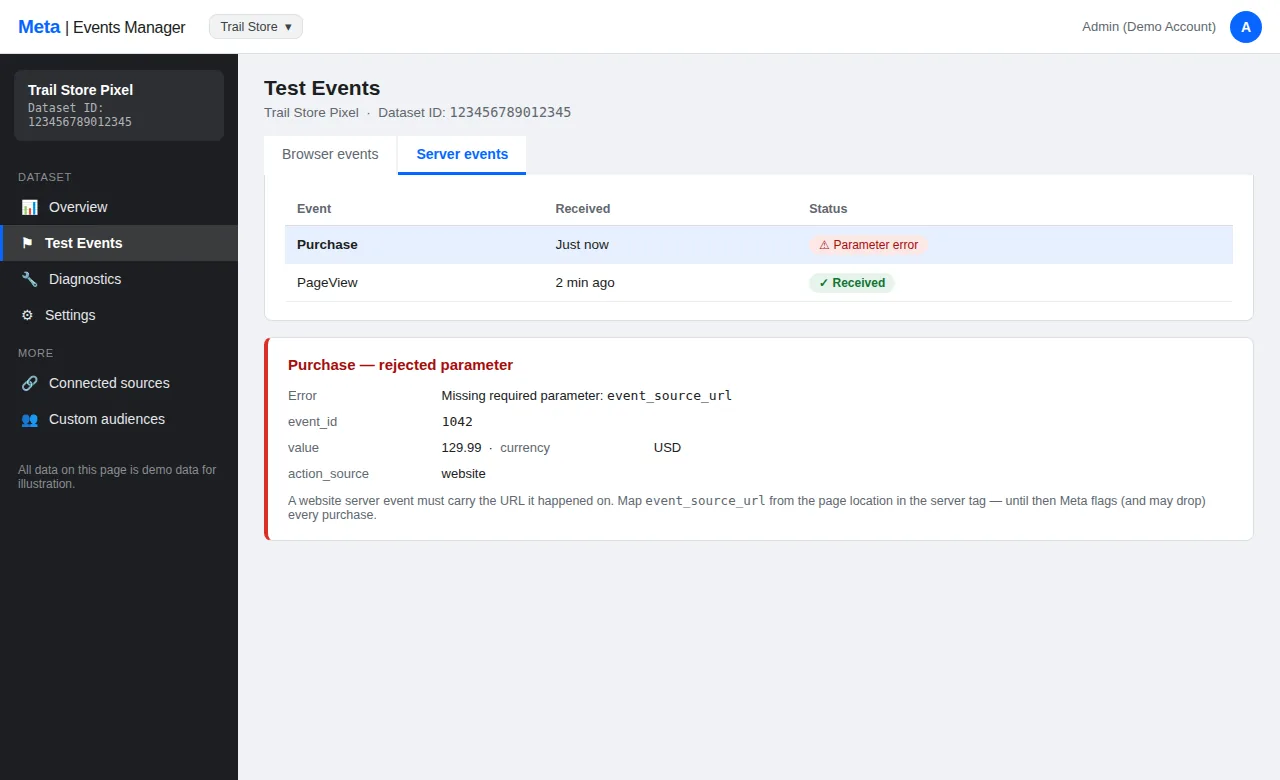
| Browser events show, server events do not | The server route is broken — CAPI, the server tag, or the event_id. |
| Server events show, browser events do not | The browser route is broken — the Pixel, the web tag, or the browser itself. |
| Neither shows | The event is not being sent at all, or Meta is rejecting both. |
| Both show, but the numbers are wrong | Deduplication or filtering is the problem, not sending. |
That split is the whole diagnosis in one step. If the browser events show and the server ones do not, do not touch the Pixel — the problem is in the server route. If neither shows, the event is not being sent at all.
The 5-step diagnosis
Work this list from the top. Stop as soon as you find the break:
- Open Test Events and send a test event. If it appears, Meta is receiving events — the problem is in the live traffic, not the setup.
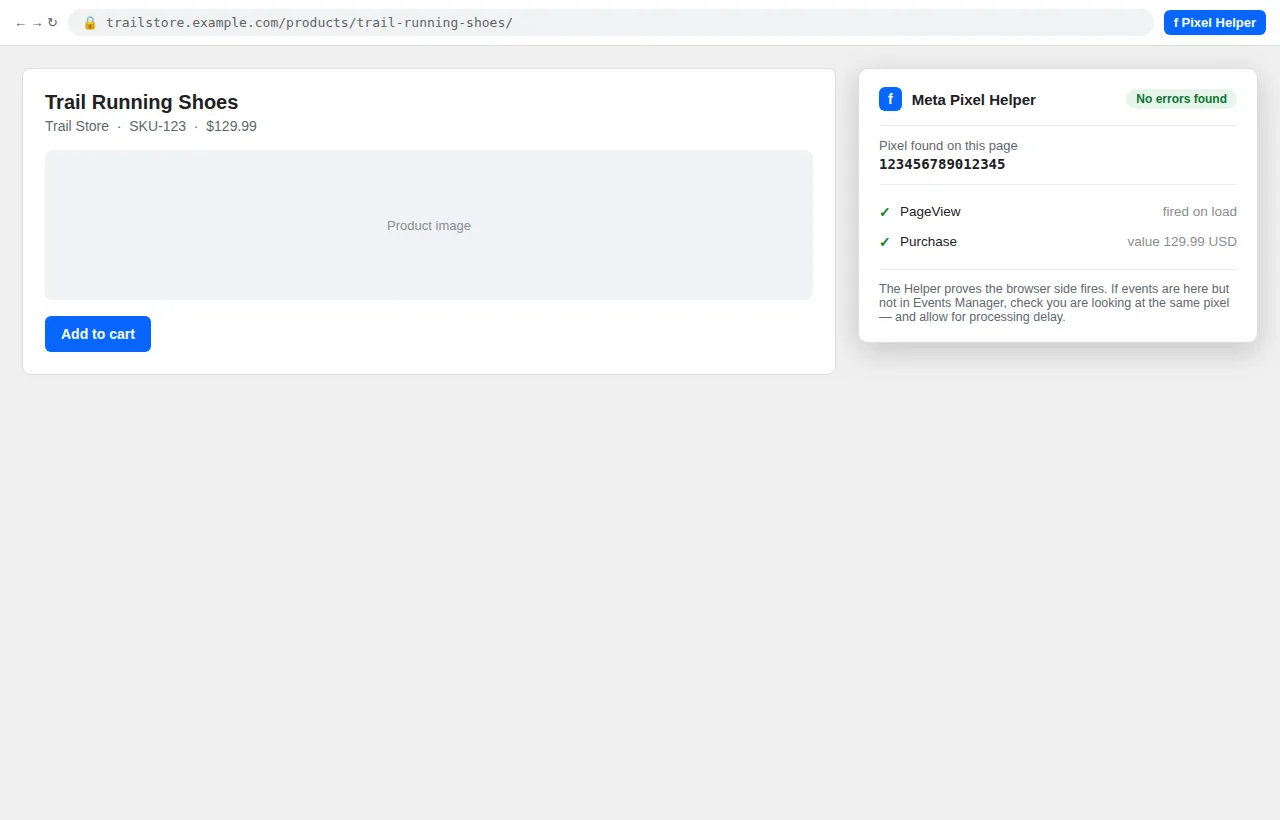
- Check the Pixel Helper on the live site. If it shows the event, the browser is sending it.
- Check the server Preview. If the server tag fires, the server is sending it.
- Compare the two: if one channel works and the other does not, the broken channel is the cause.
- Check the
event_id: if the two copies have different event_ids, they will not deduplicate — and the count will be wrong even when both arrive.
The 8 causes
1. The Pixel is not on the page
Symptom: Test Events shows nothing, the Pixel Helper shows nothing, and the page source has no pixel ID.
Fix: The Pixel is not installed. Check that the Meta Pixel is in GTM, or hardcoded in the theme — and that the container is on the page. If the Pixel is in GTM, check that the tag fires on the right trigger. If it is hardcoded, check that the theme loads it. Then test in Test Events.
2. The browser is blocking the Pixel
Symptom: The Pixel fires for you but not for your users — or it fires in one browser but not another.
Fix: Ad blockers, privacy tools and browser settings block the Pixel for a large share of users. Test in an incognito window with no extensions: if the event appears, an extension is the cause. The server route exists precisely for this — it bypasses the browser entirely. If the server events show and the browser ones do not, the browser is the problem, not the setup.
3. The event is not in the dataLayer
Symptom: The Pixel fires, but the event has no data — or the event never fires at all.
Fix: The Pixel reads its data from the dataLayer. If the event is not pushed, the Pixel has nothing to send. Check the dataLayer in GTM Preview: if the event is missing, the push is the problem — not Meta. The WooCommerce dataLayer guide covers the push chain in detail.
4. The server tag is not firing
Symptom: Browser events show, server events do not — and the server Preview shows no tag fires.
Fix: The server tag is not firing. In the server Preview, check that the client claims the request and the tag fires. If the client does not claim it, the request is not reaching the server container — check the forwarding route. If the tag does not fire, check its trigger. Then test in Test Events: the server copy should appear.
5. The event_id does not match
Symptom: Both copies appear in Test Events, but Ads Manager counts the action twice — or the server copy is missing entirely.
Fix: The two copies have different event_ids, so they do not deduplicate. Generate the event_id once, on the web, and carry it through both channels. The deduplication guide covers the matching rules in detail — the same three fields, event_id, event_name and event_time, have to agree.
6. The event is filtered by Meta
Symptom: The event appears in Test Events but not in Ads Manager — or it appears and then disappears.
Fix: Meta filters events that do not meet its quality standards — or that arrive with missing or invalid data. Check the event’s parameters in Test Events: if the value, currency or content IDs are missing or wrong, Meta may drop the event. Fix the data at the source, then test again. Also check that the event is not being blocked by a consent setting — if consent is denied, Meta will not show the event.
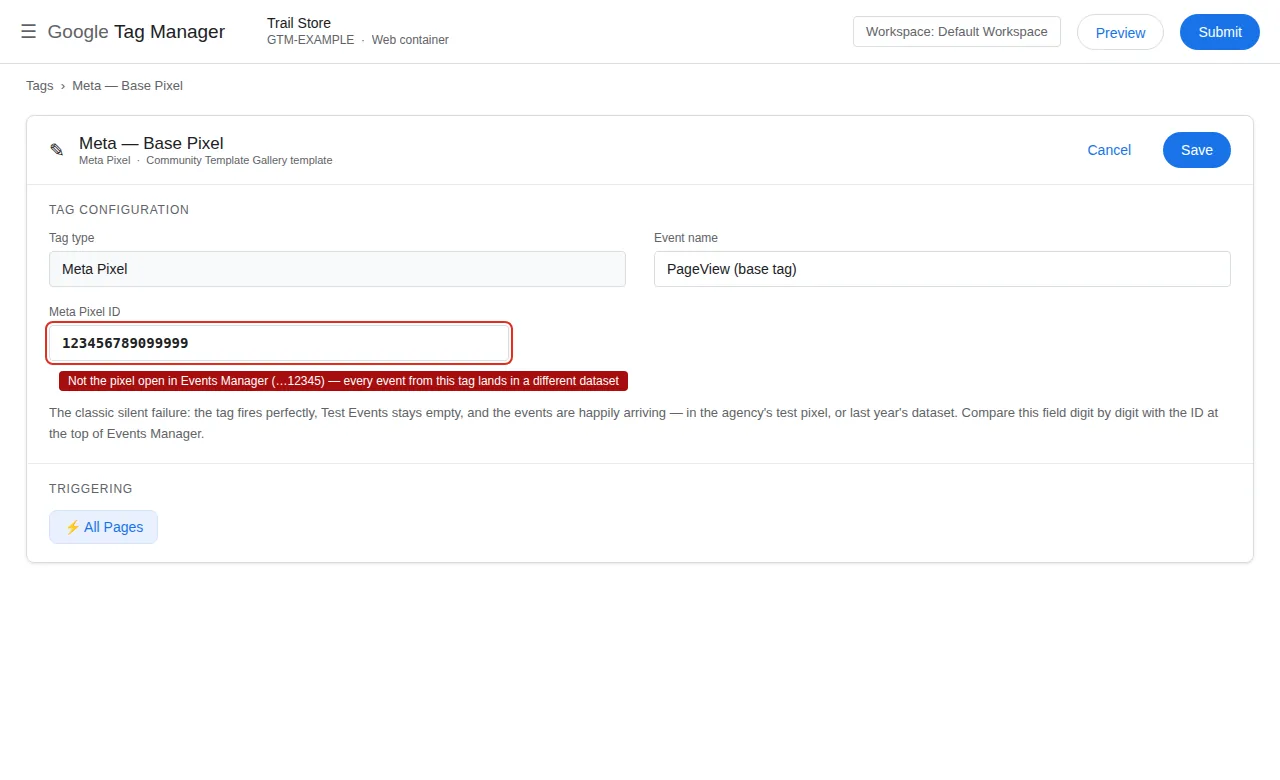
7. The wrong pixel or dataset is being checked
Symptom: The events are being sent, but to a different pixel — or you are looking at the wrong dataset in Events Manager.
Fix: Check the pixel ID in the page source and compare it with the one in Events Manager. If they differ, the events are going to a different pixel. Also check that you are looking at the right dataset — Events Manager shows one dataset at a time, and the events may be in another. Then test: send a test event and watch the right dataset.
8. Consent is blocking the event
Symptom: The events fire for some users but not others — or they fire in Preview but not in live traffic.
Fix: Consent Mode v2 blocks events when consent is denied — and that is correct. If the user has not consented, the event should not fire. Check the Consent tab in Preview: if it shows denied, consent is the cause, not Meta. The Consent Mode guide covers the consent wiring in detail.
What to do when the events show but the numbers are wrong
If the events appear in Events Manager but the numbers are wrong — too high, too low, or inconsistent — the problem is not sending. It is deduplication or filtering:
- Too high: the events are counting twice. Check the
event_id— if the two copies have different IDs, they will not deduplicate. - Too low: the events are being filtered. Check the event data — if the value, currency or content IDs are missing, Meta may drop the event.
- Inconsistent: the events appear and disappear. Check the
event_time— if the server copy arrives too late, it will not deduplicate.
If the numbers are wrong in GA4 as well, the problem is upstream of Meta: the event itself is being sent twice, or the data is wrong. The Preview-vs-GA4 guide covers the GA4 side, and the WooCommerce × Meta hub and WordPress × Meta hub show the finished setup for each platform.
Containers from the builder start clean — a single Pixel, a single CAPI tag, and the event_id wired through both.
Frequently asked questions
Why does Test Events show my event but Ads Manager does not?
Test Events shows what Meta received in the test session; Ads Manager shows what it counted. If the event arrived with missing or invalid data, or outside the deduplication window, Meta may drop it. Check the event’s parameters in Test Events first.
How long does it take for events to appear in Events Manager?
Test Events is near-instant; Ads Manager can take hours. If the event appears in Test Events but not in Ads Manager after a few hours, the problem is not delay — it is filtering or deduplication.
Can I see server events in Test Events?
Yes — Test Events shows both browser and server copies, with their event_ids. If only one copy appears, the other channel is broken. Compare the event_id values: if they differ, the copies will not deduplicate.
My Pixel fires but Events Manager shows nothing. Is the Pixel broken?
Not necessarily — the Pixel may be firing correctly and Meta may be filtering the events. Check Test Events first: if the event appears there, the Pixel is fine and the problem is filtering or consent. If it does not appear, the Pixel is not sending.
Do I need CAPI if the Pixel works?
The Pixel alone is enough for most stores — until ad blockers and browser privacy start dropping a large share of events. CAPI recovers those events from the server. If your browser events are dropping, CAPI is the fix; if they are not, it is optional.
Why do my events show in Preview but not in Events Manager?
Preview shows what the browser sends; Events Manager shows what Meta accepted. If Preview shows the event and Events Manager does not, the event is being filtered — check the event data, the consent state, and the event_id.